
AI video kaise banaye: a beginner guide for Hindi speakers, step by step
AI video kaise banaye? Type or speak what you want, pick a model, and get a short clip in a few minutes. This guide walks Hindi-speaking beginners through the Speak button, a first prompt and the cost, in plain English with Hindi phrases.
· 5 min read · 1.3K views · by the Cortex Digital Hub team
Tap the हिं button, say what you want in Hindi, and check the prompt before you press Generate. From ₹24 a clip · no watermark · runs in your browser
Pehli video banayein → → Opens AI Video Generator · runs in your browser
AI video kaise banaye is the first question most beginners type, and the answer is short: write or say a few lines about one scene, choose a model, press Generate, and a 5-second clip arrives in two to four minutes. The AI Video Generator lets you dictate in Hindi with the हिं Speak button, so you can start with "ek diya, halki hawa, dheere se zoom" and see what happens. This guide is in English, with Hindi phrases where they help.
AI video kaise banaye: the five steps
- Open the AI Video Generator and choose text to video if you have only an idea, or image to video if you have a photo.
- Write or speak the prompt. Tap the हिं button and say one scene aloud, or type it. Read the text that appears and correct any word.
- Pick the model and length. Start with Lumen Motion 3 Standard and 5 seconds.
- Set the format. Choose 9:16 for Reels and Status, 16:9 for YouTube.
- Press Generate. The button shows the exact credit total first. Wait two to four minutes, preview the clip and download the MP4.
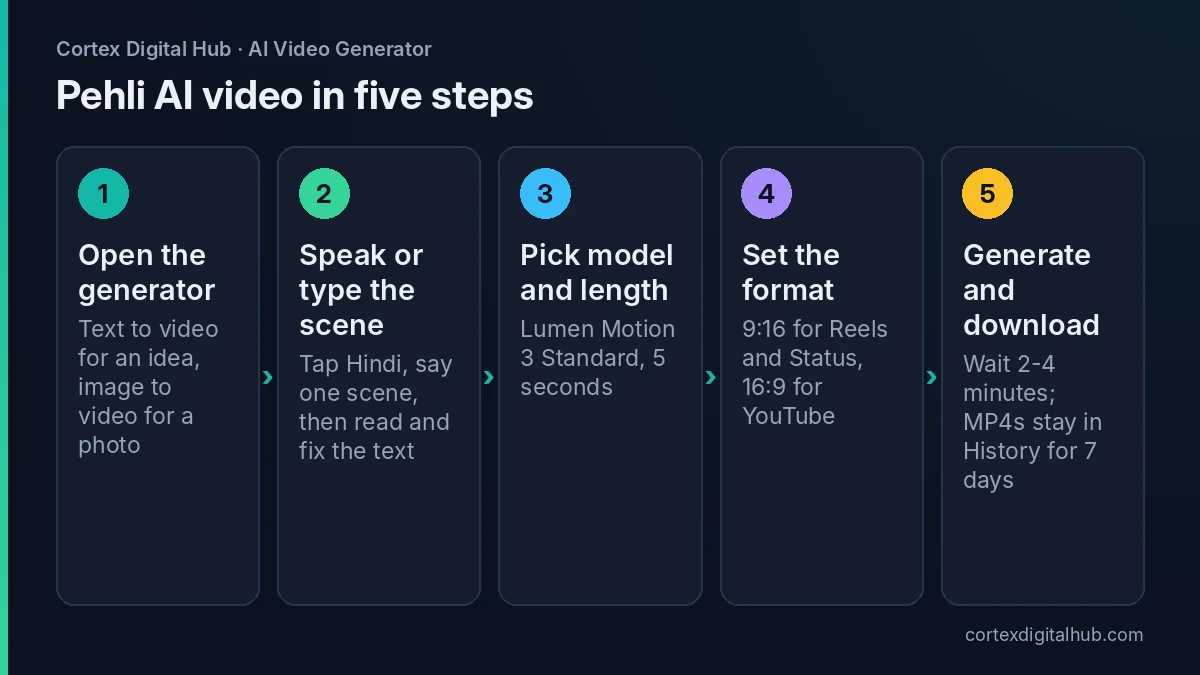 Five steps from a spoken Hindi idea to a downloaded clip.
Kaise bolein: using the Speak button in Hindi
Beside the prompt box you will see a Speak button. It can take dictation in English, हिं Hindi, తె Telugu, த Tamil, ಕ Kannada, म Marathi and US English. Tap it, pick Hindi, and say your scene in one or two sentences. Your words appear in the box as text.
Always read the text before generating. Dictation can mishear a word, and a wrong word becomes a wrong video. If a model gives an odd result from a Hindi prompt, try the same idea in simple English, or press ✨ Improve to polish it. You can also use 📚 Ideas if you are stuck. Hindi and English can sit side by side in the box; the prompt box takes up to 2,500 characters, which is far more than you need.
Your first prompt: ek scene, ek movement
A good first prompt says what is in the frame, what moves and how the camera behaves. Keep it to one subject and one camera move.
| Hindi idea | Simple English prompt |
|---|---|
| ek diya, halki hawa, dheere zoom | A brass diya flame flickering in a light breeze, slow push-in, warm dark background. |
| chai ka glass, bhaap uthti hui | Steam rising from a glass of masala chai on a wooden table, static camera, soft morning light. |
| baarish mein Mumbai ki sadak | A busy Mumbai street in light rain, auto-rickshaws passing, slow tracking shot, evening lights. |
| dukaan ke bahar saree ka board | A saree shop signboard swaying slightly, gentle pan left, bright afternoon sun. |
Start simple, then add detail. A short prompt that works is better than a long prompt that confuses the model. For more patterns see text to video prompts that work.
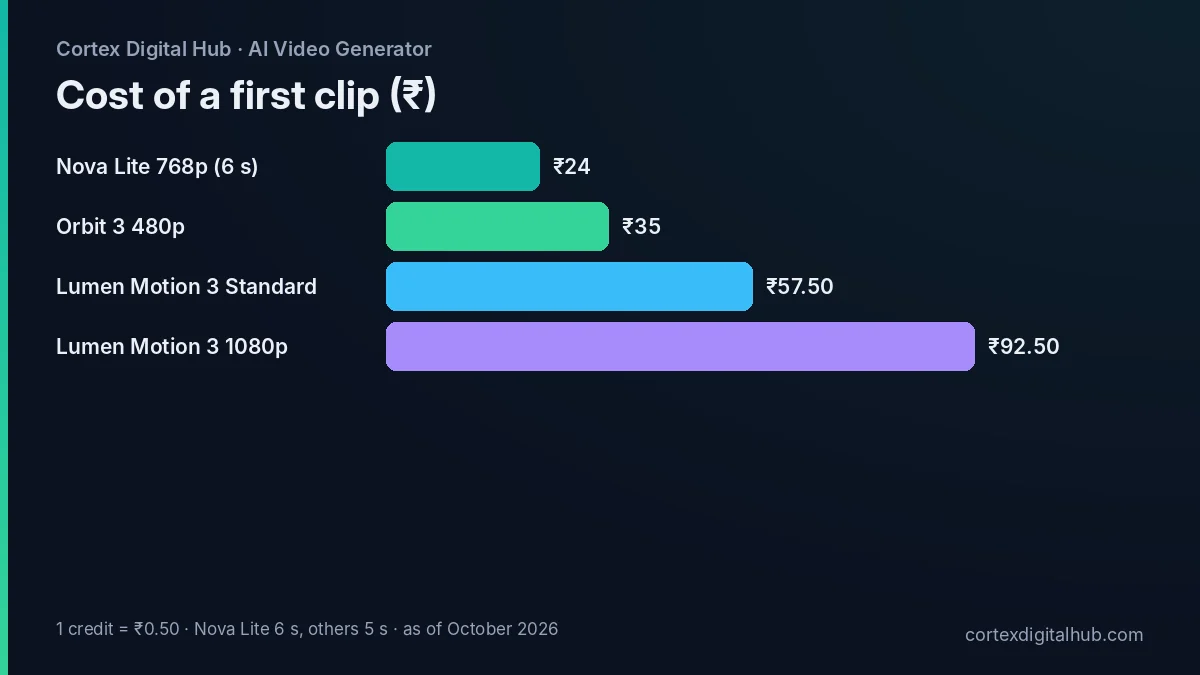 What a first clip costs in rupees on three beginner-friendly models.
Pehli video ka kharch
Credits are billed per second of finished video, and one credit is ₹0.50. You will see the exact total on the Generate button before you spend anything.
- Nova Lite, 6 seconds: 48 credits, ₹24. The cheapest way to test an idea.
- Orbit 3 at 480p, 5 seconds: 70 credits, ₹35.
- Lumen Motion 3 Standard, 5 seconds: 115 credits, ₹57.50.
The ₹249 pack gives 520 credits, about four 5-second clips on Lumen Motion 3 Standard. There is no subscription and no watermark, and credits return if a clip fails. Prices are as of October 2026. The cost guide has the full list.
Kaun sa model chunein?
You do not need to learn all the models on day one. The site's advice is to start with Lumen Motion 3 Standard, a popular all-rounder that handles text to video, image to video and sound. Use a cheaper model while you are still learning what to write.
| Kaam | Model | 5-second cost |
|---|---|---|
| Pehla test | Nova Lite (6 s) | ₹24 |
| Sasta draft | Orbit 3, 480p | ₹35 |
| Roz ka kaam | Lumen Motion 3 Standard | ₹57.50 |
| Bade screen ke liye | Nova 2K | ₹87.50 |
If you are unsure, read which AI video model to choose. Under Advanced you will also find Avoid, which is a place to list what you do not want, such as "blur, extra people, text". Leave Prompt strength at its default of 0.5 until you have made a few clips.
Photo se video: the easier start
If you struggle to describe a scene, upload a photo instead. In image to video your photo is the first frame, and you write only the movement: "halki hawa, dheere zoom in". The look stays close to the photo, and you do not have to describe the room, the product or the shop. A sharp, well-lit photo of a product or a shopfront is a good first try.
After the clip: resize, trim, send
Finished MP4s stay in History for 7 days, so download what you want. Fix the shape for Reels with the free video resizer and follow the Reels resize guide. If you want to send it to a customer, shrink it with the video compressor and read the WhatsApp compression guide. All of these run on your device and cost nothing.
Common beginner mistakes
- Asking for a story with five scenes in one 5-second clip. Make one scene per clip.
- Writing many adjectives and no movement. Say what moves.
- Skipping the draft. Test on Nova Lite or Orbit 3 first.
- Forgetting the sound. Turn Sound off if you will add a song later, on if you want ambience.
- Using a real person's photo without their consent. Always ask first.
When a clip is close but not right, change one thing and run it again: the movement word, the camera phrase or the light. Changing five things at once teaches you nothing. Keep a note of the prompts that worked, in Hindi or English, so you can reuse them for your next shop, festival or Reel.
Key takeaways
- AI video kaise banaye: prompt, model, length, format, Generate.
- The हिं Speak button turns Hindi speech into prompt text; read it before you generate.
- One scene and one camera move per clip give the cleanest results.
- A first test costs ₹24 on Nova Lite; a 5-second clip on Lumen Motion 3 Standard costs ₹57.50.
- There is no watermark, and failed clips return your credits.
- Download within 7 days, then resize and compress for the platform.
Frequently asked questions
AI video kaise banaye bina experience ke?
Open the AI Video Generator, type or speak a short description, pick Lumen Motion 3 Standard, press Generate and wait two to four minutes. You need no editing skills. Start with one subject and one simple movement.
Kya Hindi mein prompt likh sakte hain?
You can dictate with the हिं Speak button and read the text it writes. Results can differ by model, so if a Hindi prompt gives an odd clip, try the same idea in simple English or press Improve to polish it.
Speak button kaise use karein?
Tap Speak, choose हिं Hindi, and say your idea in a sentence or two. The words appear in the prompt box. Read them, fix any wrong word, and then press Generate. Other languages include Telugu, Tamil, Kannada and Marathi.
Pehli AI video banane mein kitna kharch aata hai?
A 6-second test on Nova Lite is 48 credits, which is ₹24. A 5-second clip on Lumen Motion 3 Standard is 115 credits, or ₹57.50. One credit is ₹0.50, and the total shows before you start.
Kya AI video par watermark aata hai?
No. Clips made in the AI Video Generator do not carry a watermark. You can download the MP4 from History within 7 days and post it on Reels, YouTube Shorts or WhatsApp Status.
AI video banane mein kitna time lagta hai?
Usually two to four minutes for a 5 to 10 second clip at 1080p. 4K and 30-second clips can take eight minutes or more. You can leave the page, because clips in progress finish on their own.
Photo se video kaise banate hain?
Choose image to video, upload your photo as the first frame, and describe only the movement, such as 'slow push-in, light breeze'. Your photo fixes the look, so the result stays close to what you uploaded.
Kaun sa model beginners ke liye sahi hai?
Start with Lumen Motion 3 Standard, the all-rounder. Use Nova Lite or Orbit 3 for cheap drafts and Nova 2K or Vela 2.5 at 1080p for finals that will be shown on a large screen.
Kya failed video ke paise katte hain?
No. Credits are deducted when a clip starts and are returned automatically if it fails or the model declines the prompt. The Generate button shows the exact total before you press it.