
AI video negative prompt: how to use the Avoid field, with examples
An AI video negative prompt tells the model what to keep out of the clip, and in the AI Video Generator it lives in the Avoid field under Advanced. This guide covers what to list, what Avoid cannot fix and how to test it for under ₹100.
· 5 min read · 1K views · by the Cortex Digital Hub team
Open Advanced, type a short list in Avoid, and compare two drafts side by side on a cheap model before you spend on the final. From ₹24 a clip · no watermark · runs in your browser
Try the Avoid field → → Opens AI Video Generator · runs in your browser
An AI video negative prompt is a short list of things you want left out of the clip, and in the AI Video Generator it goes in the Avoid field under Advanced. Use plain words for the problem you keep seeing, such as blurry, extra fingers or text, and keep the list to five to ten items. It helps nudge the result. It does not guarantee anything.
What does the Avoid field do?
When you describe a clip, the model reads your words as a target. Avoid adds a second instruction: stay away from these things. If your last three drafts all came out with a soft, hazy picture, adding blurry, low quality to Avoid pushes the model toward sharper results.
Think of the main prompt as "what to make" and Avoid as "what to steer around". Avoid does not add details, change the camera, or fix a bad idea. It does not change price either: credits are billed per second of finished video, at 1 credit = ₹0.50, whatever is in the box.
Where to find Avoid and how it fits with other settings
Open Advanced under the main settings. You will see Avoid, Prompt strength (default 0.5), Seed (optional) and the option to let the model expand your prompt. Each setting does a different job:
- Avoid removes unwanted traits.
- Prompt strength controls how closely the model follows your words.
- Seed helps you repeat a result.
- Let the model expand my prompt adds detail to a short prompt.
Change one at a time, or you will never know which one helped.
What should I put in an AI video negative prompt?
Pick words that match the problem you can see in your drafts. These lists are starting points:
| Problem you see | Try in Avoid |
|---|---|
| Soft, hazy picture | blurry, low quality, out of focus |
| Messy hands | extra fingers, deformed hands, extra limbs |
| Shaky motion | shaky camera, jitter, flicker |
| Odd faces | distorted face, warped features |
| Unwanted lettering | text, subtitles, watermark, logo |
| Cluttered frame | crowd, clutter, extra objects |
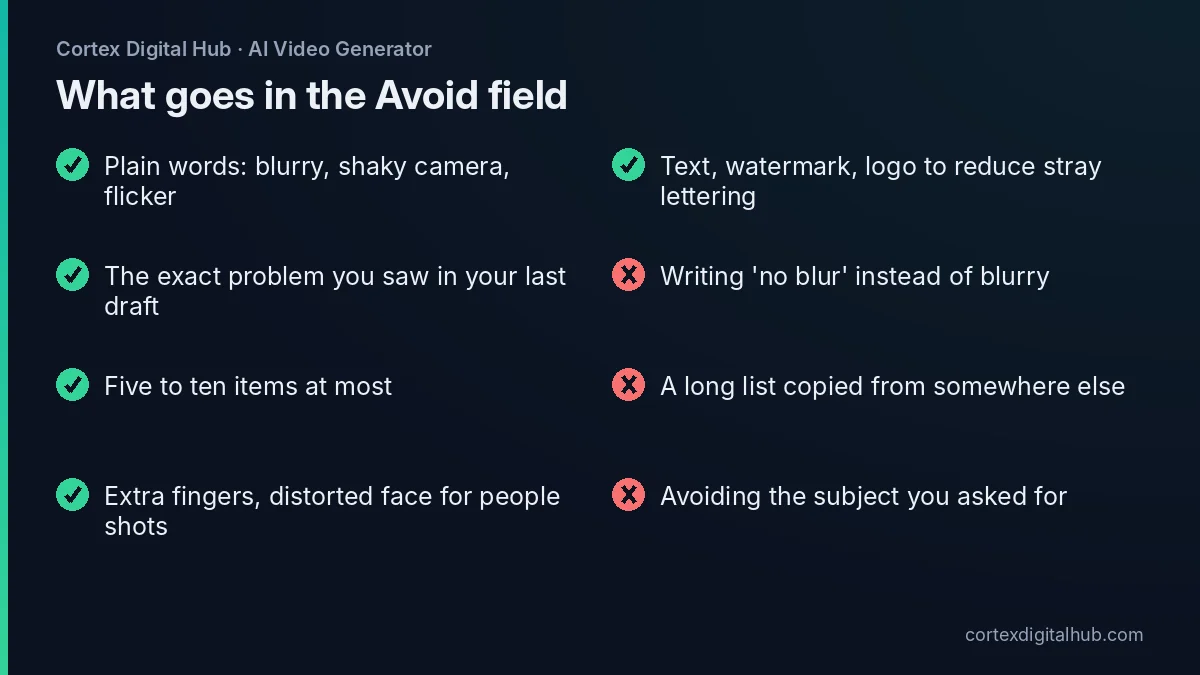 Short, specific words work better than long lists or sentences full of negatives.
A tidy example for a product clip: main prompt A steel water bottle on a marble counter, slow orbit to the right, soft morning light, Avoid blurry, text, logo, shaky camera, extra objects. This tells the model what you want and keeps stray labels from appearing on your bottle.
What a negative prompt cannot fix
Avoid has limits, and knowing them saves you money.
| Issue | Does Avoid fix it? | What to do instead |
|---|---|---|
| Morphing, melting shapes | Rarely | Simplify the scene, shorten the clip |
| Wrong subject or setting | No | Rewrite the main prompt |
| Real text such as a price | No | Add text in an editor |
| Inconsistent character | No | Use 2 to 4 reference images |
| Wrong camera move | No | Use a camera preset or name the move |
| Slow or dull motion | No | Describe what moves and how fast |
If you see the same artefact in three runs, change the prompt or the model rather than adding more words to Avoid. A long Avoid list can cancel out parts of what you want. For example, Avoid people on a street scene may also thin out the crowd you asked for.
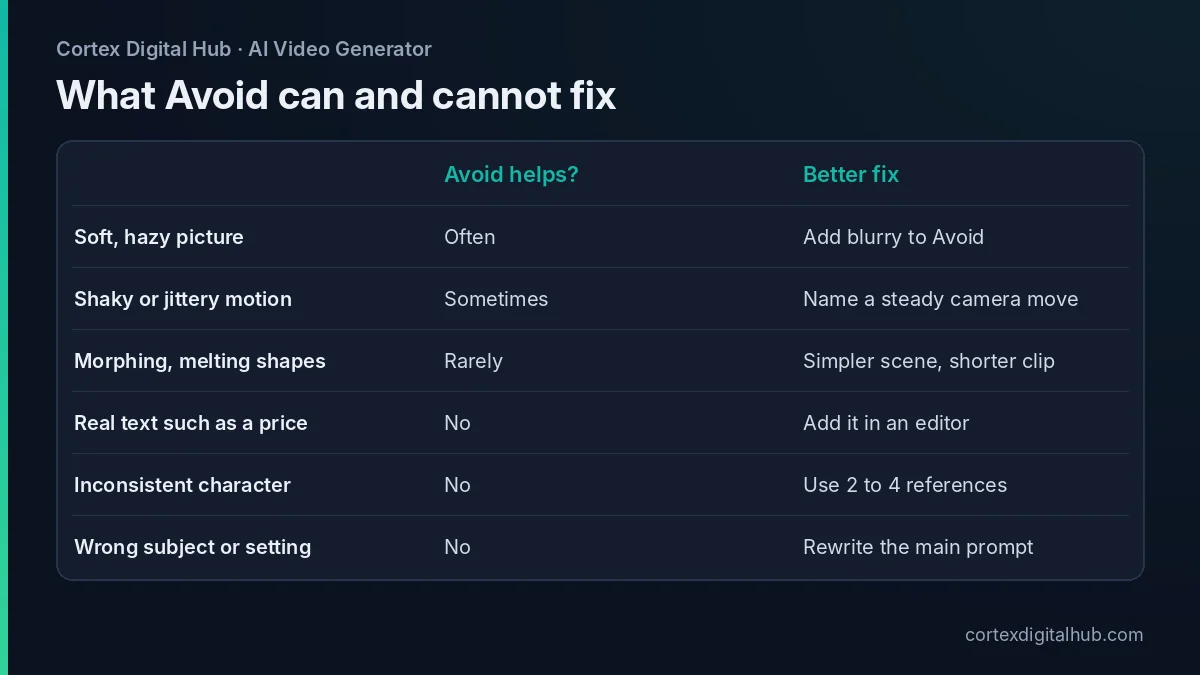 Avoid steers the look; story, text and character problems need a different fix.
How do I test if my AI video negative prompt helped?
Test it the cheap way, with two runs of the same prompt on the same model.
- Choose Orbit 3 at 480p, 5 seconds. Each run is 70 credits, or ₹35.
- Run once with Avoid empty.
- Run again with your list filled in. Keep Prompt strength and every other setting the same.
- Put the two clips side by side and compare sharpness, hands, flicker and stray text.
The pair costs ₹70 as of October 2026. If you also set a fixed Seed, the two runs start from the same point, so the difference is more likely to come from Avoid. That makes the test fair. Finalise on Lumen Motion 3 Standard (₹57.50 for 5 seconds) once the prompt and Avoid list work. The post on text-to-video prompts that work covers the main prompt side of this.
Example Avoid lists for common jobs
Keep a small note of lists that worked, one per kind of clip, so you are not starting from nothing each time.
- Food and festival clips:
blurry, text, extra hands, melted shapes, flicker. Say a sweet shop in Jaipur wants a ladoo close-up: the main prompt carries the ladoos, steam and soft light; Avoid keeps stray lettering off the tray. - Real estate walkthroughs:
shaky camera, warped walls, people, text, clutter. Straight lines matter here, and a steady camera move keeps them straight. - Portrait or fashion clips:
distorted face, extra fingers, blurry, flicker. Use only your own photos or people who have agreed. - Landscape and travel:
text, watermark, people in foreground, oversaturated.
Change the list when the problem changes. If hands are fine, leave hand terms out and keep the list short.
Avoid with image to video
When you start from a photo, the first frame is fixed, so your Avoid list works on the motion rather than the look. Useful entries are shaky camera, flicker, warping, sudden zoom. If the photo already contains the subject you want, do not add that subject to Avoid. See image to video: animate a photo with AI for how the start frame behaves, and how the generator works for the settings overall.
After the clip: finishing tools
Once you have a clean clip, cut it with the free trim video tool, and reduce the file size with the video compressor if it needs to go on WhatsApp. The guide to sending video larger than 16 MB on WhatsApp explains the limits and workarounds.
Key takeaways
- The Avoid field is under Advanced; it is optional and does not change the price.
- Use plain words for the problem you actually see: blurry, shaky camera, extra fingers, text, watermark.
- Keep the list to five to ten items; write the thing, not "no" plus the thing.
- Avoid nudges, it does not guarantee. Morphing, wrong subjects and real text need other fixes.
- Test with two cheap runs on Orbit 3 at 480p (₹70 for the pair) before the final.
Frequently asked questions
What is a negative prompt in AI video?
A negative prompt is a list of things you do not want in the clip, such as blur, text or extra limbs. In the AI Video Generator it is the Avoid field, found under Advanced settings below the main prompt.
Where is the Avoid field in the AI Video Generator?
Open Advanced under the settings. The Avoid box sits there next to Prompt strength, Seed and the option to let the model expand your prompt. It is optional, and you can leave it empty.
What should I put in the Avoid field?
Short, plain words for the specific problem you keep seeing: blurry, shaky camera, extra fingers, distorted face, text, watermark, flicker. Five to ten items is plenty. Long lists dilute the instruction.
Does a negative prompt guarantee the problem is gone?
No. It nudges the model away from things but cannot guarantee it. Treat it like a seatbelt, not a fix. If a problem persists, change the main prompt, simplify the scene or try another model.
Should I write 'no' in the Avoid field?
No. Write the thing itself, such as blurry, text, extra fingers, rather than 'no blur'. Words in the Avoid field are already treated as things to avoid, so adding 'no' can confuse the instruction.
Can I use Avoid to remove text from my video?
Adding text or watermark to Avoid reduces the chance of garbled lettering appearing, but it is not reliable. For real text such as an offer or a price, add it afterwards in a video editor.
Does Avoid change the price of a clip?
No. Credits are billed per second of finished video at the model's rate, so using or skipping Avoid does not change the total shown on the Generate button. Failed clips are refunded automatically.
How do I test whether my negative prompt helped?
Generate the same prompt twice on a cheap model, once with Avoid filled and once empty. Keep every other setting the same. If the Seed field is set to a fixed number, the comparison is fairer.