
Meeting recording to text, then to notes your team will read
Turn a meeting recording to text in your browser, then into half a page of notes: decisions, owners and dates. Works for Hindi, Telugu, Tamil, English and mixed meetings, and the recording is never uploaded.
· 5 min read · 518 views · by the Cortex Digital Hub team
Drop the meeting's MP4 or M4A, type attendee and project names, and get the words as spoken with an English version beside them. Free · no sign-up · runs in your browser, nothing uploaded
Transcribe a meeting → → Opens Voice to Text · runs in your browser
The weekly review ran for an hour, three people promised three things, and by Monday nobody remembers who said "I'll send it by Thursday." A recording helps, but nobody wants to play an hour of audio to find one sentence. Turning the meeting recording to text in Voice to Text gives you every word on screen, searchable and timed. From there, writing half a page of notes is a short job. The recording stays on your laptop the whole time.
First, the courtesy that makes all of this fair: say at the start that you are recording, and check that everyone is fine with it.
What the tool does and what you do
It helps to be clear about the split of work.
Voice to Text gives you:
- Every word as spoken, in the speaker's own script, with an English version beside it.
- Lines with times, where clicking a time plays that part again.
- A .txt download of both versions, and a subtitles (.srt) file if you need one.
You add:
- Who said what. The transcript does not label speakers.
- The decisions, owners and dates, which is what people actually read.
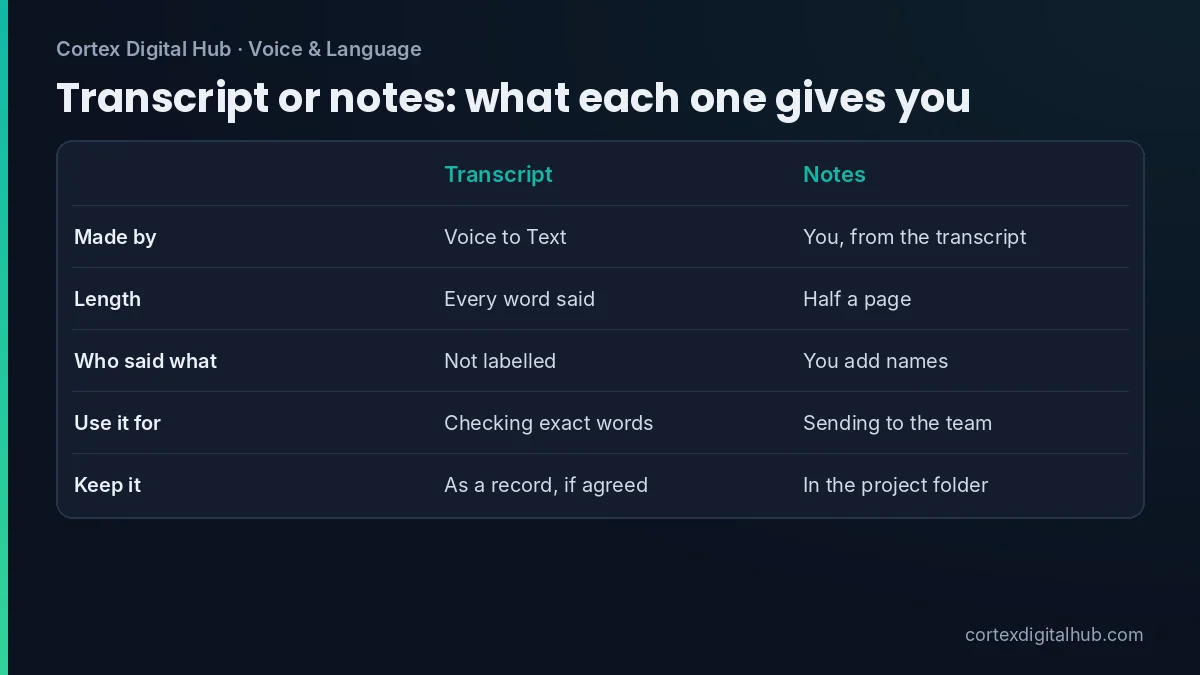 The transcript is the full record; the notes are the half page your team reads.
Get the recording ready
Most meeting apps let the host save a recording, often as an MP4 video or an M4A audio file. A phone on the table gives you an M4A or similar. Voice to Text reads MP4, MOV, MKV, WebM, M4A, MP3, WAV, AAC, OGG and more, so you can usually drop the file as it is.
Two small jobs make the transcript cleaner and faster:
- Cut the small talk. The first five minutes of "can you hear me?" add nothing. Video to MP3 shows the sound as a waveform, so you can drag the handles to keep only the meeting and save a small MP3. For a video file you want to keep as video, use Trim Video.
- Split a very long meeting. Make two or three MP3s from the same file with different sections selected. Voice to Text takes up to 10 files at once.
Turn the meeting recording to text, step by step
- Open Voice to Text in Chrome or Edge on a laptop.
- Pick Accurate for meetings in Hindi, Telugu, Tamil or other Indian languages: about 565 MB with graphics acceleration in the browser, about 760 MB without it. Pick Light (about 250 MB) for English-only meetings on an older computer. The engine downloads once.
- Leave Spoken language on Detect automatically. Most Indian office meetings mix languages, and the language is detected for each part.
- In Names to expect, type the attendees, the client, the project and any product names. They will be spelled the way you typed them.
- Drop the file and let it work. Speed depends on your device.
- Use Before you copy: fix names, numbers, amounts and dates, and replay unclear lines.
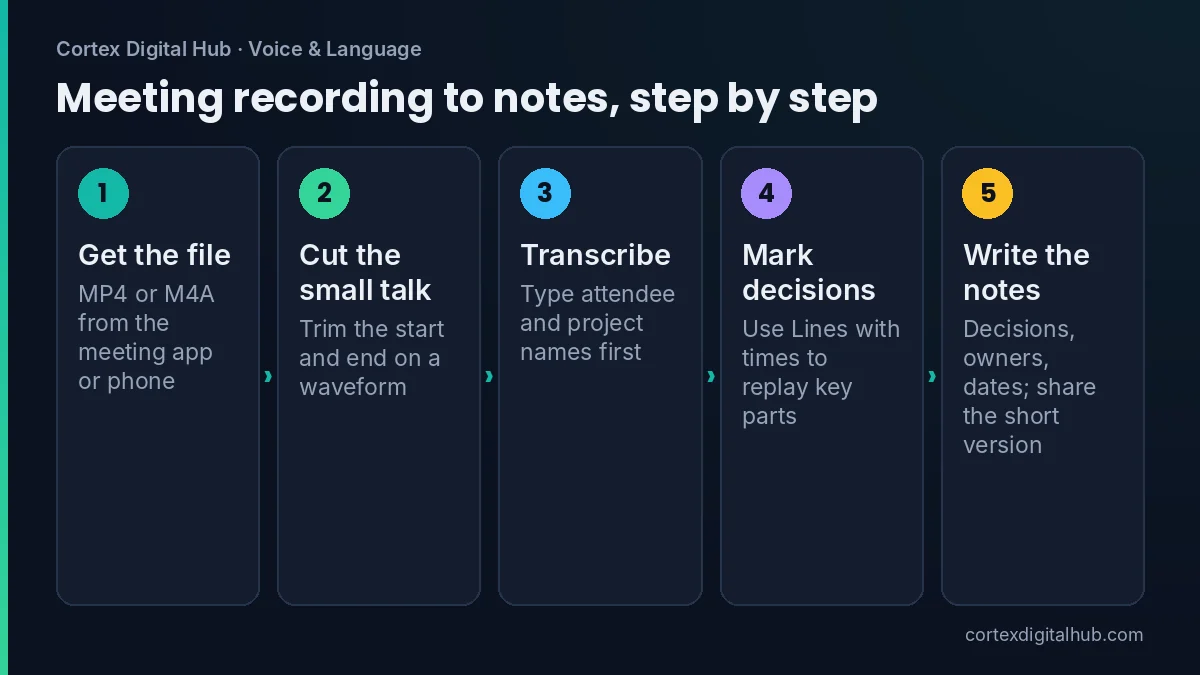 Get the file, cut the small talk, transcribe, mark decisions, write the notes.
From transcript to notes your team will read
Download the .txt and open it beside a blank page. Then search the transcript for words that signal a decision or a task: "decided", "final", "will send", "by Friday", "deadline", and their Hindi or Telugu equivalents in the As spoken box.
Write the notes in this shape:
| Section | What goes in it | Example |
|---|---|---|
| Decisions | What was agreed, in one line each | Brochure goes to print with the new floor plans |
| Actions | Task, owner, date | Ravi: send revised quote to client by 14 Nov |
| Open questions | What still needs an answer | Budget for the December campaign |
| Next meeting | Date and the one thing to review | 21 Nov, check print proofs |
When a line is unclear, open Lines with times and click its time to hear it again. That is much faster than scrubbing through an hour of audio.
Check numbers and names before you send
Meetings are full of figures said quickly: budgets, quantities, dates, phone numbers. Speech engines slip most on exactly these. Replay every line with a number in it before it goes into the notes. Accuracy also depends on the audio: people far from the microphone, two people talking at once, or a fan overhead all make mistakes more likely.
For Kannada meetings, pick Kannada as the language and review carefully; results are weaker today than for Hindi, Telugu or English.
Record the next meeting so it transcribes better
The best fix for a messy transcript happens before the meeting starts:
- Put the phone in the middle of the table, not at one end. Everyone should be roughly the same distance from it.
- Turn off the fan or AC blower near the phone if you can. Steady noise blurs short words.
- One person at a time. When two people talk over each other, both lines suffer. A chair who says "one at a time" helps the notes as much as the meeting.
- Online meetings: ask people to mute when they are not speaking, and use the app's own recording rather than a phone held near a laptop speaker.
- Say decisions out loud. End each topic with a clear line like "So, decided: Ravi sends the quote by Thursday." That sentence is easy to find in the transcript later.
- Spell unusual names once. If a new client or product comes up, say it clearly, and add it to Names to expect before you transcribe.
None of this needs new equipment, and it makes the notes job noticeably quicker.
Mixed-language meetings
A Hyderabad team meeting might run in English with Telugu side comments and a Hindi aside from the Delhi office. Because the language is detected for each part, each part comes out in its own script, and the English box gives the whole meeting in English. If a part switches language mid-sentence, read it once against the audio. The Hinglish voice note to text post explains how mixed speech is handled.
Keep meeting records private
Meetings carry plans, prices and sometimes personal matters. Voice to Text reads the recording on your device; nothing is uploaded, stored on a server, or tied to an account. Our post on why browser-based tools are safer than upload sites explains why that matters. Share the full transcript only with people who were in the meeting or need it, and send everyone else the short notes.
For one-to-one phone conversations, see call recording to text. For recorded presentations and walkthroughs, see video to text.
Watch the video
The voice note you can't play in a meeting · 1:19 · Watch on YouTube
Frequently asked questions
How do I convert a meeting recording to text for free?
Drop the recording into Voice to Text on Cortex Digital Hub. MP4, M4A, MP3, WAV, WebM and other common formats work. The words appear as spoken with an English version beside them, ready to copy or download.
Will the transcript say who spoke?
No. You get the words line by line with times, not speaker labels. When you write the notes, add names to the decisions and actions yourself.
Does it summarise the meeting?
No. It gives you the full text. The notes, with decisions, owners and dates, are yours to write, and the transcript makes that quick because you can search it and replay any line.
Our meetings mix Hindi and English. Will that work?
Yes. The spoken language is detected for each part of the recording, and the English box gives the whole meeting in English.
Is the meeting recording uploaded?
No. The recording is read on your device inside the browser. Only the speech engine is downloaded, once.
Should I tell people the meeting is being recorded?
Yes. Say so at the start and make sure everyone is fine with it. Share the recording and transcript only with people who need them.
The meeting is long. How do I speed things up?
Cut the small talk at the start and end with Video to MP3 or Trim Video, and transcribe only the part you need. A laptop with graphics acceleration in the browser is also much faster than a processor-only one.