
AI video seed and prompt strength explained: what to change and when
An AI video seed is a number that sets the starting point of a clip, so a prompt can be repeated or compared fairly. Here is what Seed, Prompt strength and the expand-my-prompt toggle each do, and a three-run test that costs ₹105.
· 5 min read · 835 views · by the Cortex Digital Hub team
Open Advanced, set a Seed, and change one setting at a time on a cheap model so you can see what each one does. From ₹24 a clip · no watermark · runs in your browser
Try the Advanced settings → → Opens AI Video Generator · runs in your browser
An AI video seed is a number that sets the starting point of a clip. With the same prompt, model and settings, reusing the same seed tends to give a similar result, so you can change one thing and see what that change did. The AI Video Generator keeps Seed, Prompt strength and the expand toggle under Advanced. All three are optional.
What is an AI video seed?
Every generation starts from noise, a random pattern the model gradually shapes into a clip. The seed picks that starting pattern. Leave Seed empty and each run starts from a new random one. Type a number and the starting pattern is fixed.
That is useful for one reason: fair comparison. If you run a prompt, change a word, and run it again with a random start, you cannot tell whether the difference came from your word or from luck. With the same Seed, the start is the same, so the change is more likely the cause.
A caution: results are not guaranteed to match exactly. Different models, lengths or resolutions can change the outcome even with the same number.
What do the three Advanced settings do?
| Setting | What it does | Change it when |
|---|---|---|
| Seed | Fixes the random starting point | You are comparing two versions, or want a repeat |
| Prompt strength (default 0.5) | How closely the clip follows your words | The clip ignores your prompt, or looks stiff |
| Let the model expand my prompt | Adds detail to a short prompt | You only have a few words and want richness |
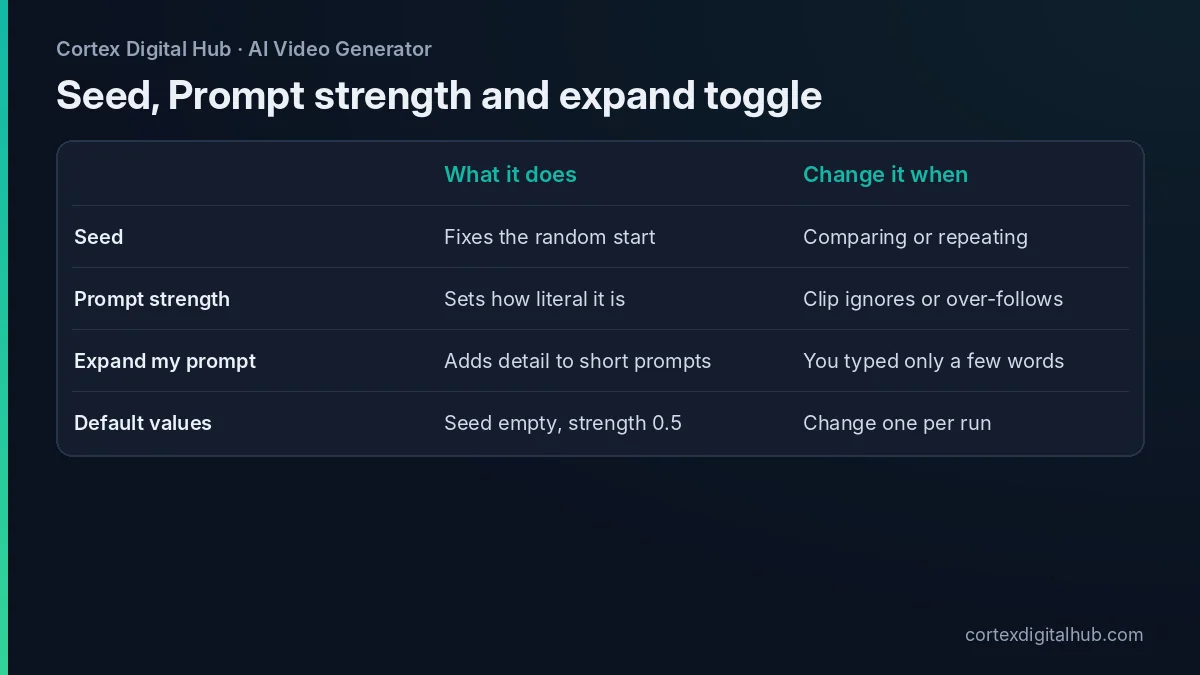 Seed gives repeatability, Prompt strength gives obedience, and the expand toggle gives extra detail.
The settings are separate, so change one per run. If you change Seed and Prompt strength together, you will not know which one helped.
When should I change the seed?
Think of the seed as a dice roll you can lock.
- Lock it while you are testing a change in the prompt, the Avoid list, the camera or the model.
- Change it when the prompt is right but the clip has a flaw, such as a strange hand or a flicker. A new start often removes it.
- Write it down when you get a clip you like, along with the prompt and model, so you can come back to it.
Do not expect a seed to hold a character steady across different scenes. For that, use 2 to 4 reference images, as explained in consistent characters with reference images.
How does Prompt strength change the result?
Prompt strength decides how much weight the model gives your words compared with its own tendencies. The default is 0.5. A higher setting makes the clip follow your description more literally; a lower one gives the model more freedom, which can look more natural or more surprising.
Practical use:
- Start at 0.5.
- If the clip drifts away from what you wrote, raise it a little.
- If the clip feels stiff or over-literal, lower it a little.
- Keep changes small and re-run with the same Seed.
The exact effect differs between models, so treat any rule of thumb as a starting point and check it on your own prompt.
Should I turn on "Let the model expand my prompt"?
This option lets the model write extra detail around your short prompt: light, texture, movement. It helps when you type five words and want something richer. It hurts when you have a precise idea, such as "locked camera, the lamp flame flickers", because added detail can change the move or add objects.
A simple rule: precise prompt, toggle off. Short prompt, toggle on. If you want help writing a better prompt yourself, the Improve button polishes it and you can read the result before you generate. The guide to text-to-video prompts that work covers the main prompt.
A three-run test that costs ₹105
Run this once and you will understand the settings better than any explanation.
- Pick one simple prompt, such as
A brass diya on a rangoli floor, flame flickering, slow push-in, warm low light. - Choose Orbit 3, 480p, 5 seconds. Each run is 70 credits, or ₹35. Set Seed to a number, say 42.
- Run 1: the prompt as written, Prompt strength 0.5.
- Run 2: same Seed, Prompt strength raised a little.
- Run 3: same Seed and strength, with the expand toggle on.
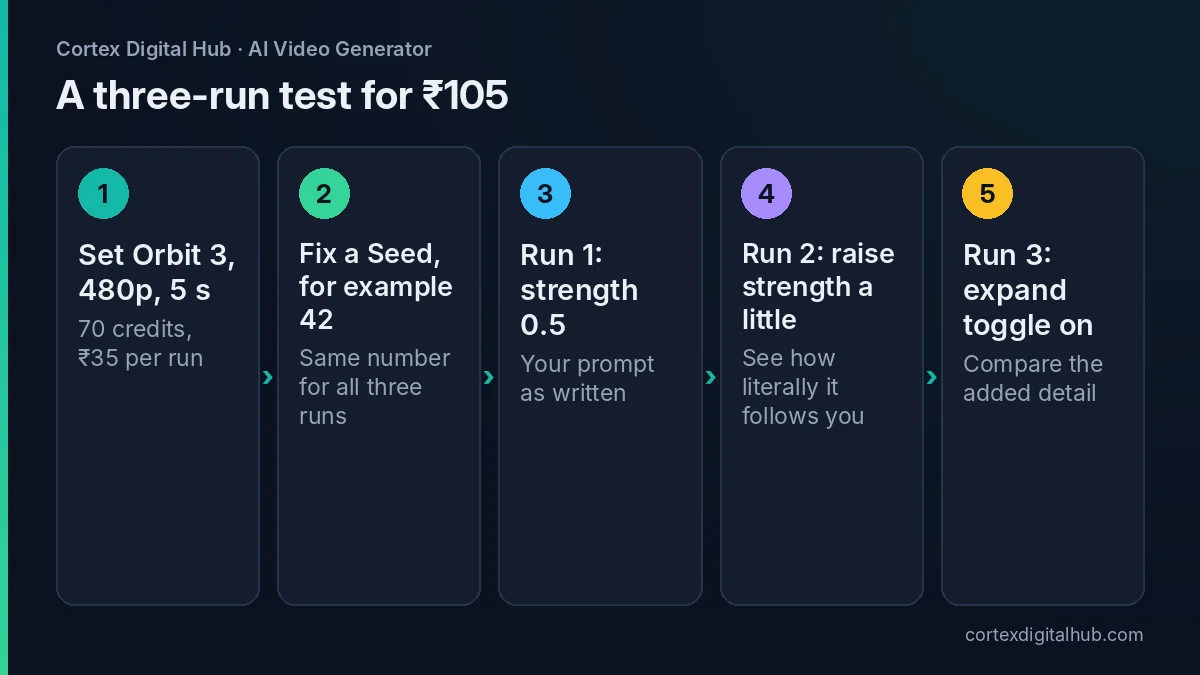 Three drafts with one change each show what every setting does for ₹105.
That is ₹105 as of October 2026. Put the three clips side by side. Then repeat the best settings on Lumen Motion 3 Standard (₹57.50 for 5 seconds) for the final. See which AI video model to choose for when to move up, and how an AI video generator works for the other controls.
Do all models respond the same way?
No, and it is worth saying plainly. The models in the generator are built differently, and a setting that makes a visible difference on one may do little on another. Reference images, first and last frame inputs and a start photo also pull the result in their own direction, which can make Seed and Prompt strength matter less.
So run the test above on the model you plan to use for the final, not just the cheapest one. If a setting seems to have no effect on that model, leave it at the default and put your effort into the prompt, the start image and the Avoid list instead. Those three usually change a clip far more than any slider.
After the test: keep a settings log
Keep a small note for each project: prompt, model, length, resolution, Seed and Prompt strength. When a client asks for "the same, but with a red saree", you can change one word and keep the rest. Finished clips stay in History for 7 days, so download the keepers and trim them with the free trim video tool. If you need the clip in another format, the video converter works on your device.
Key takeaways
- Seed fixes the random starting point, so you can compare two prompts fairly; results are close, not guaranteed identical.
- Leave Seed empty for variety, lock it while testing, and change it to escape a flaw.
- Prompt strength (default 0.5) sets how literally the clip follows your words; adjust in small steps.
- Turn "expand my prompt" on for short prompts and off for precise ones.
- A three-run test on Orbit 3 at 480p costs ₹105; change one setting per run.
Frequently asked questions
What is a seed in AI video?
A seed is a number that sets the random starting point for a clip. With the same prompt, model and settings, using the same seed tends to give a similar result, which makes comparing changes fair. Leave it empty for a random start.
Does the same seed always give the same video?
Not guaranteed. Results can still differ when the prompt, model, length, resolution or other settings change, and models may not reproduce a clip exactly. Treat the seed as a way to get close, not a promise.
What does Prompt strength do?
Prompt strength controls how closely the model follows your written prompt. The default is 0.5. Higher values push it to follow your words more literally, and lower values give it more freedom. Change it in small steps.
What does 'Let the model expand my prompt' do?
It lets the model add detail to a short prompt before generating, such as lighting and texture. It helps when you only have a few words, and hurts when you need an exact camera move or object, which the extra detail can change.
When should I change the seed?
Change it when you like the prompt but want a different version, or when a clip has a flaw that disappears on a new start. Keep it fixed when you are testing a change to the prompt or a setting.
Does Seed or Prompt strength change the price?
No. Credits depend on the model, length and resolution, billed per second at 1 credit = ₹0.50. The exact total shows on the Generate button before you start, and failed clips are refunded.
Should I leave Prompt strength at the default?
Usually yes. Start at 0.5 and adjust only if the clip ignores your prompt or feels stiff. Change one setting per run, so you can tell what made the difference.
What is the cheapest way to learn these settings?
Run the same prompt three times on Orbit 3 at 480p, changing only one setting each time. At 70 credits per 5-second clip that is ₹105 in total, as of October 2026.