
Put a password on a PDF before you send it by email or chat
Daniela's letting agent wanted payslips, bank statements and a passport copy by email, and she had no idea how many inboxes they would pass through. How to protect PDF with password in the browser, with AES-256, what the print and copy switches really do, and how to send the password.
· 5 min read · 576 views · by the Cortex Digital Hub team
Drop one or several PDFs, type a password twice, choose whether people may print, copy or edit, and download copies that ask for the password. Each copy is checked after locking. Free · AES-256 · nothing uploaded
Lock your PDF → → Opens Protect PDF · runs in your browser
Daniela Costa was moving from Lisbon to Manchester for a new job, and the flat she liked came through a letting agency that worked entirely by email. Send three months of payslips, three months of bank statements, a passport copy and your employment contract, the agent wrote, and we will start the referencing. Daniela had them all as PDFs. What bothered her was the trail: the agent's inbox, the referencing company, the landlord, maybe a colleague covering a holiday, and copies that would sit in all of those for years. Her brother, who works in IT, told her to protect PDF with password before sending anything, and to give the password on a phone call. It took her less time than finding the contract.
Why an inbox or a chat is not a safe place for documents
Email and chat apps protect files on the way, more or less. None of them protect the file once it arrives. It sits in the recipient's inbox, downloads folder and phone gallery. It can be forwarded to a colleague, a third party or the wrong person by mistake, and it is backed up wherever their devices back up. That is true whether the file travels by email, WhatsApp, Telegram, Messenger or a shared drive.
A password on the PDF travels with the file. Wherever it is forwarded, it opens only for people who also have the password. That is the whole idea.
Which files deserve a password? Anything with your ID numbers, bank details, salary or tax information: payslips, tax returns, bank and card statements, passport and ID copies, contracts and property papers. A menu or a party invitation does not need one. A fair test is to ask whether you would be comfortable if this file reached a stranger.
How to protect PDF with password, step by step
Daniela did this on her laptop the night before sending.
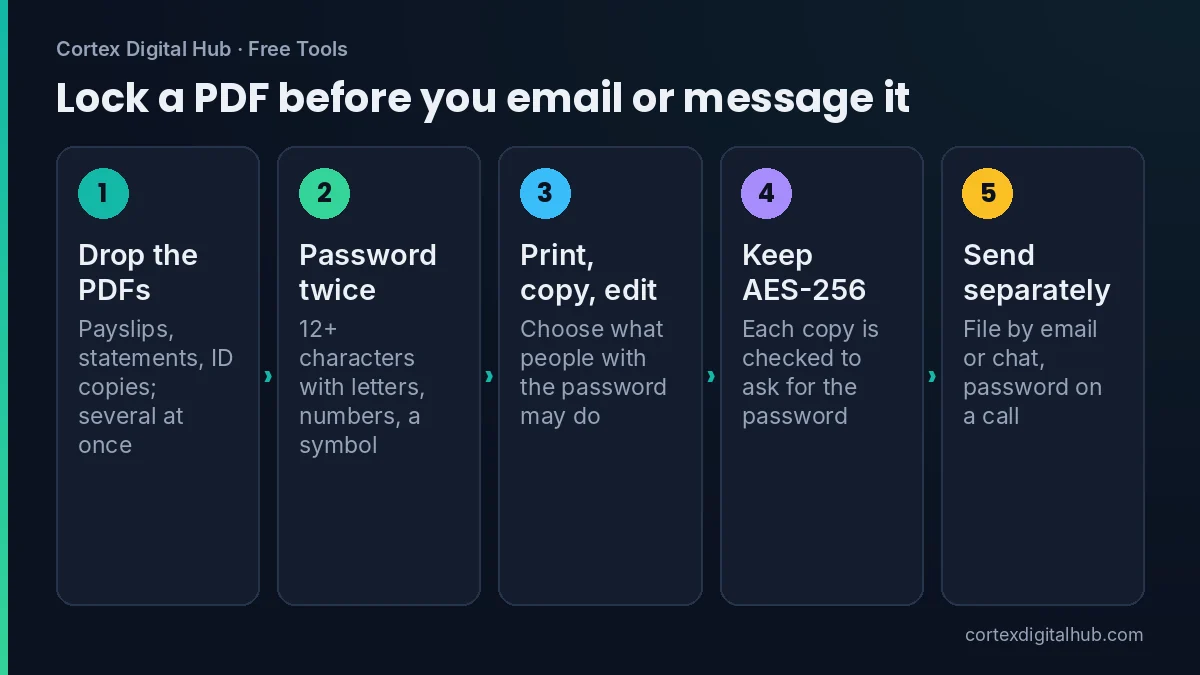
- She opened Protect PDF and dropped in all eight files at once. The page said "8 files ready to protect."
- She typed a new password, then typed it again in the second box. The strength hint under it said "Short" until she made it longer, then "Strong" at 14 characters with a mix of letters, numbers and a symbol.
- Under People who open it may, she left Print it and Copy text on, because the agency would need to print them, and left Edit it off, which is the default.
- Encryption stayed on AES-256 (recommended). AES-128 is there only for very old PDF readers.
- She pressed Protect PDF. Each file was locked and then checked: the tool opens every protected copy to confirm it really asks for the password before it lets you download.
- She pressed Download all (ZIP), attached the files to her reply, and called the agent with the password.
Choosing a password and sending it
A strong password means little if it travels in the same message as the file. The tool says it on the results screen: send the password separately. A phone call is best, a text message is fine, a different app is better than nothing. Never put it in the email or chat under the PDF.
| Password | Verdict |
|---|---|
| Your name or date of birth | Easy to guess for anyone who knows you |
| 123456 or password | Guessed in seconds |
| A short word plus a year | Better, still short |
| 12 or more characters, letters, numbers and a symbol | Good |
| A phrase only you two know, plus numbers | Good, and easy to say on a call |
If the other person says it will not open, check they are typing it exactly as you said it. Passwords are case-sensitive, so a capital letter matters. Use one password for the whole set, so nobody is juggling eight. Keep your own unprotected originals; if you forget the password, nobody can open the locked copies, not even us.
What the print, copy and edit switches really do
These switches add rules for people who do know the password. Turn off Copy text and good PDF readers will not let them select and copy the text; turn off Print it and they will not print. They are useful signals for a price list or an offer letter.
They are not locks. The tool says this on its own page: a reader app can ignore them, and anyone can take a screenshot. The password is the real protection. Treat the switches as a polite request.
Do these things before you lock the file
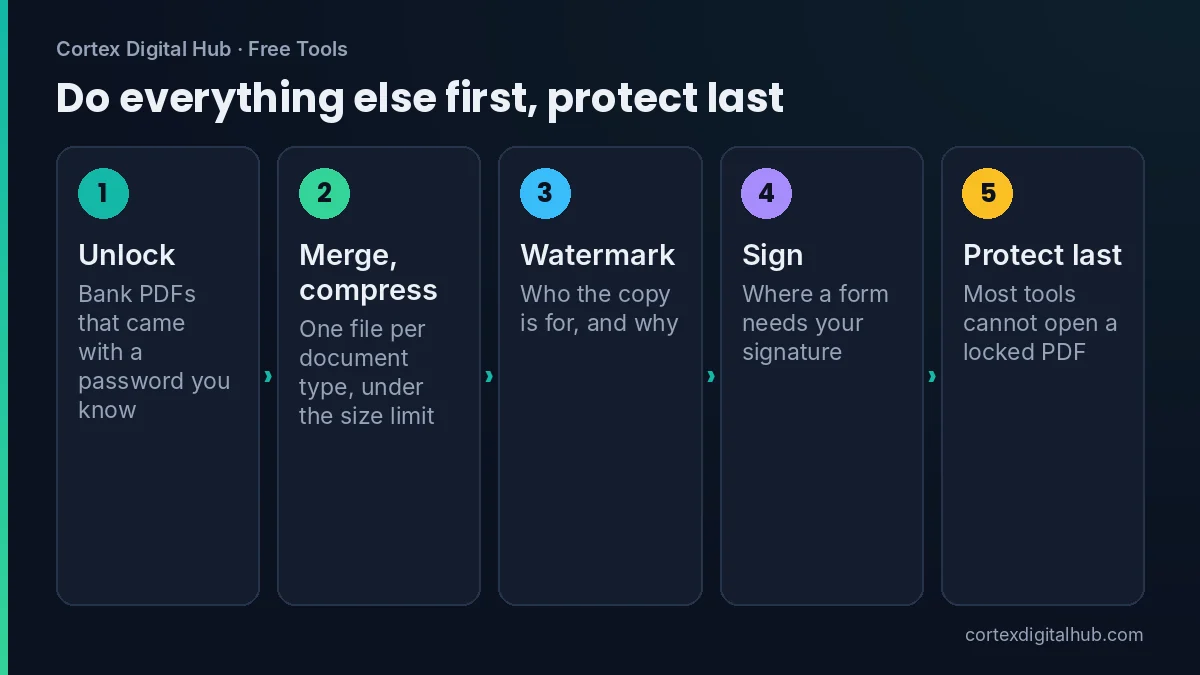
Most PDF tools cannot open a locked file, so do every other job first and protect last.
- Watermark it. Stamp "For the 14 Hale Road application only" across the pages with Watermark PDF. If a copy ever turns up somewhere else, the stamp says where it was meant to go.
- Sign it. If a form needs your signature, add it with Sign PDF before locking.
- Merge it. Three statements as one file is easier for everyone. Merge PDF joins them in order; the merge PDF for applications guide covers naming and order.
- Shrink it. Compress PDF brings big scans down so they fit under attachment limits.
Then protect. Statements that came locked from the bank can be opened first with Unlock PDF, using the password you already know, so the other tools can work on them. You can also re-lock a file that already has a password: Protect PDF asks for its current one and replaces it with yours.
Honest limits
The password protects the file. It cannot protect what the other person does after they open it. Once the agent has the password, she can read every page, take screenshots or print copies. Choose who gets the password with the same care you would choose who gets the paper copy.
And nothing is uploaded. The encryption happens in your browser tab; your PDF and your password do not reach our server. For why that matters with documents like these, see why browser-based tools are safer than upload sites. The other PDF tools are on the PDF tools page.
The flat
The agent sighed on the phone about the password and then saved it. The referencing went through in four days. When the agency asked for one more payslip in January, Daniela protected it with the same password and did not have to explain anything. Her brother, it turns out, does this for every document he sends.
Frequently asked questions
How strong is the password protection?
The file is encrypted with AES-256, the strongest standard PDF encryption. The password matters more than anything else: 8 or more characters with letters, numbers and symbols.
Can anyone open the file without the password?
No PDF reader can show the pages without the password, whichever inbox or chat the file ends up in. Anyone who has the password can, so share it only with the person who needs the file.
What if I forget the password?
Nobody can open the file without it, including us. Keep your original unprotected copy, or note the password somewhere safe.
Do the print and copy switches stop people completely?
No. Good PDF readers respect them, but they are a request, not a lock. Anyone with the password can still read the file and take a screenshot.
Can I lock several PDFs with one password?
Yes. Add them together, type the password once, and download each copy or all of them as a ZIP.
Should I pick AES-128 instead?
Only if the person on the other end has a very old PDF reader that cannot open AES-256 files. Otherwise keep AES-256.
Is my PDF or password uploaded?
No. The encryption runs in your browser. The PDF and the password stay on your device.
Can I lock a PDF that already has a password?
Yes. The tool asks for its current password, opens it, and locks it again with the new one.