
Why AI video looks weird, and how to fix hands, faces, flicker and text
Why AI video looks weird comes down to a few repeatable artefacts: morphing hands, warping faces, flicker and melting text. Each has a cause and a practical fix, and most fixes cost less than ₹100 to test on a cheap model.
· 5 min read · 560 views · by the Cortex Digital Hub team
Keep one subject and one camera move, start from a photo when looks matter, and draft on a cheap model before the final. From ₹24 a clip · no watermark · runs in your browser
Try a cleaner clip → → Opens AI Video Generator · runs in your browser
Why AI video looks weird has a boring answer: the model does not film anything. It generates every frame, and small differences between frames show up as melting hands, drifting faces, flicker and warped text. You cannot remove the cause, but you can avoid triggering it. Fix the prompt first, then the settings, then the model, using the AI Video Generator.
Why AI video looks weird: the short answer
A camera records light that was really there. A video model predicts what the next frame should look like, again and again. Big, simple shapes are easy to keep steady. Fine detail, fast motion and things that must stay identical across seconds are hard.
So the weirdness is not random. It clusters around hands, faces, thin lines, text, crowds and complicated physics. Once you know which one you are looking at, there is usually a specific change to try.
The six glitches, their causes and fixes
| What you see | Likely cause | What to try |
|---|---|---|
| Fingers merge or multiply | Small parts redrawn each frame | Hide hands, shorten the clip, use Avoid |
| Face slowly changes | No fixed identity to follow | Start from a photo or use references |
| Flicker in light or texture | Frame-to-frame colour drift | Calm lighting, simple background |
| Text melts or turns to symbols | Thin shapes redrawn each time | Add text in an editor |
| Objects appear, vanish or morph | Too many things in the scene | One subject, fewer props |
| Odd speed or sliding feet | Motion described vaguely | Say what moves, how fast and where |
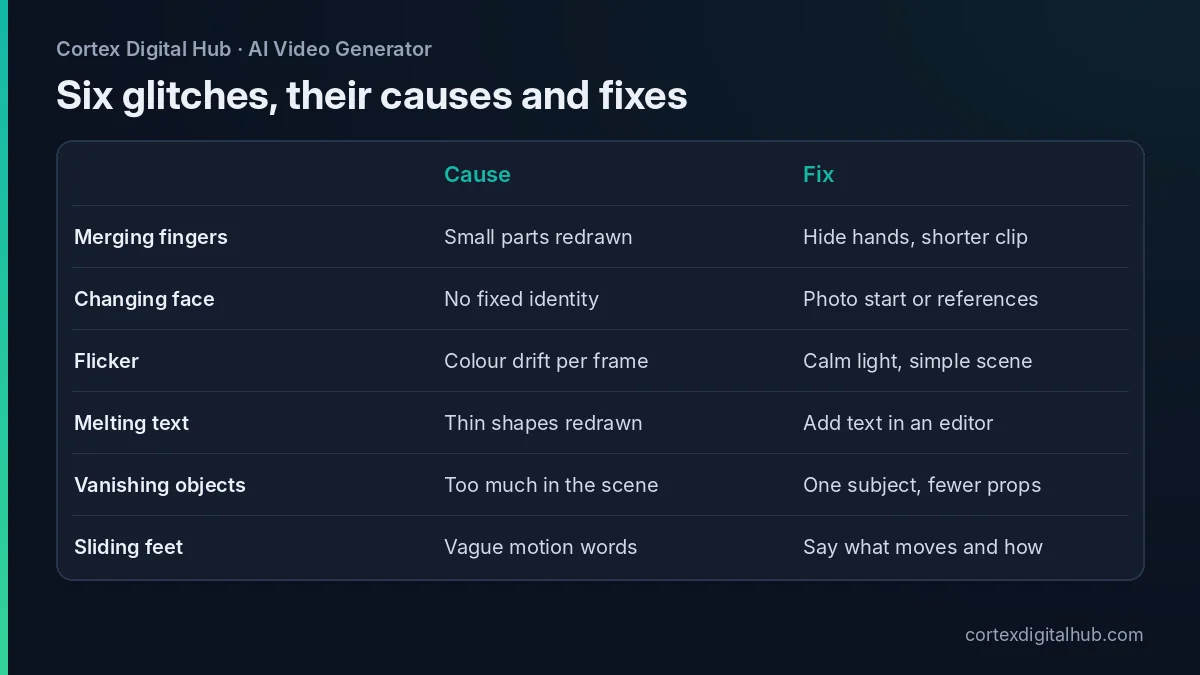 Each common glitch has a cause you can name and a fix you can try on a cheap draft.
How do I fix morphing hands and warping faces?
Hands and faces are where viewers are least forgiving, because we know exactly how they should look. Three changes help most.
First, give the model something to hold on to. Image to video fixes the first frame, so the face starts right. If a face or product appears more than once, add 2 to 4 reference images. The post on consistent characters with reference images shows the setup.
Second, reduce the demand. A person in profile or a silhouette is much easier than a close-up of a speaking face. Hands holding an object are harder than hands resting on a table. Frame the shot so the difficult part is small or partly out of view.
Third, use the Avoid field with extra fingers, deformed hands, distorted face. It nudges rather than guarantees, and how the generator works explains where it sits among the other settings.
How do I stop flicker and melting text?
Flicker usually appears with glittery lights, busy patterns such as striped shirts, water and fast camera moves. Switch to a calm, even light, a simpler background and one slow camera move. Say steady camera or choose a camera preset. If flicker still shows, try another model; some handle texture better than others, and the comparison in which AI video model to choose is a useful guide.
Text is a different problem. Letters are thin, exact shapes, so they drift. Do not prompt for signs, labels or captions. If the scene needs a signboard, ask for a blank one and put the words on top in an editor. For packaging with a printed label, start from your own photo so the real label is the first frame, and keep the motion gentle.
Why do longer clips look weirder?
Errors build up with time. A 5-second clip has fewer chances to drift than a 15-second one. A good rule is to make several short clips and cut between them. You can also use first and last frame control on Lumen Frames, Lumen Omni or Prism 6 so each clip ends on a frame you chose.
Extend video continues a clip by 4 to 30 seconds, but it is billed on the input length plus the new seconds, so check the clip looks right before you extend it. Trim first with the free trim video tool.
How do I test fixes without spending much?
Use a cheap model and change one thing per run.
- Generate a 5-second draft on Orbit 3 at 480p. That is 70 credits, or ₹35.
- Name the glitch you see.
- Change one thing: the shot, the lighting, the Avoid list or the clip length.
- Run again, and compare.
- When it looks clean, make the final on Lumen Motion 3 Standard (₹57.50 for 5 seconds) or a bigger model.
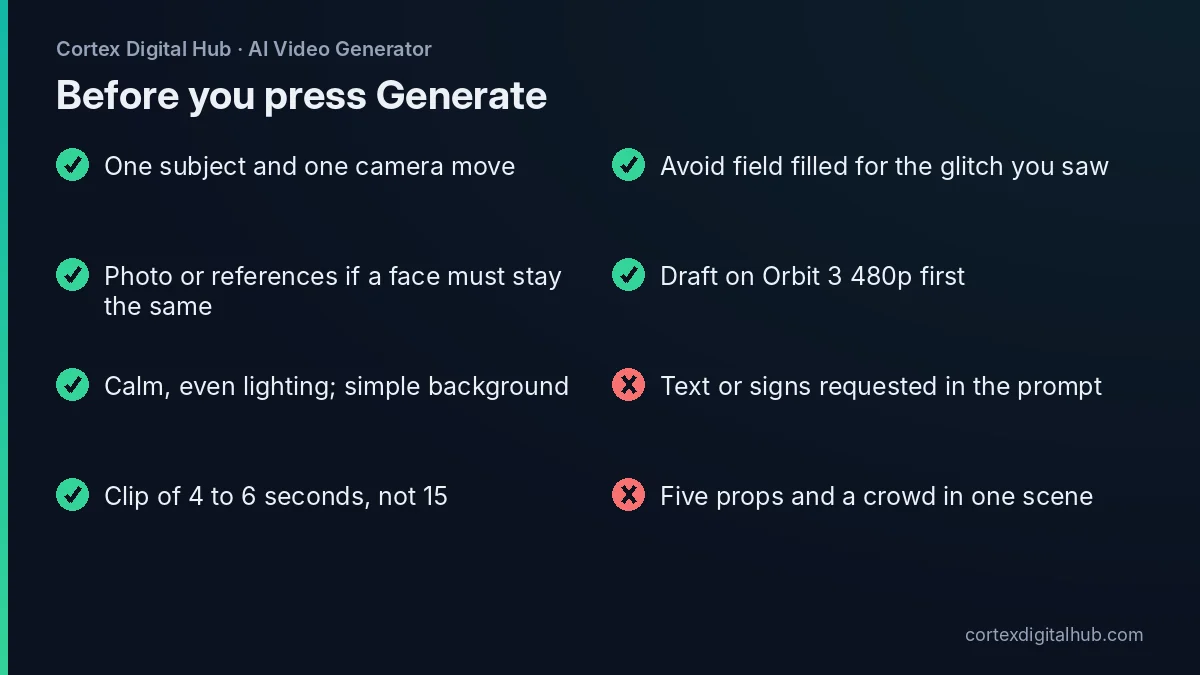 A short checklist before each run removes most of the avoidable weirdness.
Prompt strength and Seed are also worth a look. A higher Prompt strength follows your words more closely; the default is 0.5. A fixed Seed lets you compare runs fairly, because the starting point stays the same.
Does the model make a difference?
Yes, though less than the prompt. Models are built for different jobs. Orbit 2.7 is aimed at consistent characters, Lumen Motion 3 is a good all-rounder with multi-shot and native sound, and Vela 2.5 is the most cinematic and goes up to 30 seconds. A model suited to your shot will fail less often, but a crowded scene with a vague prompt can still go wrong on any of them.
A practical order: fix the prompt on Orbit 3 at 480p, check the result on Lumen Motion 3 Standard, and use Nova 2K or Vela 2.5 at 1080p only for finals that will be seen on a big screen. That keeps most of your learning at ₹35 a try.
When is weird actually fine?
Some clips are meant to look dreamlike. A surreal festival visual, a floating lantern scene or a stylised animation can use the model's looseness as a feature. The trouble starts when the clip is supposed to look like real footage of a real thing, such as your product, your property or a real person. In those cases, use a photo as the first frame, keep motion gentle and check every second before you post.
If a clip is nearly right, trim the good part, resize it with the video resizer and move on. Perfection is not the goal; a usable 3 seconds often is.
Key takeaways
- AI video looks weird because each frame is generated, not filmed; fine detail, text and fast motion fail first.
- Name the glitch, then change one thing: scene, light, Avoid list, clip length or model.
- Start from a photo or reference images when a face or product must stay the same.
- Never prompt for text; add words in an editor.
- Test on Orbit 3 at 480p for ₹35 per 5 seconds, and spend on the final only when the draft is clean.
Frequently asked questions
Why do hands look wrong in AI video?
Hands have many small parts that move in many ways, and the model redraws them in every frame. Keep hands out of focus or out of frame, use a shorter clip, or add 'extra fingers, deformed hands' to the Avoid field.
Why do faces change during an AI video?
The model recreates the face frame by frame and small differences add up. Start from a clear photo with image to video, or add 2 to 4 reference images to keep the same face steady across the clip.
Why is there flicker in my AI video?
Flicker comes from lighting, texture or colour shifting between frames. Choose calm lighting, avoid busy patterns, name a steady camera move, add flicker to Avoid, and try a different model if it persists.
Why is the text in my AI video melted?
Letters are thin, precise shapes, and models redraw them every frame, so they drift. Do not ask for text in the prompt. Add the words in a video editor after the clip is finished.
Does a longer AI video look weirder?
Often yes. The longer the clip, the more room for small errors to accumulate. Make 4 to 6 second clips, keep each simple, and join them in an editor. Use Extend only after the first clip looks right.
Is a more expensive model always better?
Not always. A pricier model such as Vela 2.5 may be more cinematic, but a messy prompt fails on any model. Fix the prompt on a cheap draft first, and move up only for the final.
Can I fix a weird clip without starting over?
Sometimes. Edit video lets you change a clip with a prompt and keeps its motion, and trimming removes a bad ending. Both are billed on the input length, so trim to the useful part first.
How much does it cost to test fixes?
A 5-second draft on Orbit 3 at 480p is 70 credits, which is ₹35. Three attempts at fixing one problem cost ₹105, as of October 2026, and failed or declined clips are refunded automatically.