
Copy text from a photo, screenshot or scanned page, free
Grace had forty slides of lecture notes as phone photos and an exam in nine days. Retyping them was not an option. How free image to text works in the browser, which languages it reads, how to get a clean result from a phone photo, and where it slips.
· 5 min read · 1.2K views · by the Cortex Digital Hub team
Drop a photo, paste a screenshot or add a scanned PDF. Pick up to three languages, press Get text, check the highlighted words and copy. The reading happens on your device. Free · no sign-up · nothing uploaded
Copy text from your picture → → Opens Image to Text · runs in your browser
Grace Santos is a second-year nursing student in Manila. Her pharmacology lecturer moves fast, so for a whole semester Grace photographed the slides from her seat instead of writing them down. Nine days before the final exam she had forty photos in her gallery and a plan to turn them into flashcards. Retyping forty slides of drug names and doses on a phone would eat two evenings she did not have. A classmate sent her a free image to text tool that runs in the phone's browser. She dropped in the first batch of photos that night, and by the weekend the notes were a searchable document.
Why a photo of the text is not enough
A photo is fine for looking. It is poor for everything after that. You cannot search forty photos for "warfarin". You cannot copy a dose into a flashcard app, or paste a paragraph into a study group chat. Photos taken at an angle in a lecture hall are hard to read on a small screen, and they eat storage.
Text fixes all of that. It is small, it wraps to any screen, it can be searched, read aloud by the phone, pasted anywhere and translated. The same goes for a notice pinned up at work, a page from a library book, a receipt for an expense claim or a screenshot of a message you want to quote.
How image to text works, step by step
This is what Grace did, on her phone, at her desk.
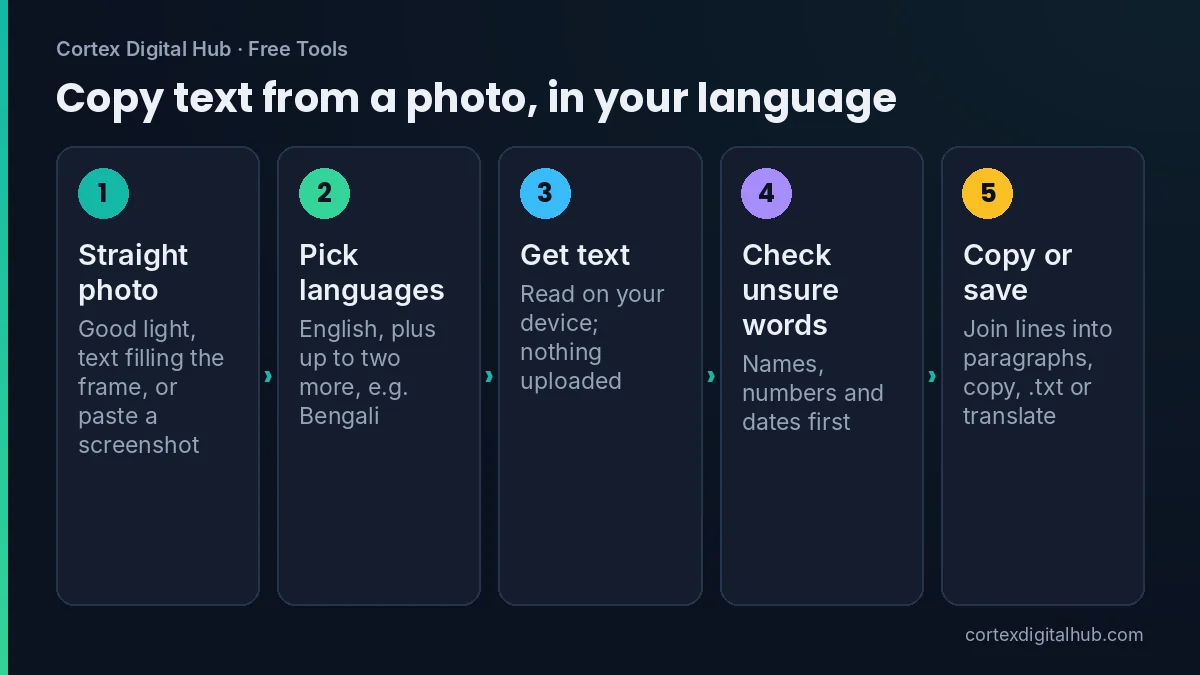
- She opened Image to Text and added the first ten photos. JPG, PNG, WebP and iPhone HEIC all open, and on a computer you can paste a screenshot straight in.
- Under Language in the picture, English was already on, which is all her slides needed.
- She left Layout on Auto, which reads the picture two ways and keeps the better result. The other choices are Page with headings, One block of text, Columns or a table, and Scattered words for a poster.
- She pressed Get text. The first time, the reader and the English language file downloaded once; after that they are kept in the browser.
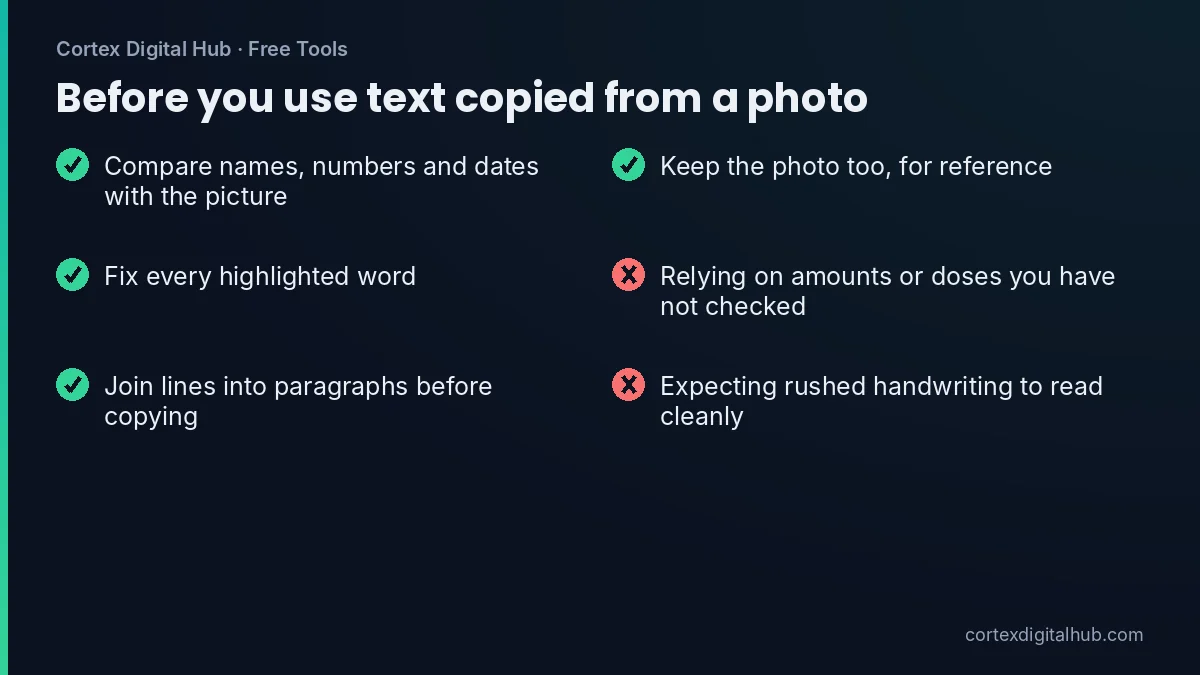
- The text appeared with a few words highlighted. She opened the Check unsure words tab, compared those against the photos, and fixed a dose where 2.5 had been read as 25.
- She ticked Join lines into paragraphs when copying, pressed Copy text, and pasted it into her notes.
There is also a Download .txt button for longer pages, and a Translate it button that opens the text in our free Translator.
Getting a clean reading from a phone photo
Most errors come from the photo, not the reader. A few habits make a large difference:
- Straight on, not at an angle. Letters at the far edge of a tilted photo get squashed and misread. In a lecture hall, sit closer to the middle.
- Good light, no glare. Projector glare and the shadow of your own phone are the usual culprits.
- Fill the frame with the text. Crop out the ceiling and the lecturer. If you need to crop or straighten first, the Photo Editor does both.
- Rotate a sideways photo first. Each page has a rotate button before you press Get text.
- Try Sharpen a soft photo. It is a checkbox for pictures that are slightly blurry. It cannot rescue a badly shaken one.
- Pick only the languages that are there. Extra languages give the reader more ways to be wrong.
Each picture is also enlarged, cleaned and contrast-stretched before reading, which is why small screenshots often read better than you expect.
Which languages it reads, and what works best
The tool reads English and eleven South Asian languages: Hindi, Telugu, Tamil, Kannada, Marathi, Bengali, Gujarati, Malayalam, Punjabi, Odia and Urdu. Up to three can be on at once, which suits bilingual pages. In London, a retired bus driver named Rahim Uddin used it on a community centre leaflet printed in Bengali and English, with both switched on, to copy the opening hours into his family's group chat.
It does not offer Spanish, French, Arabic, Chinese or other languages as a choice. Text in those may come out with missing accents or the wrong letters, so it is best kept to the languages above.
| Works well | Struggles |
|---|---|
| Printed notices, handouts and letters | Joined or rushed handwriting |
| Screenshots of messages and web pages | Fancy display fonts on invitations and posters |
| Lecture slides photographed straight on | Text over a busy photo |
| Bilingual pages, up to three languages | Very small print in a far-away photo |
| Scanned PDFs, up to 20 pages | Languages outside the twelve listed |
Honest limits
The tool is made for printed and typed text, and it says so. Neat handwriting sometimes reads; a doctor's prescription or a hurried diary page usually does not. Scripts with many joined letters are harder than English, so expect to fix a word or two per paragraph, especially in lower-quality photos. Names, numbers, doses, amounts and dates matter most: always check those against the picture before you rely on the text. The highlights show you where the reader was unsure, but a confident mistake can still slip through.
Nothing is uploaded. The reader runs in your browser, which matters when the picture is a passport page, a payslip or a bank letter rather than a lecture slide. There is more on why in why browser-based tools are safer than upload sites.
What to do next
- A PDF with real text inside. If you can select words in the PDF already, it does not need reading from pictures. PDF to Word keeps the headings and paragraphs; the PDF to Word guide covers layouts.
- A scanned PDF longer than 20 pages. Cut it into parts with Split PDF and read each part.
- Only one page of a long scan matters. Turn that page into a picture with PDF to JPG and read just that.
- An iPhone photo that will not open somewhere else. HEIC to JPG converts it.
The rest of the picture tools are on the image tools page.
Exam week
Grace finished the notes on Saturday afternoon: forty slides as one document, searchable, with her own highlights. She made the flashcards on Sunday and shared the document with her study group, who had been photographing the same slides all semester. The exam was on Thursday. She says the hardest question was on a slide she had, for once, read properly.
Frequently asked questions
Which languages can the image to text tool read?
English, plus eleven South Asian languages: Hindi, Telugu, Tamil, Kannada, Marathi, Bengali, Gujarati, Malayalam, Punjabi, Odia and Urdu. Pick up to three at once, for example English and Bengali for a bilingual leaflet.
Can it read Spanish, French, Arabic or Chinese?
Not as a chosen language. The tool offers English and the eleven languages above. Text in other languages may come out with missing accents or wrong letters, or not at all.
Is my photo uploaded to read the text?
No. The text reader and the language files download into your browser the first time, about 4 MB plus 1 to 3 MB a language, and run there. The picture never leaves your device.
Can it read handwriting?
It is made for printed and typed text. Neat handwriting sometimes works; joined or rushed handwriting usually does not.
Can I copy text from a scanned PDF?
Yes. Drop the PDF and each page, up to 20, is read like a photo. If the PDF already has selectable text, PDF to Word keeps the layout better.
Why are some words highlighted?
Those are words the reader was unsure about. Check them against the picture, especially names, numbers and dates, and fix any slips before you copy.
The text comes out in short broken lines. How do I fix that?
Tick Join lines into paragraphs when copying. Lines that belong to one paragraph are joined, so the text pastes cleanly into a chat, an email or a document.
Copy text from your picture → →