
Free AI voice over from a script: 20 languages, no sign-up
Paste a script, pick one of 19 voices and get a free AI voice over in English, Hindi or 18 other languages. It runs in your browser, nothing is uploaded, and you download each take as a WAV file.
· 6 min read · 1.4K views · by the Cortex Digital Hub team
Paste your script, pick a voice and a language, and press Generate. Play each take and download the one you like. Free · no sign-up · nothing uploaded · beta
Make a voice over → → Opens AI Voice Over & Clone · runs in your browser
You have a 40-second product video ready and the script sitting in your notes app. Recording it yourself means a quiet room you don't have, three retakes, a ceiling fan in the background and a voice you don't enjoy hearing back. A free AI voice over gets you past all of that: paste the script into AI Voice Over & Clone, pick a voice, press Generate and download the take. There is no sign-up, it works in 20 languages, and because it runs inside your browser, your script never leaves your device.
What the free voice over tool gives you
The tool sits under Video Tools and is in beta. Here is what is on the page today:
- 20 languages: English, Hindi, Spanish, French, German, Italian, Portuguese, Dutch, Polish, Russian, Turkish, Arabic, Swedish, Danish, Norwegian, Finnish, Greek, Malay, Swahili and Korean.
- 19 ready voices with Indian, American, British, Spanish, French, Italian and Brazilian accents. Every voice can speak every language and keeps its own accent.
- Scripts up to 5,000 characters, spoken sentence by sentence and joined into one file.
- Pauses with a
[pause]tag, and an expressiveness slider for languages other than English. - A takes list so you can compare versions, play them and download the one you like.
- Voice cloning from a 10 to 20 second recording of your own voice.
One honest gap: Telugu, Tamil, Kannada, Marathi and Bengali are not in the list yet. If your video needs one of those, record it yourself for now.
How to make a free AI voice over from a script
- Open AI Voice Over & Clone on a laptop or desktop with a recent Chrome or Edge.
- Pick a voice from the library on the right. Press play on any card to hear it first, or filter by accent and male or female.
- Choose the language from the Language menu.
- Paste your script into the box. The counter shows characters and how many parts it will be spoken in.
- Add
[pause]wherever you want a breath between points. - Press Generate voice over (or Ctrl + Enter). The progress bar shows which part it is on.
- Play the take, then press Download to save it as a WAV file.
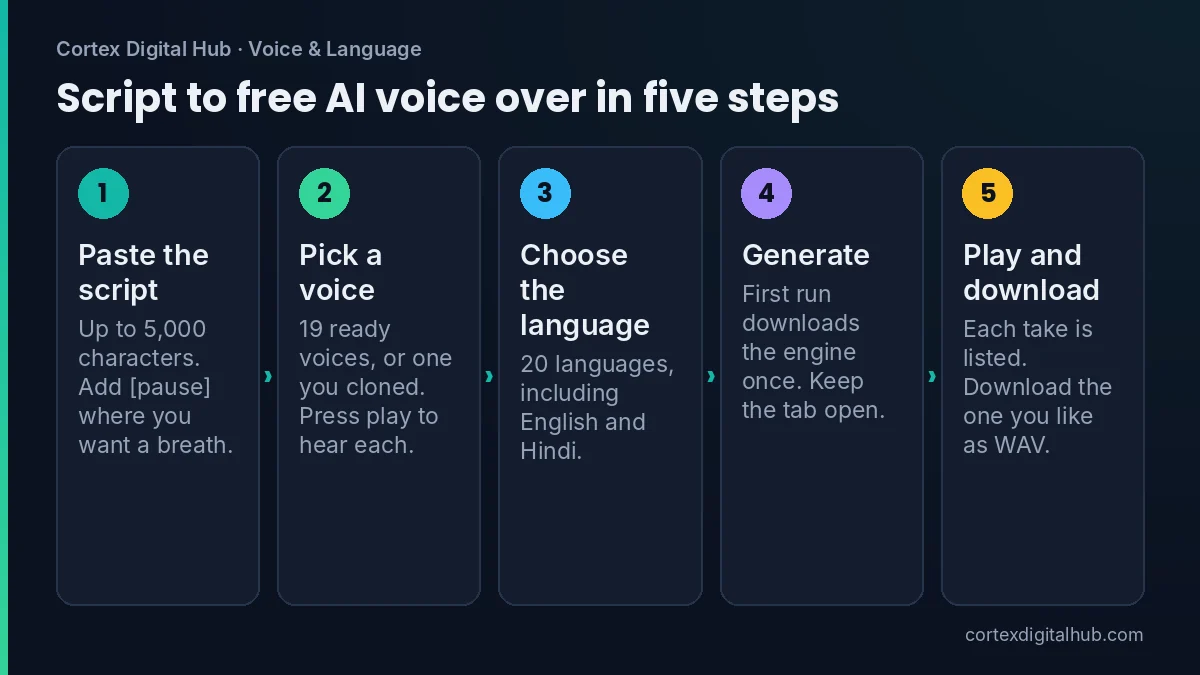 Paste, pick a voice, choose a language, generate, download. Each take stays in the list while the page is open.
Not happy with a line? Change the words and generate again. The new take appears at the top of the list, so you can play the old and new versions side by side before you download.
Write a script that sounds good spoken
A voice over is heard once, at speaking speed, so write for the ear rather than the eye.
Keep sentences short. One idea per sentence. The tool speaks your script sentence by sentence, so a clean full stop gives the voice a natural place to breathe.
Write numbers the way you want them read. "Starts at four ninety-nine" is safer than "Starts at ₹499/-". Do the same for dates, phone numbers and short forms, then listen back.
Use [pause] between sections. A pause after your opening line, and another before the call to action, makes the voice sound less rushed.
Read it aloud once yourself. If you trip over a line, the voice probably will too.
A short script that works well:
Running late for a client call? [pause] Here is a two-minute fix. Open the page. Drop your file. Press the button. [pause] That is all it takes.
In English, the Add row also offers laugh, chuckle and sigh tags. Use them sparingly; one sigh in a 30-second script is plenty.
Choosing a voice and language
For an Indian audience, start with the four Indian voices: Priya (warm, narration), Meera (calm, explainers), Arjun (friendly, tutorials) and Rohan (deep, promos). For a client abroad, try the American or British voices with the same script and compare the takes.
Because every voice speaks all 20 languages, you can keep one voice across an English and a Hindi version of the same video. For languages other than English, an Expressiveness slider appears, running from Calm through Natural and Lively to Dramatic. Natural suits most explainers; Lively suits Reels and offers.
For Hindi, the page gives a useful tip: write names and English words in Devanagari, so a brand name is read the way it is said in Hindi.
The first run: what to expect
The voice engine is downloaded once and kept in your browser. It is about 520 MB for English (more on computers without graphics acceleration) and about 1.6 GB for the other languages. After that first download it starts from your browser's cache.
Speed depends on your device. A laptop or desktop with a recent Chrome or Edge is fastest, especially with graphics acceleration. On older laptops it can take a minute or two per sentence, and phones work more slowly still. Keep the tab open while it speaks, and start with a short test line before you paste a long script.
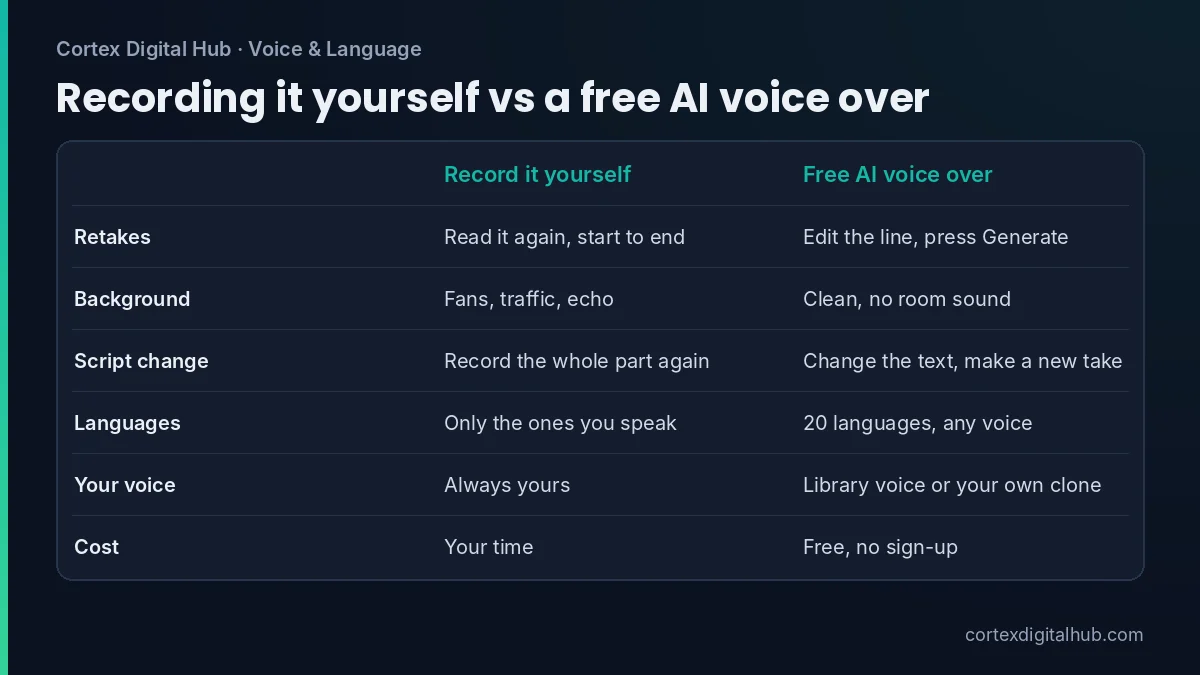 Recording yourself keeps your own voice; the AI voice over makes script changes and new languages quick.
Putting the voice under your video
You now have a WAV file. A few free tools on the site help you finish the job, all running in your browser:
- Need a smaller file or a clean start and end? Drop the WAV into Video to MP3, trim it on the waveform, even out the volume and save it at 64 kbps for speech.
- Video longer than the voice? Cut it to length with Trim video.
- No footage yet? Make a short clip from a photo or a prompt with the AI video generator.
- Posting vertically? The video resizer turns a landscape clip into 9:16.
Then add the audio in your usual video editor. The post on AI explainer videos for small businesses shows how a short script, a few clips and a voice come together, and AI videos for Reels and Shorts covers vertical formats.
Going the other way, from a recording to text? Voice to Text turns a voice note into a typed transcript, also in your browser.
Your own voice, if you prefer
If you would rather the voice over sound like you, open My voices and press Clone a voice. Read the short text on screen for 10 to 20 seconds, or upload a clean recording, and tick the box confirming it is your own voice or one you have permission to use. The clone is kept only in that browser on that device. Clone only your own voice or one you have clear permission for, and never use a clone to pass yourself off as someone else.
Why does running in the browser matter? Your script, your recording and your clone stay with you. The post on why browser-based tools are safer than upload sites explains the difference.
Key takeaways
- Paste a script up to 5,000 characters, pick one of 19 voices and choose from 20 languages.
- Telugu, Tamil, Kannada, Marathi and Bengali are not supported yet.
- Short sentences, numbers written as spoken and a few
[pause]tags make the biggest difference. - The engine downloads once; older laptops can take a minute or two per sentence.
- Download each take as WAV, then trim, convert or add it to your video with the free tools.
Frequently asked questions
Is the AI voice over really free?
Yes. There is no sign-up, no credit and no limit on takes. The voice engine runs inside your browser, so there is no server cost to pass on to you.
Is my script uploaded anywhere?
No. The script, the voice and the finished audio stay on your device. The only download is the voice engine itself, which your browser fetches once and keeps.
Which languages can the voice over speak?
Twenty: English, Hindi, Spanish, French, German, Italian, Portuguese, Dutch, Polish, Russian, Turkish, Arabic, Swedish, Danish, Norwegian, Finnish, Greek, Malay, Swahili and Korean. Telugu, Tamil, Kannada, Marathi and Bengali are not supported yet.
How long can my script be?
Up to 5,000 characters. Long scripts are spoken sentence by sentence and joined into one audio file, and the counter under the box shows how many parts it will make.
How do I add a pause?
Type [pause] where you want a breath, or press the pause button in the Add row under the script. Pauses also come naturally at the end of each sentence.
Why does the first voice over take so long?
The first time, your browser downloads the voice engine: about 520 MB for English and about 1.6 GB for the other languages. After that it starts from your browser's cache. On older laptops each sentence can still take a minute or two.
What file do I get?
A WAV file for each take. If you want a smaller MP3, open the WAV in the free Video to MP3 tool, trim it on the waveform and save it at 64 kbps for speech.
Can I use my own voice instead of a library voice?
Yes. Open My voices, record 10 to 20 seconds or use a clean recording, and tick the box to confirm it is your voice or you have permission. The clone is kept only in that browser.