
2K, 4K, 8K or 16K? A sweet shop, one photo and the size each job really needs
One shop photo, three jobs: a TV menu screen, an A3 calendar and a festival flex. A plain guide to the free image upscaler at 4K, 8K and beyond, with print sizes at 150 and 300 DPI, why WhatsApp photos look blocky, and what upscaling cannot do.
· 5 min read · 1.1K views · by the Cortex Digital Hub team
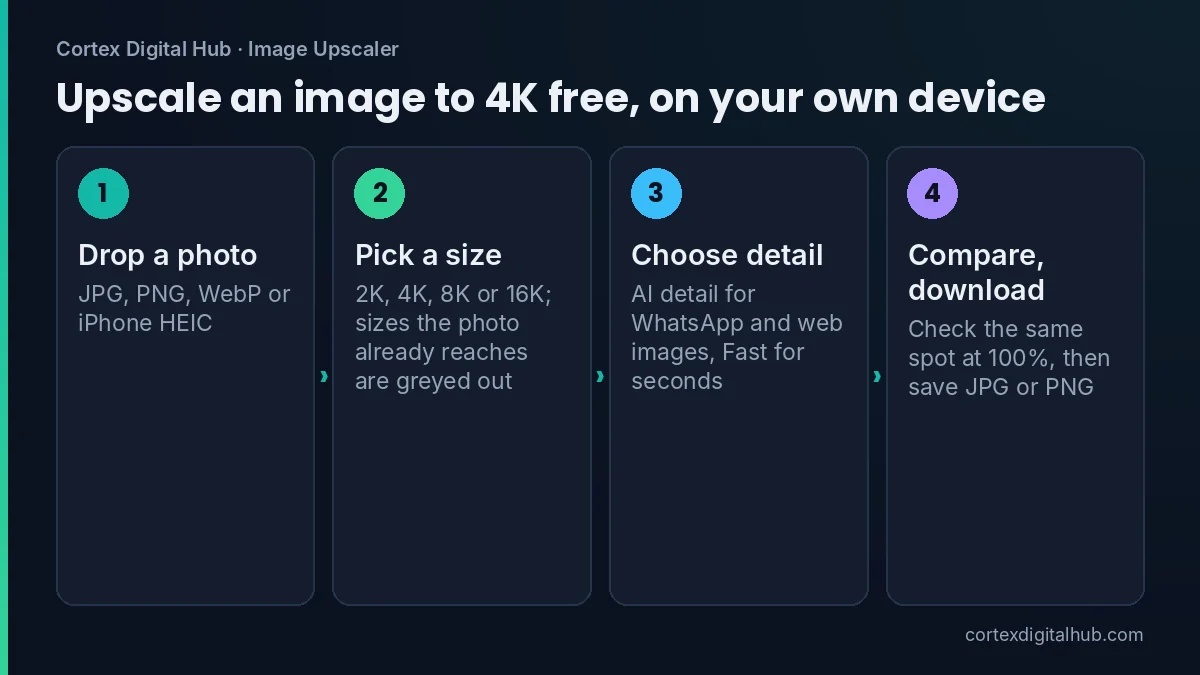
Drop a photo in and the size buttons show the exact pixels you will get at 2K, 4K, 8K and 16K; sizes your photo already reaches are greyed out. AI detail cleans blocky JPEG edges while it enlarges, on your own device. Free · JPG, PNG, WebP, HEIC in · JPG or PNG out
Pick a size and upscale → → Opens Image Upscaler · runs in your browser
Prakash's uncle has run New Krishna Sweets in Vijayawada since before Prakash was born. This Diwali the uncle wanted three things from one photo of the shop front: a slide on the new TV menu screen inside, a page in the shop's A3 wall calendar, and a festival flex for the road. The photo was the only good one anyone had, and it lived on the uncle's phone after being forwarded twice on WhatsApp. Prakash, home from college, searched for an image upscaler 4K free and found four buttons: 2K, 4K, 8K, 16K. Which one, for which job? This is the guide he wished he had, with the numbers worked out.
What 2K, 4K, 8K and 16K actually mean
In the Image Upscaler, each size is the number of pixels on the long side of the picture. The other side follows the photo's shape, so a landscape shop photo stays landscape and nothing is stretched or cropped.
- 2K is 2,560 pixels on the long side.
- 4K is 3,840, the same width as a 4K television screen.
- 8K is 7,680.
- 16K is 15,360, about 130 megapixels for a 16:9 picture.
When you drop a photo in, each button shows the exact size you will get. Sizes your photo already reaches are greyed out, because enlarging to them would add nothing.
Why WhatsApp photos look blocky when you enlarge them
The uncle's photo looked fine on his phone. On Prakash's laptop at full size, the sign letters had fuzzy edges and the cream wall showed faint squares. That is JPEG compression. A JPEG stores a picture in small blocks of 8 by 8 pixels and, to save space, throws away the fine detail inside each block. WhatsApp saves photos again at a lower quality to keep them light on mobile data, and every forward can add another round. On a small screen the blocks are invisible. Enlarge the picture and they grow with it.
A plain enlargement makes this worse, because it blends the old pixels into new ones and the blocks become soft squares. The lossy vs lossless explainer goes into the mechanics if you want them.
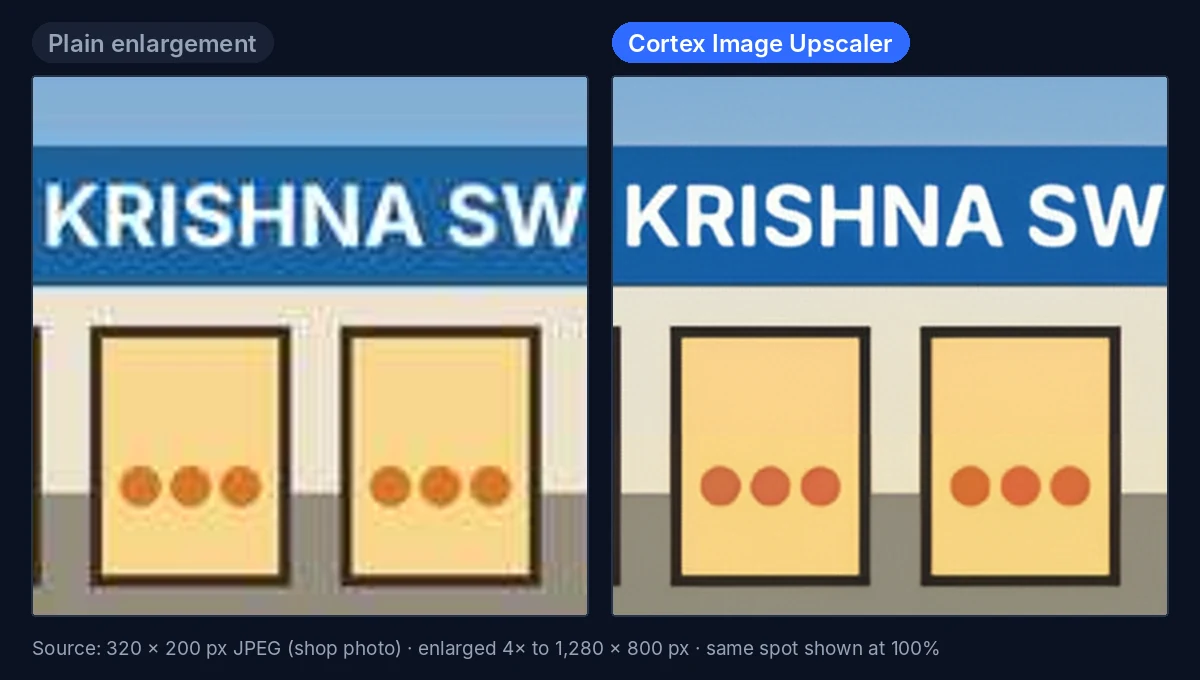
We made the test above from a small, heavily compressed shop photo and enlarged it four times both ways. Same source, same size; only the method differs.
Print sizes at 150 and 300 DPI
For screens, pixels are all that matter. For print, what matters is how many pixels land on each inch of paper. 300 pixels per inch is photo-print sharpness, the kind you look at in your hands. 150 is plenty for posters and calendars seen from a little distance. Divide the pixels by the DPI and you get the largest print that size supports:
| Size | Long side | Largest print at 300 DPI | Largest print at 150 DPI | Good for |
|---|---|---|---|---|
| 2K | 2,560 px | 8.5 in (21.7 cm) | 17.1 in (43.3 cm) | Phone screens, social posts, slides |
| 4K | 3,840 px | 12.8 in (32.5 cm) | 25.6 in (65.0 cm) | 4K TVs, A4 and A3 prints |
| 8K | 7,680 px | 25.6 in (65.0 cm) | 51.2 in (130.0 cm) | Posters, standees, small flex |
| 16K | 15,360 px | 51.2 in (130.0 cm) | 102.4 in (260.1 cm) | Large flex and hoardings |
Large flex boards are viewed from several feet away and are often printed below 150 DPI, so the last column understates what 8K and 16K can cover on a board. Ask your printer what they work at.
Using the free image upscaler for Prakash's three jobs
For the TV menu screen, Prakash picked 4K. The screen is 3,840 pixels wide, so 4K fills it exactly and anything bigger would be shrunk back down by the TV. If the photo is for a website rather than a screen, the website image size guide explains why smaller is usually better there.
For the A3 calendar, he picked 4K again. The long side of A3 is 16.5 inches, and 3,840 pixels over that is about 232 per inch: sharp on paper held at arm's length.
For the road flex, he picked 8K on his laptop in Chrome. 8K and 16K need a computer; phones cannot hold pictures that big, and the tool says so rather than crashing.
AI detail or Fast
AI detail is the default. A small AI model, about 20 to 30 MB, downloads into your browser once and runs on your own device; nothing is uploaded. It enlarges four times while removing the blocky JPEG look and keeping edges and text sharp, then a high-quality resize takes the picture to the exact size you chose. It works on up to about 0.7 megapixels at a time, so larger photos are reduced to that first. It takes a few minutes, faster on a computer with a graphics chip, with a progress bar and a Stop button.
AI detail only runs when the enlargement is more than 2×. For smaller enlargements, the photo already has most of the pixels it needs, and a sharp resampler does the job in seconds. Fast mode uses that resampler at any size, which is handy for a quick screen version.
After each run, "Same spot at 100%" shows a plain enlargement next to the upscaled one. Look there before you print.
What upscaling cannot do
The upscaler cleans and sharpens. It cannot invent detail the camera never captured. The sign letters on Prakash's photo came back crisp because they were big and bold to begin with; the small print on the price board behind the glass stayed unreadable, because it was never really in the photo. A tiny photo pushed to 16K becomes a large, clean file, not a true 16K photograph. For print, 4K or 8K from a decent source looks sharp, and that covers most real jobs.
Saving the result
Save as JPG for print and sharing; it looks the same as PNG at these sizes and is far smaller. PNG at 8K or 16K can run past 100 MB. If you need a lighter copy for WhatsApp afterwards, run the JPG through the Image Compressor, or set exact pixel dimensions in the Image Resizer. For format choices beyond that, see JPG vs PNG vs WebP, and if the photo is an iPhone HEIC, the upscaler opens it directly or you can use HEIC to JPG.
Watch the video
The welcome board that came on WhatsApp: a free AI upscaler to 8K · 4:20 · Watch on YouTube
Frequently asked questions
What do 2K, 4K, 8K and 16K mean in the upscaler?
They are the number of pixels on the long side of the picture: 2,560 for 2K, 3,840 for 4K, 7,680 for 8K and 15,360 for 16K. The short side follows your photo's shape, so nothing is stretched or cropped.
Is the 4K upscaler really free?
Yes. It runs in your own browser, so there is no server cost: no credits, no sign-up and no watermark, at any size.
Which size should I pick for an A4 or A3 print?
4K. 3,840 pixels covers the long side of A4 at about 328 pixels per inch and A3 at about 232, both sharp on paper. 8K only helps if the print is larger than A3.
Why are some size buttons greyed out?
Your photo is already that big or bigger. Enlarging to a size the photo already reaches would not add anything, so the tool turns those buttons off.
How long does an upscale take?
AI detail takes a few minutes on a laptop and less on a computer with a graphics chip; a progress bar shows the time left. Fast mode, and any enlargement of 2× or less, finishes in seconds.
Can I make 8K or 16K on my phone?
Usually not. Phones cannot hold pictures that big, so 8K and 16K need a computer with Chrome or Edge. The tool tells you if your browser cannot manage the size you chose.
Will 16K turn a small photo into a 16K photograph?
No. The upscaler cleans and sharpens; it cannot invent detail the camera never captured. A small photo at 16K is a large, clean file, not a true 16K photograph.