
SRT subtitles from a video: make the file and add it on YouTube
Make SRT subtitles from a video in your browser: transcribe the final cut in Voice to Text, download the .srt, fix any line in Notepad, and upload it in YouTube Studio with timing.
· 5 min read · 1.2K views · by the Cortex Digital Hub team
Drop your finished video, read the result, then press Download subtitles (.srt) for a timed file YouTube and video editors accept. Free · no sign-up · runs in your browser, nothing uploaded
Make an .srt file → → Opens Voice to Text · runs in your browser
Subtitles help people watch your video on mute, in a noisy bus, or in a language they read better than they hear. The easiest way to make SRT subtitles from video files you shot yourself is to let Voice to Text listen to it in your browser and press Download subtitles (.srt). You get a timed file that YouTube and most video editors accept, and the video never leaves your laptop.
Below: what an .srt file is, how to make one, what to check, and the exact steps to add it on YouTube.
Why subtitles are worth ten extra minutes
- Muted viewing. Plenty of people scroll with the sound off, on the metro or late at night. Subtitles keep them watching.
- Mixed audiences. A Telugu talk with English subtitles reaches a colleague in Pune or a cousin abroad.
- Clear details. Prices, addresses and phone numbers are easier to catch when they are on screen.
- Search. A YouTube video with an uploaded subtitle file has its words in text form, not only in sound.
- Accessibility. Viewers who are deaf or hard of hearing can follow along.
This guide is for your own videos, or videos you have clear permission to subtitle and publish.
What an .srt file looks like
An .srt (SubRip) file is plain text. Each subtitle is a small block: a number, a start and end time, the words, and a blank line.
1
00:00:00,000 --> 00:00:21,400
Welcome to our new shop in Kukatpally. Today I will show you the three counters.

2
00:00:21,400 --> 00:00:46,900
The first counter has fresh sweets, made every morning.
Times are written as hours, minutes, seconds and milliseconds, with a comma before the milliseconds. YouTube lists SubRip (.srt) among its supported subtitle files and notes that basic files must be plain UTF-8. The file Voice to Text gives you is UTF-8.
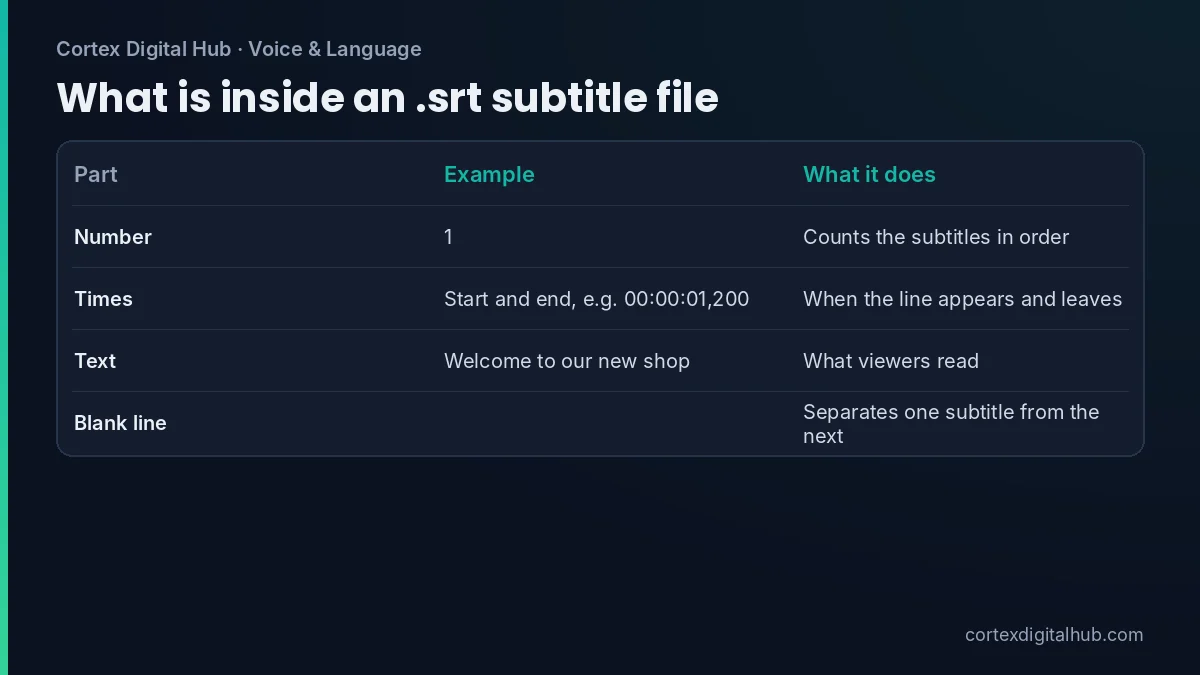 Every subtitle is a number, a start and end time, the text, and a blank line.
Make SRT subtitles from your video, step by step
- Finish editing first. Trim, cut and join in your editor or with Trim Video. The times in the .srt follow the video you transcribe, so a later trim shifts every line.
- Open Voice to Text in Chrome or Edge on a laptop. Choose Accurate for Indian languages (about 565 MB with graphics acceleration in the browser, about 760 MB without) or Light for English (about 250 MB). It downloads once.
- Type names first. Put the shop name, people and places in Names to expect. This matters more for subtitles than for text, for the reason in the next section.
- Drop the video. MP4, MOV, MKV, WebM and 3GP all work. For a very large file, an MP3 made with Video to MP3 works too, as long as you do not trim it, so the times stay the same.
- Read the result and play unclear parts from Lines with times.
- Press Download subtitles (.srt).
Fix your subtitles before you upload
Two things about the subtitle file are worth knowing.
It follows the English version when there is one. If the English box was filled, the file carries the English lines and its name ends in .en.srt. If not, it carries the lines in the language they were spoken in.
Your edits in the boxes do not reach the .srt. The subtitle file is built from the timed lines, while the boxes are for copying text. Names typed in Names to expect do reach it, which is why step 3 matters. For any other fix:
- Open the .srt in Notepad (Windows) or TextEdit in plain-text mode (Mac).
- Correct names, numbers and spellings. Do not change the time lines.
- Save, keeping the encoding as UTF-8.
Each subtitle covers one part of the recording, often 20 seconds or more of speech, so lines can be long. Viewers can still follow them, but if you want shorter lines, split them in YouTube's subtitle editor after uploading or in your video editor.
How to add an .srt on YouTube
These steps follow YouTube Help's page on adding subtitles and captions, for YouTube Studio on a computer:
- Sign in to YouTube Studio.
- In the left menu, select Subtitles.
- Select the video.
- Click Add language and choose the language of your file. Pick English for a
.en.srtfile. - Under Subtitles, click Add.
- Select Upload file.
- Choose With timing, then Continue. An .srt already holds its times.
- Choose your .srt file and select Save.
Play the video with captions on and skim a few lines. If a line is wrong, edit it in YouTube's editor or fix the file and upload it again.
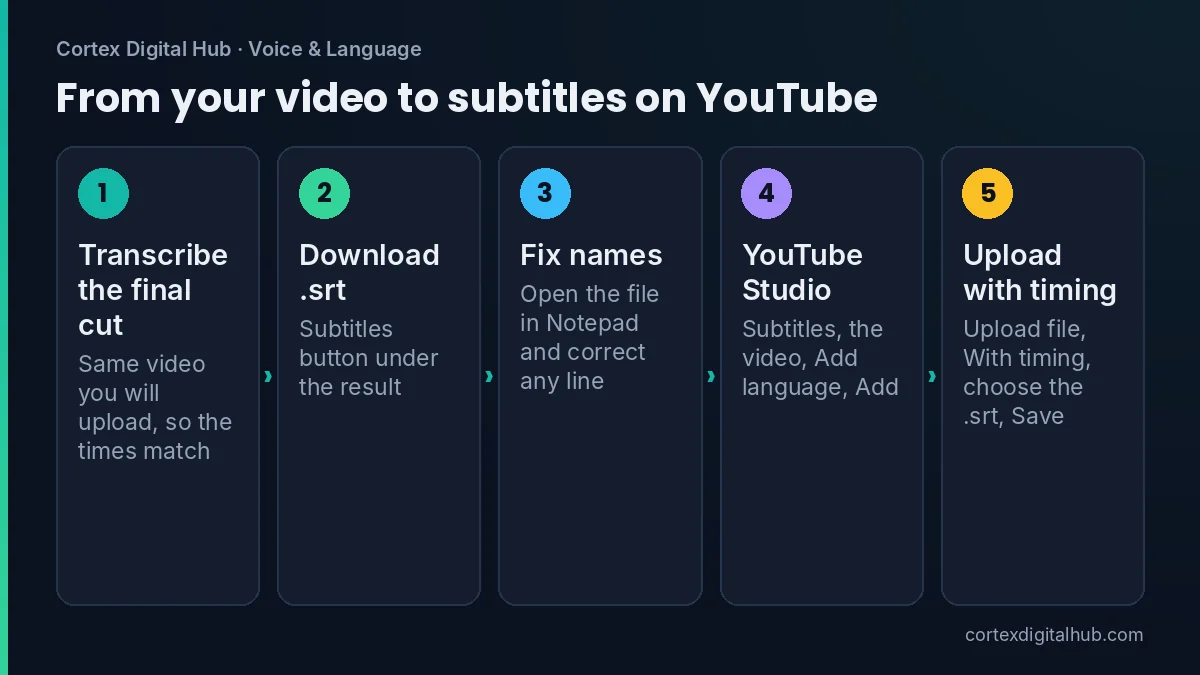 Transcribe the final cut, fix the file, then upload it with timing.
Subtitles from video for Reels, Shorts and other editors
Many video editors on desktop and phone can import an .srt and burn the words into the picture, which is what Reels and Shorts viewers usually see. Check your editor's help page for its import option. For formats and lengths on each platform, see AI videos for Instagram Reels and YouTube Shorts. If the finished file is too big to share, shrink it with the video compressor.
Getting clean subtitles every time
| Problem | Likely cause | Fix |
|---|---|---|
| Subtitles drift out of sync | Video trimmed after making the .srt | Transcribe the final cut again |
| Wrong names | Not typed in Names to expect | Add them and transcribe again, or fix in Notepad |
| YouTube rejects the file | Saved in another encoding | Save as UTF-8 plain text |
| Strange words in a noisy part | Music or wind under the voice | Replay the line and correct it |
A good habit: after uploading, watch the first minute and the last minute with captions on. If both line up with the voice, the rest of the file usually does too, because every time in the file comes from the same video. If the lines come early or late, the video you uploaded is probably not the exact cut you transcribed.
Accuracy depends on the audio, so read every subtitle once before you publish. Kannada results are weaker today than Hindi, Telugu or English; pick the language and review carefully. For transcripts without subtitles, see video to text.
Watch the video
The voice note you can't play in a meeting · 1:19 · Watch on YouTube
Frequently asked questions
How do I make SRT subtitles from a video for free?
Drop the finished video into Voice to Text on Cortex Digital Hub. When the text appears, press Download subtitles (.srt). The file has numbered lines with start and end times, ready for YouTube or a video editor.
What is an .srt file?
A plain text file of subtitles. Each entry has a number, a start and end time, and the words to show. YouTube lists SubRip (.srt) among its supported basic caption formats.
How do I add an .srt file to YouTube?
In YouTube Studio, open Subtitles, choose the video, click Add language and pick the language. Under Subtitles click Add, choose Upload file, select With timing, choose your .srt and click Save.
Which language will my .srt be in?
When the English version is ready, the subtitle file carries the English lines and its name ends in .en.srt. Otherwise it carries the lines in the language they were spoken in.
I fixed a name in the box. Why is it still wrong in the .srt?
The subtitle file is built from the lines with times, not from your edits in the boxes. Type names in Names to expect before you transcribe, or open the .srt in Notepad and fix the line there.
Why are my subtitles out of sync?
Usually because the video was trimmed after the .srt was made. Transcribe the final edited video, the same file you upload, so the times match.
Is my video uploaded to make the subtitles?
No. The sound is read and turned into text inside your browser. Only the speech engine is downloaded, once.