
Video to text: get a transcript from your phone's MP4 or MOV
Turn a video to text without uploading it: copy the MP4 or MOV from your phone, drop it into Voice to Text, and get the words as spoken plus an English version, ready to copy or download as .txt or subtitles.
· 5 min read · 1.1K views · by the Cortex Digital Hub team
Drop an MP4, MOV or MKV from your phone; the sound is read on your device and the words appear as spoken, with English beside them. Free · no sign-up · runs in your browser, nothing uploaded
Turn a video into text → → Opens Voice to Text · runs in your browser
You filmed a ten-minute walkthrough on your phone, a cooking demo, or your father explaining the family recipe in Marathi, and now you want the words on paper. Turning a video to text takes one step in Voice to Text: drop the MP4 or MOV, and the spoken words appear in their own script with an English version beside them. The video is read on your device, not uploaded.
This guide is for your own videos, or videos you have clear permission to use. Please do not transcribe and republish other people's content.
What you can do with a video to text transcript
A transcript makes a video useful in places where nobody will press play:
- Captions and descriptions. Paste key lines into a YouTube description or an Instagram caption.
- Blog posts and notes. Turn a talking-head video into a written draft you can edit.
- Records. Keep a written copy of a family story, a site walkthrough or a training session.
- Translation. Share an English version of a Hindi or Telugu video with someone who reads English.
- Subtitles. Download a timed .srt file for YouTube or your video editor.
Get the video from your phone to your laptop
Android phones usually save video as MP4 and iPhones as MOV. Copy the file to your laptop by cable, a cloud drive, or by emailing it to yourself if it is small. Voice to Text reads MP4, MOV, MKV, WebM and 3GP, so there is usually no need to convert. If a file will not open, convert it with the video converter and try again.
You can run it on the phone too, with the Light engine. For Indian languages, the laptop route gives better results.
Turn your video to text, step by step
- Open Voice to Text in Chrome or Edge.
- Choose an engine. Accurate is best for Indian languages and suits a laptop or desktop: about 565 MB with graphics acceleration in the browser, about 760 MB without it. Light is about 250 MB, quick, and best for English; use it on phones and older computers. Either one downloads once and starts in seconds on later visits.
- Leave Spoken language on Detect automatically, or pick the language if the video is short or noisy.
- Type names you expect in Names to expect, such as people, places or product names.
- Drop the video. Up to 10 files can go in at once.
- Read the result, fix anything wrong, then copy or download.
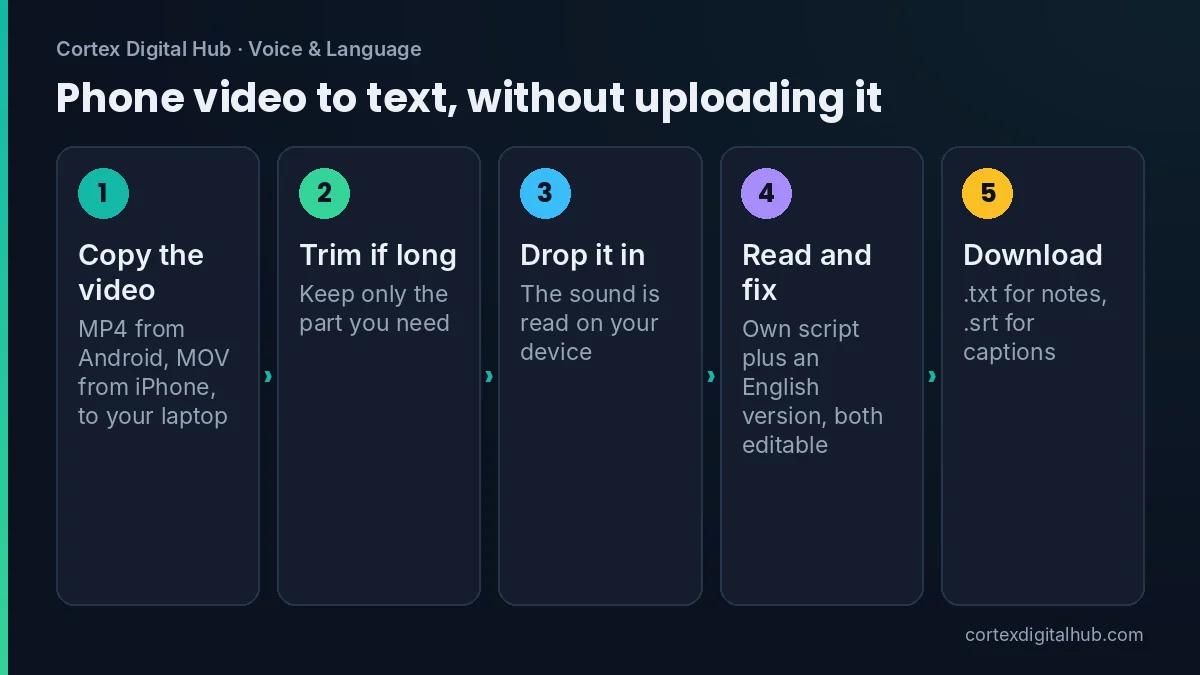 Copy the video, trim if it is long, drop it in, read and fix, then download.
Long videos: trim first or make an MP3
The tool listens to the whole sound track, so a long video takes longer and gives you more to check. If you only need one part, cut it first.
- Keep a section of the video. Trim Video cuts the start and end, or a piece from the middle, on your device. Its fast mode keeps the original quality. Our post on trimming without losing quality explains the two modes.
- Keep only the sound. Video to MP3 pulls the audio out, lets you trim on a waveform, and saves a small file. 64 kbps is enough for speech.
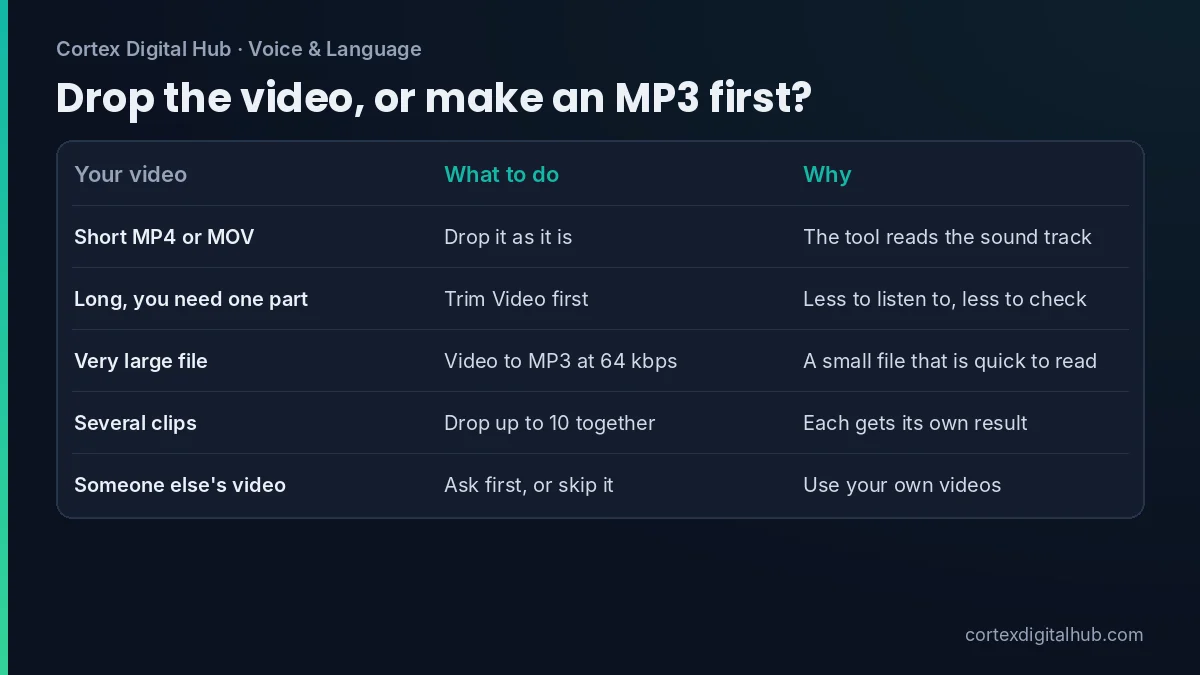 Short clips go straight in; long or large ones are easier after a trim or an MP3.
If you plan to make subtitles, transcribe the final edited video, not the raw one. Times in the subtitle file follow the video you dropped, so a later trim shifts every line.
Reading the result
You get two boxes. As spoken shows the words in the speaker's own script: Devanagari for Hindi, Telugu script for Telugu, and so on. The English box sits beside it. English comes from the browser's on-device translator where it has one, as in Chrome, or from the speech engine otherwise. Where the browser supports it, Polish the English tidies the grammar.
The spoken language is detected for each part of the video, so a vlog that moves between Hindi and English comes out with each part in its own script. Both boxes are editable.
Below the boxes you will find:
- Before you copy, a checklist: fix names, numbers, amounts and dates, and replay unclear lines.
- Lines with times, where clicking a time plays that part of the recording again.
- Download .txt for the text, and Download subtitles (.srt) for a timed file.
How good will the video to text result be?
Accuracy depends on the sound. A clear voice close to the phone transcribes well; a voice far from the mic, music under the speech, or wind outdoors makes mistakes more likely. Check names and numbers every time.
Kannada results are weaker today than Hindi, Telugu or English, so pick Kannada as the language and review carefully. Speed depends on your device: fast with graphics acceleration in the browser, slower on processor-only computers.
Film your next video so it transcribes cleanly
A few habits while recording save a lot of fixing later:
- Keep the phone close. An arm's length from the speaker is better than across the room. A cheap clip-on mic helps even more.
- Turn the music off while you talk. Add background music in your editor afterwards, after you have the transcript.
- Pick a quiet corner. Fans, traffic and kitchen sounds blur words, especially short ones like numbers.
- Say names clearly once. If you mention a shop, a person or a place, say it slowly the first time, and type it in Names to expect before you transcribe.
- Pause between topics. The tool breaks a recording into parts at quiet moments, so natural pauses mean fewer lines that start or end mid-sentence.
If you are making Reels or Shorts from the same footage, our guide to AI videos for Instagram Reels and YouTube Shorts covers formats and lengths for each platform.
Nothing leaves your device
Phone videos often show your home, your family or your clients. Because Voice to Text runs inside your browser, the video's sound is read on your device and nothing is uploaded. There is no account, and you can remove the speech engine from the setup box whenever you like.
For audio recordings of calls, see call recording to text. For voice notes forwarded on WhatsApp, the WhatsApp voice note to text guide covers saving the .opus file first.
Watch the video
The voice note you can't play in a meeting · 1:19 · Watch on YouTube
Frequently asked questions
How do I convert a video to text for free?
Open Voice to Text on Cortex Digital Hub, drop your MP4 or MOV file, and the words appear as spoken with an English version beside them. Check names and numbers, then copy or download a .txt file.
Which video formats work?
MP4, MOV, MKV, WebM and 3GP video, plus audio files such as M4A, MP3, WAV and WhatsApp voice notes. You can drop up to 10 files at a time.
Is my video uploaded?
No. Only the speech engine is downloaded, once. The video's sound is read and turned into text on your device, with no server and no account.
Can I transcribe someone else's video?
Use it on your own videos, or on videos you have clear permission to use. Do not transcribe and republish other people's content.
My video is long. What should I do?
Trim it to the part you need with Trim Video, or make a small MP3 of just that part with Video to MP3. Less audio means less to read and check.
Can I get subtitles from the video too?
Yes. Under the result, Download subtitles (.srt) gives a timed subtitle file you can add to YouTube or a video editor.
Does it work on a phone?
Yes, with the Light engine, which is about 250 MB and best for English. For Hindi, Telugu, Tamil and other Indian languages, a laptop with Chrome or Edge and the Accurate engine gives better results.