
The admission poster made on a phone, and the hoarding it was never meant for
A coaching centre's admission poster was made on a phone for WhatsApp status, then the director wanted it on a hoarding and two standees. How to increase image quality for big prints, when to export again or ask the designer instead, and the sizes that work.
· 5 min read · 647 views · by the Cortex Digital Hub team
When a JPG is all that is left, drop it in on a laptop, pick 8K for a standee or 16K for a large flex, and keep AI detail on. Lettering comes back clean instead of blocky, and nothing is uploaded. Free · 2K to 16K · JPG or PNG out
Upscale the poster → → Opens Image Upscaler · runs in your browser
Lavanya runs the front office at Vidya Path Coaching Centre in Nalgonda, and in October she made the admission poster herself, on her phone, in a design app, sized for WhatsApp status and Instagram. It worked: parents forwarded it, and enquiries came in. Then the director had a bigger idea. He wanted the same poster on a 20 × 10 ft hoarding near the bus stand, and on two tall standees, one at reception and one at the school gate during exam week. The flex printer opened the JPG Lavanya sent and called her back within ten minutes. This post is about how to increase image quality for prints like these, and about the cases where the answer is not an upscaler at all.
Why a status-sized poster breaks on a hoarding
A poster made for a phone screen only needs about as many pixels as a phone screen has. Lavanya's JPG looked crisp on every phone in the centre. On a twenty-foot hoarding, each of its pixels would be stretched to the size of a coin. And because the JPG had been saved, sent and forwarded through WhatsApp, the edges of the lettering carried compression smudges, faint blocks around every red and blue letter, that would be stretched along with everything else.
A plain enlargement in any photo app makes the picture bigger and the problems bigger. The lossy vs lossless explainer shows why the damage from each save adds up.
Before you upscale: ask for the original
The best way to get a sharp large print from a design is to never enlarge the small picture at all. Try these in order:
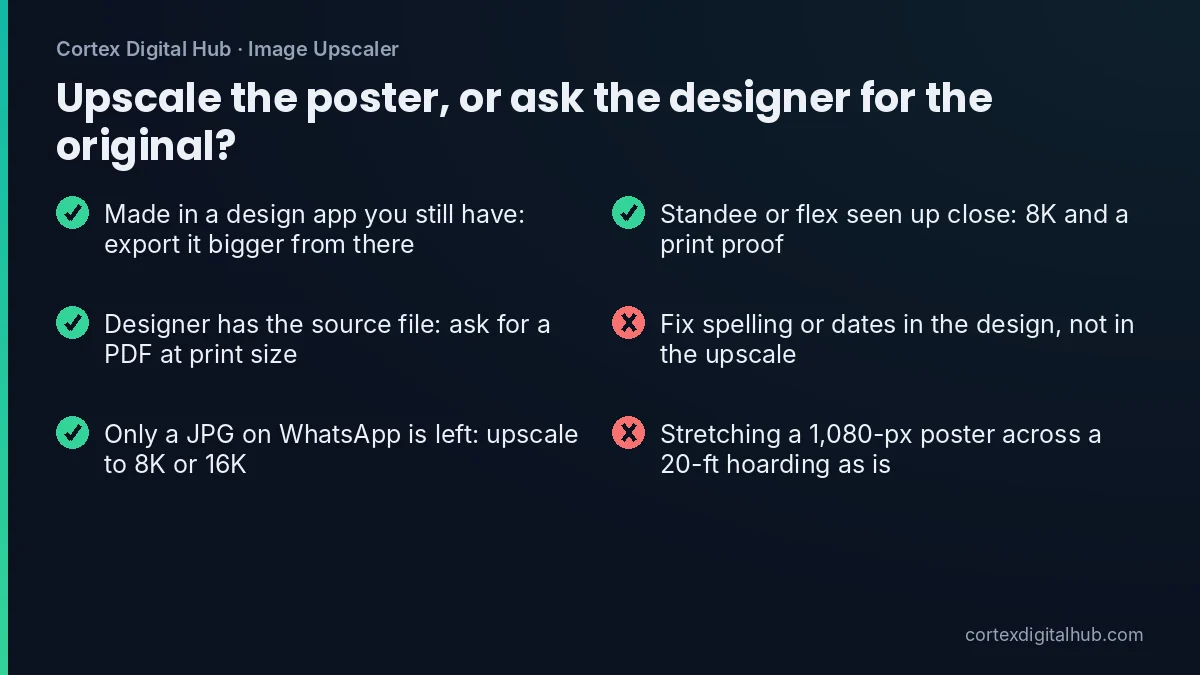
- Export it again from where it was made. Lavanya still had the project in her design app. Most apps can export the same design at a larger size or as a print PDF, and when they do, the text and shapes are redrawn at the new size: perfectly sharp, no upscaling involved. If the printer wants an image rather than a PDF, PDF to PNG gives one at full resolution.
- If a designer made it, ask them. A designer keeps the source file and can export a print-size PDF in minutes. That is always better than anything you can do with a JPG.
- Only when a JPG is all that is left, upscale it. Old posters from a previous batch, a file from a designer who has moved on, a picture someone saved off a status: that is what the upscaler is for.
The shape problem nobody mentions
Lavanya's poster was tall. The hoarding is wide, twice as wide as it is high. No amount of enlarging fixes that: the Image Upscaler keeps your picture's shape, with the other side following the image. A tall poster stretched onto a wide hoarding would either be distorted or sit in the middle with empty space on both sides. So for the hoarding, Lavanya made a new wide layout in the same app, with the same colours and words, and exported it at print size. The standees, which are tall, could take the poster as it was.
How to increase image quality for the standees
For the standees, the director also wanted last year's poster, which only existed as a JPG on an old phone. That one went through the upscaler. She first cropped off the phone's status bar, which had crept into the saved copy, in the Photo Editor. Then, on a laptop in Chrome, Lavanya dropped it in, picked 8K, kept AI detail on and chose JPG. AI detail is a small AI model, about 20 to 30 MB, that downloads into the browser once and runs on your own device, so nothing is uploaded. It removes the blocky look of compressed pictures and keeps edges and text sharp while it enlarges four times; a high-quality resize then takes it to the exact size. It took a few minutes, with a progress bar showing the time left.
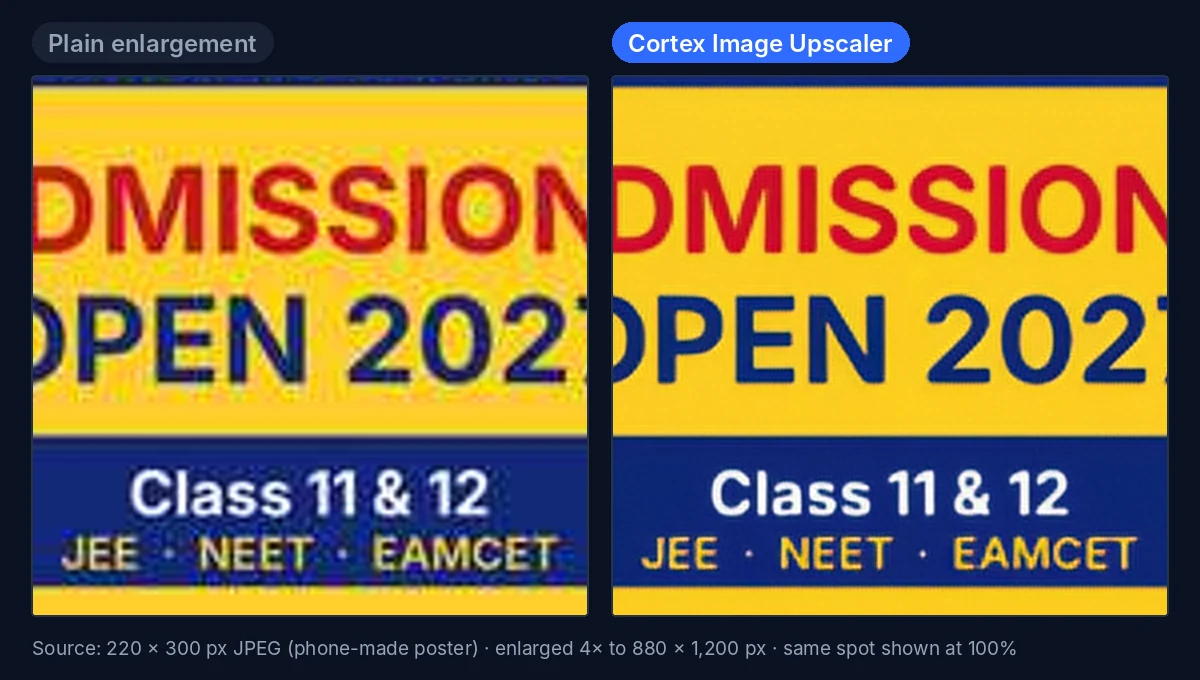
We made the test above with a small, compressed copy of a similar poster, enlarged four times both ways. The big words come back clean. That is the honest shape of it: the upscaler cleans and sharpens; it cannot invent detail the JPG never had. Large headlines recover well; the small print at the bottom of a poster, such as an address line, may stay soft.
Sizes for standees and hoardings
Divide the pixels on the long side by the inches on the long side of the print:
| Long side | 8K (7,680 px) | 16K (15,360 px) | |
|---|---|---|---|
| 6 ft standee | 72 in | about 107 per inch | about 213 per inch |
| 10 ft flex | 120 in | 64 per inch | 128 per inch |
| 20 × 10 ft hoarding | 240 in | 32 per inch | 64 per inch |
A standee is read from close by, so 8K is the comfortable choice. A hoarding is read from the road, so it can work with far fewer pixels per inch, and 16K gives it more room. 8K and 16K both need a computer with Chrome or Edge; phones cannot hold pictures that big. Ask your printer what they normally print at, and pick the column that clears it. If they want a PDF rather than a JPG, JPG to PDF wraps the upscaled image without shrinking it.
Things the upscaler should not be asked to do
Do not use it to fix content. When the director noticed that last year's poster had the old batch date, the answer was to change it in the design and export again, not to paste new numbers over the upscaled image. Do not use it to change a poster's shape. And always ask the printer for a small proof of the most important area before the full hoarding is printed; a strip with the headline and contact details costs little and catches surprises.
What went up in Nalgonda
The hoarding went up in the wide layout Lavanya rebuilt from her app, exported at print size. The two standees carried the tall poster, one of them the 8K upscale of last year's design with the dates corrected in the app first. The centre now keeps every poster's project file, not just the JPG. For the next round of promotion, the same design can also become a short video for WhatsApp status; the guide to video for coaching institutes covers that, and if the brochure is a PDF, PDF to JPG for carousels turns its pages into posts.
Watch the video
The welcome board that came on WhatsApp: a free AI upscaler to 8K · 4:20 · Watch on YouTube
Frequently asked questions
How do I increase the quality of a poster for printing?
Try three things in order. Export it again at a large size from the app or file it was made in. If a designer made it, ask for the original or a print-size PDF. Only when a JPG is all that is left, upscale it to 8K or 16K with AI detail.
Is upscaling as good as exporting the original bigger?
No. Exporting from the design redraws the text and shapes at the new size, so they are perfectly sharp. Upscaling cleans and sharpens the pixels you have; it cannot invent detail the small JPG never held.
What size do I need for a 20 × 10 ft hoarding?
16K gives 15,360 pixels across 240 inches, about 64 per inch, which suits a hoarding read from the road. 8K gives about 32 per inch. Ask the printer what they normally work at.
Can the upscaler change a tall poster into a wide hoarding?
No. It keeps the picture's shape: the other side follows your image. A tall poster on a wide hoarding needs a new layout in the design app, not an upscale.
Can I fix a wrong date or phone number in the upscaled poster?
Fix it in the design and export again. The upscaler sharpens what is there; it does not edit text. Patching words on top of an upscaled image rarely matches the original lettering.
Does it work on a phone?
2K and 4K often do. 8K and 16K need a computer with Chrome or Edge, because phones cannot hold pictures that big; the tool says so instead of crashing.
Is the poster uploaded anywhere?
No. The upscaler runs in your browser. The AI part downloads once, about 20 to 30 MB, and the poster stays on your device.