
Telugu voice to text: read a client's Telugu voice note, with English beside it
Telugu voice to text for WhatsApp notes, calls and site-visit recordings: get the words in Telugu script and an English version, in your browser. How Telugu and English mix, which settings help, and what to check.
· 5 min read · 803 views · by the Cortex Digital Hub team
Set Spoken language to Telugu, add the names you expect, drop the note and read Telugu and English side by side. Free · no sign-up · runs in your browser, nothing uploaded
Read a Telugu note as text → → Opens Voice to Text · runs in your browser
You are in a review meeting at 11. Your phone lights up: a client has sent a three-minute Telugu voice note about the payment schedule and the car parking slot. You can't step out, and you can't play it in the room. Telugu voice to text gets you through this: drop the note into the free Voice to Text tool, read the Telugu words and an English version side by side, and answer the client with facts before the meeting ends. It runs in your browser, so the client's note stays on your laptop.
Why WhatsApp alone won't help here
WhatsApp can transcribe voice messages on some phones, but its help page on transcripts lists no Indian languages as of October 2026. On Android the list is English, Portuguese, Spanish and Russian. So a Telugu note stays a sound file until you take it somewhere that reads Telugu.
Getting the note onto your laptop
The quickest way in a meeting is WhatsApp Web or WhatsApp Desktop, already open on the laptop. Hover over the note, open its menu and choose Download if your version shows it, or use the Media section, where WhatsApp's help shows how to select and download media from your chats. The file usually ends in .ogg or .opus.
On a phone, export the chat with media and send it to yourself. The WhatsApp voice note to text guide covers Android and iPhone steps in detail.
Telugu voice to text, step by step
- Open Voice to Text in Chrome or Edge on a laptop or desktop.
- Choose the Accurate engine. It is best for Indian languages: about 565 MB on computers with graphics acceleration in the browser, about 760 MB otherwise. It downloads once and stays in your browser, so the next note starts in seconds.
- Set Spoken language to Telugu.
- In Names to expect, type the names that matter, separated by commas: the client, the project, the area. For example "Srinivas, Kondapur, Block C".
- Drop the .ogg or .opus file. You can add up to 10 notes at once.
- Read the Telugu in the As spoken box and the English in the box beside it.
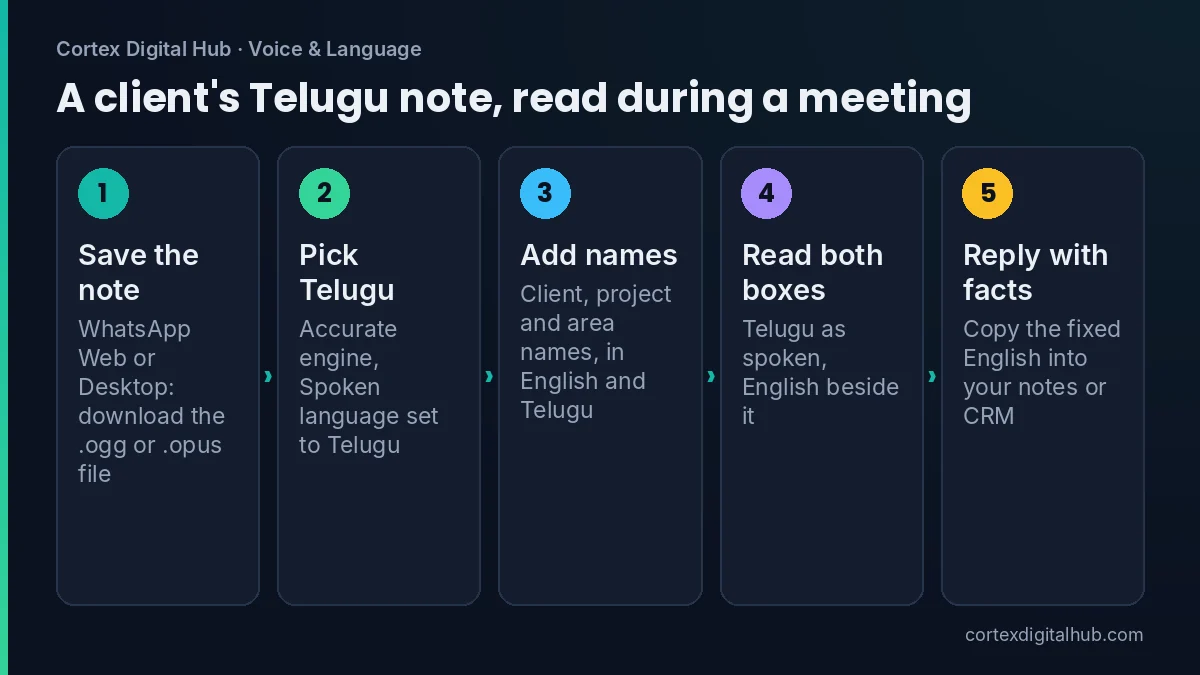 Save, set Telugu, add names, read both boxes, then reply with the facts.
Telugu and English in one note
Hardly anyone in Hyderabad speaks a voice note in pure Telugu. "Sir, registration date next week ki move cheyyandi, EMI first of every month" is normal. The tool cuts the recording into parts at natural pauses and detects the language of each part. Telugu parts come out in Telugu script, English parts in English, and the English box gives the whole note in English.
How the language setting changes this:
- Telugu picked: every part is treated as Telugu. Best for short notes, noisy notes, and notes that are mostly Telugu. English words inside the sentences may appear in Telugu script in the first box.
- Detect automatically: each part is guessed on its own. Better for a group recording where one person speaks Telugu, another Hindi, and a third full English sentences.
If a result looks like the wrong language entirely, set Telugu and run the note again. The setting is remembered in your browser, so the next Telugu note starts with it already chosen; switch it back when a Hindi or English note comes in.
Names: type them twice
Names to expect replaces words that sound close to a name you typed with your spelling. It matches within the same script. A name typed in English fixes the English box; to fix the Telugu box as well, add the Telugu spelling too, for example "Srinivas, శ్రీనివాస్". It takes ten seconds and saves the most common correction.
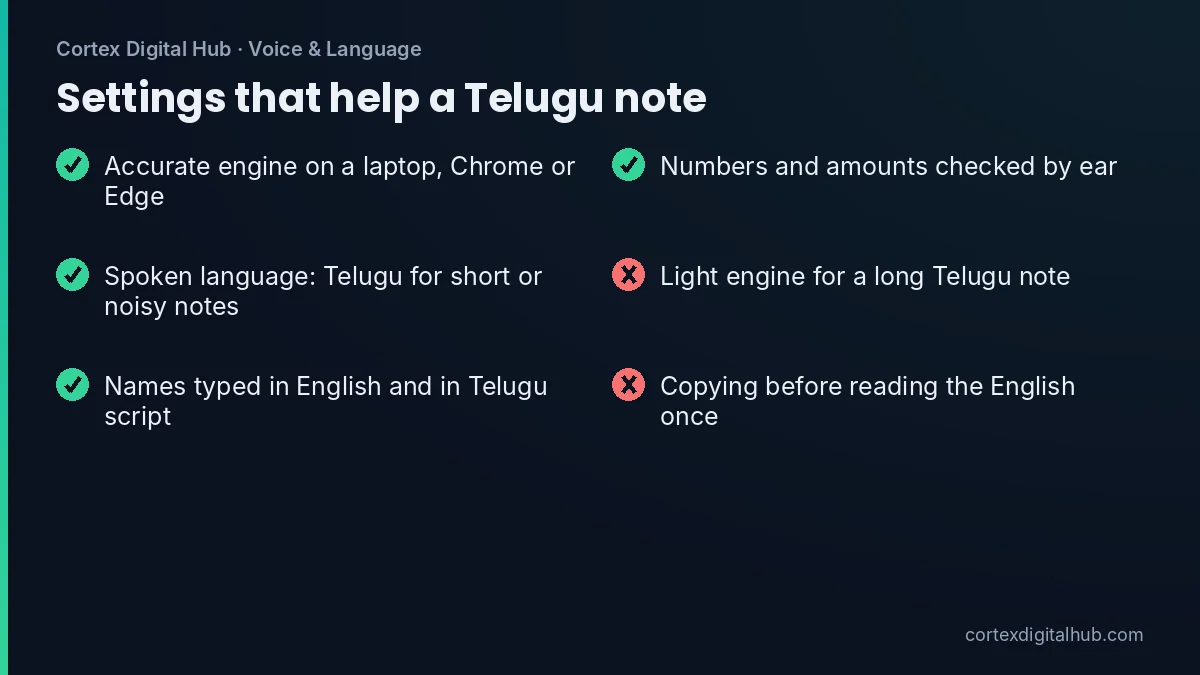 The four settings that make the biggest difference for Telugu notes.
What the English box gives you
In Chrome, the English comes from the browser's own on-device translator, where it has one for Telugu; the first time it may fetch a language pack. Otherwise, a button makes the English with the speech engine, which is direct but can be loose. Where the browser supports it, Polish the English tidies the grammar on your device. Both boxes are editable, and your edits are what gets copied or downloaded as .txt.
For a sales or service team, that English text is what goes into the CRM note or the reply email. The Telugu box is your record of what was actually said, which helps when a colleague later asks what the client really meant. You can also download subtitles (.srt) if the recording came from a video.
Review it honestly before you act
Speech engines slip on exactly the things a client cares about. Before you copy:
- Check every amount, date, flat or plot number and phone number against the Telugu, and by ear if it matters.
- Open Lines with times and click a time to hear an unclear part again.
- Expect weaker text when the client recorded on a road, in a car with the windows down, or with someone talking in the background.
- Treat the English as a working version. For a legal document or an agreement, have a person who reads Telugu confirm it.
If you get Kannada notes too, pick Kannada and review even more carefully: Kannada results are weaker today than Telugu, Hindi or English.
Phone or laptop?
The page picks an engine for your device. Phones and older computers get Light (about 250 MB), which is quick and best for English. It will read Telugu, but the tool itself suggests switching to Accurate after a Telugu result. Speed depends on the device: fast with graphics acceleration, slower on processor-only computers. For regular Telugu notes, a laptop with Chrome or Edge is the right setup.
More for teams that live on voice notes
- Long site-visit or call recordings: trim to the useful part with Video to MP3 before you transcribe.
- Hindi notes from the same clients: see Hindi audio to English text.
- Property teams making short videos for buyers: AI video for real estate marketing in India.
- A voice for your reply: AI Voice Over speaks English and Hindi, but not Telugu yet.
All of these run in the browser and sit under Language Tools and Video Tools.
Watch the video
The voice note you can't play in a meeting · 1:19 · Watch on YouTube
Frequently asked questions
Is there a free Telugu voice to text tool?
Yes. Voice to Text on Cortex Digital Hub is free with no sign-up. Drop a Telugu voice note, call recording or video, and you get the words in Telugu script with an English version beside them. It runs in your browser, so nothing is uploaded.
Does WhatsApp transcribe Telugu voice notes?
Not as of October 2026. WhatsApp's help page on voice message transcripts lists no Indian languages. Save the note as a file and use a tool that reads Telugu instead.
What about Telugu mixed with English?
That works. The language is detected for each part of the recording, so Telugu parts are written in Telugu and English parts in English, and the English box gives the whole note in English.
Should I pick Telugu or leave Detect automatically?
Pick Telugu for short notes, noisy notes, or notes you know are in Telugu. Leave Detect automatically for a recording where people switch between Telugu, Hindi and full English sentences.
Can I use it on my phone?
Yes, but phones use the Light engine, which works best for English. For Telugu, a laptop or desktop with Chrome or Edge and the Accurate engine gives clearly better text.
How do I get names right?
Type them in Names to expect, separated by commas. Names typed in English are matched in the English text; to fix the Telugu box too, add the Telugu spelling as well.
Can it reply in a Telugu voice?
Not yet. The AI Voice Over tool speaks 20 languages, including English and Hindi, but not Telugu today. You can reply in English or Hindi voice, or type your reply.
Read a Telugu note as text → →