
Call recording to text: turn a client call into notes you can trust
Turn a call recording to text on your own laptop: save the file from your phone, drop it into Voice to Text, read it in the language it was spoken and in English, then check names, amounts and dates before you share it.
· 5 min read · 1.3K views · by the Cortex Digital Hub team
Drop a call recording, pick the language if the line was noisy, and read the words as spoken with an English version beside them. Free · no sign-up · runs in your browser, nothing uploaded
Turn a call into text → → Opens Voice to Text · runs in your browser
A client calls while you are driving, talks for six minutes in Telugu about the budget, the floor, and when the cheque will come, and you record it so you do not miss anything. Now you need it in writing. Turning a call recording to text takes a few minutes in Voice to Text: drop the file, read the words as they were spoken, and copy an English version for your team. The recording stays on your laptop.
Before anything else: tell the other person and ask before you record a call. People speak more openly when they know, and the rules on recording differ by place and situation. Check what applies to you; this guide does not give legal advice.
Why turn a call recording to text?
Audio is slow to search. A transcript lets you find the one line where the client said "possession by March" without playing the whole call again. It helps in a few common cases:
- Sales and site visits. Copy the client's exact requirements into your lead notes.
- Family and suppliers. A Hindi call from a supplier can go to an English-speaking colleague as text.
- Disputes and follow-ups. You can quote what was agreed, with the time it was said.
- Your own memory. A list of tasks from a long call is easier to act on than a recording.
Get the recording off your phone
Call recordings are saved by your phone's dialer or a recorder app, often as M4A, AMR or MP3. Find the file in your phone's file manager, usually in a folder named for recordings or calls, and copy it to your laptop by cable, email to yourself, or a cloud drive.
Voice to Text reads all of these formats, along with WAV, AAC, OGG and OPUS. If the call was a video call saved as MP4, drop that too. If the file is very long and you need one part, cut it first on a waveform in Video to MP3, which also works on audio files.
Turn the call into text, step by step
- Open Voice to Text in Chrome or Edge on a laptop.
- Pick an engine. Accurate is best for Indian languages: about 565 MB on computers with graphics acceleration in the browser, about 760 MB otherwise. Light is about 250 MB, quick, and best for English. The engine downloads once and starts in seconds after that.
- Set Spoken language. Leave it on Detect automatically, or pick Telugu, Hindi or Tamil when the line was noisy. Picking the language helps most with short or crackly calls.
- Type the names you expect in Names to expect: the client, the project, the street. Names you type there are spelled the way you wrote them.
- Drop the file. The words appear line by line in the speaker's own script, with English beside them.
- Work through the Before you copy checklist, then copy or download a .txt file.
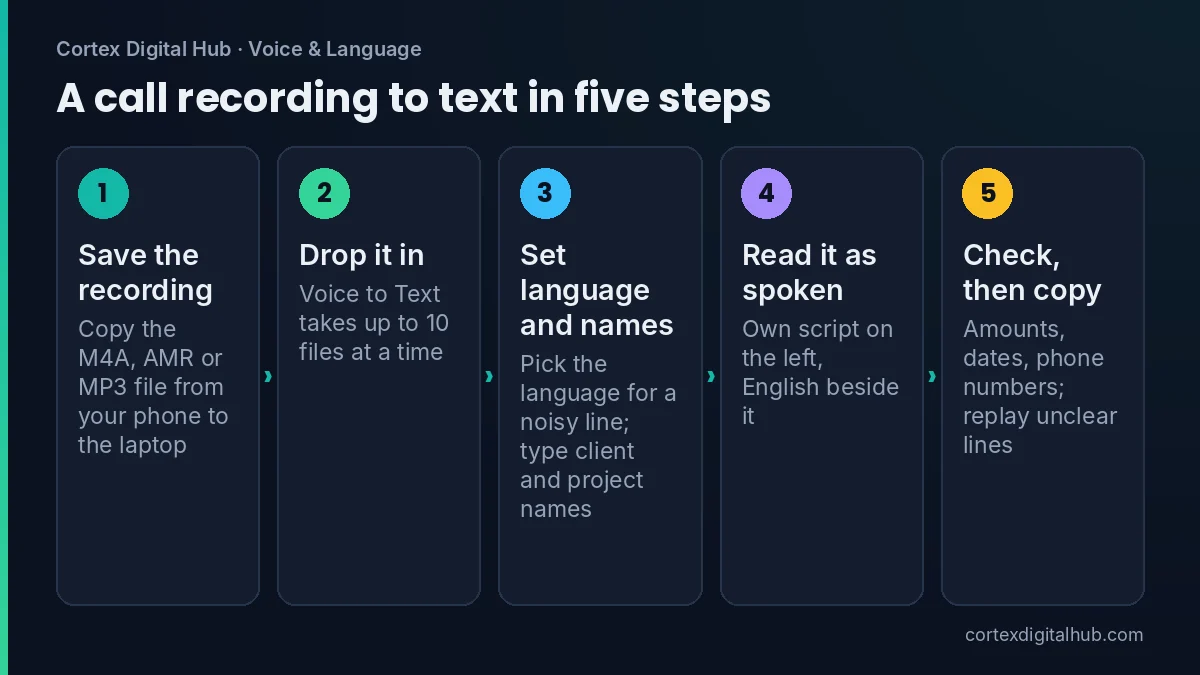 Save the file, drop it in, set language and names, read, then check before you copy.
Check the call recording text before you use it
A phone line squeezes the sound, and people rush through the parts that matter most: amounts, dates, unit numbers and phone numbers. That is where any speech engine slips.
| What to check | Why it slips on calls | How to fix it |
|---|---|---|
| Names | Unusual spellings, fast speech | Type them in Names to expect before you start |
| Amounts | "Twenty-five" and "thirty-five" sound close on a weak line | Replay the line and correct it |
| Dates | Said quickly, often in mixed language | Replay, then write the date in full |
| Phone numbers | Ten digits read in a rush | Confirm with the caller, not only the recording |
Open Lines with times under the result and click any time to hear that part again. Both boxes are editable, and your fixes are what gets copied. For Kannada calls, pick the language and read carefully: Kannada results are weaker today than Hindi, Telugu or English.
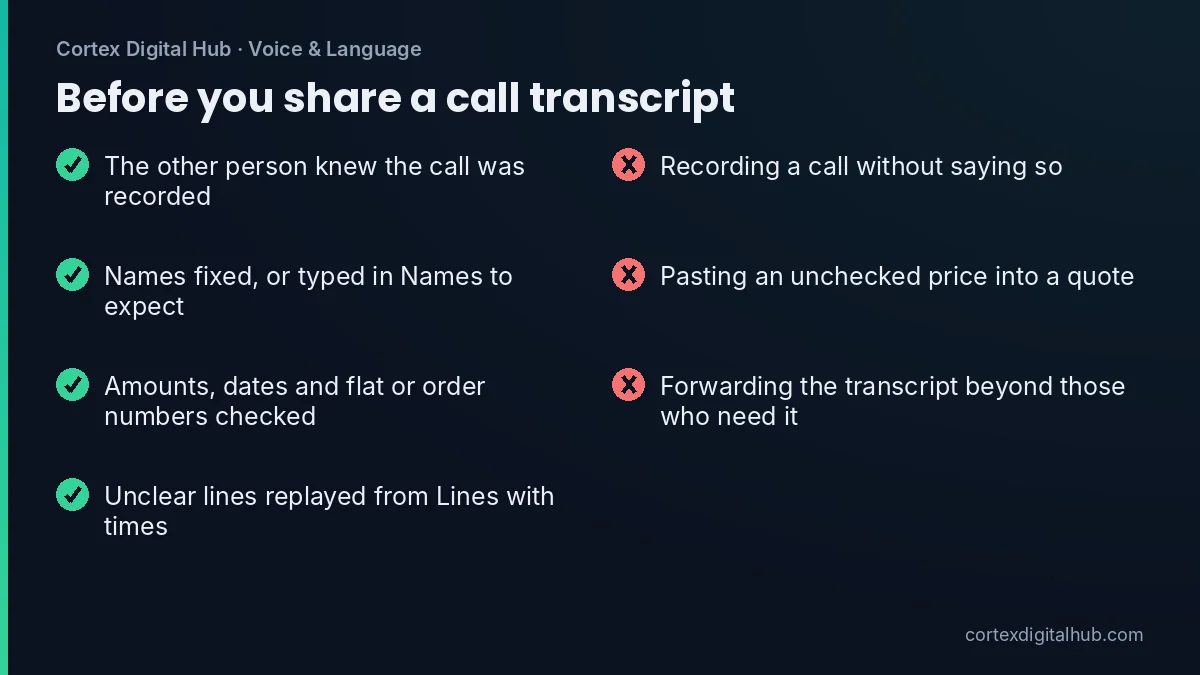 Consent first, then names and numbers, then share only with the people who need it.
Calls in Hindi, Telugu, Tamil and mixed speech
Most calls in India switch languages. A client may give the budget in English and the family details in Telugu. The spoken language is detected for each part of the recording, so a call that mixes Hindi and English, or Telugu and English, comes out with each part in the script it was spoken in. The English box gives you the whole call in English.
The English comes from your browser's own on-device translator where it has one, as in Chrome, or from the speech engine otherwise. Where the browser supports it, Polish the English tidies the grammar. Read it once against the original if something looks changed.
The language posts go deeper: Hindi audio to English text and Telugu voice note to text cover the details for each.
Keep call transcripts private
A call recording carries a person's voice, their plans and often their money. Because Voice to Text runs inside your browser, the recording is read on your device and is never uploaded. Our post on why browser tools are safer than upload sites explains the difference.
Privacy also depends on what you do next:
- Share the transcript only with the people who need it.
- Remove bank details or personal numbers before you forward it.
- Delete recordings you no longer need from your phone and laptop.
Quick tips for clearer call recordings
- Use the phone's own recorder rather than recording a speakerphone with a second phone.
- Stay where the signal is steady; dropped words cannot be recovered later.
- If you need to send a short audio clip as well, make a small MP3 with Video to MP3 at 64 kbps, which is enough for speech.
- For WhatsApp voice notes rather than calls, follow the WhatsApp voice note to text guide.
Speed depends on your device: a laptop with graphics acceleration is fast, a processor-only computer is slower, and phones should use the Light engine. Start with one call, check it, and you will know what to expect from your laptop.
Watch the video
The voice note you can't play in a meeting · 1:19 · Watch on YouTube
Frequently asked questions
How do I convert a call recording to text for free?
Copy the recording from your phone to a laptop, open Voice to Text on Cortex Digital Hub and drop the file in. The words appear as spoken, with an English version beside them. Check names and numbers, then copy or download a .txt file.
Which call recording files work?
Phones save calls in different formats. Voice to Text reads M4A, AMR, MP3, WAV, AAC, OGG, OPUS, FLAC and WebM audio, plus MP4, MOV, MKV and 3GP video, up to 10 files at a time.
Is my call recording uploaded anywhere?
No. The speech engine is downloaded once into your browser and the recording is read on your device. Nothing is sent to a server and there is no account.
Do I need permission to record a call?
Tell the other person and ask before you record. Rules differ by place and situation, so check what applies to you. This guide is not legal advice.
Can it transcribe a call in Telugu or Hindi?
Yes. Pick the Accurate engine on a laptop for Indian languages, and pick the language yourself if the line was noisy. An English version appears beside the original.
Why are some numbers wrong in the transcript?
Phone lines are narrow and people speak fast when they read out amounts or phone numbers. Click the time next to the line to hear that part again, then correct it in the box.
Will it show who said what?
No. You get the words line by line with times, not speaker labels. On a two-person call the turns are usually easy to follow when you read along.