
Best photo for image to video AI: resolution, framing, light and what fails
The best photo for image to video AI is sharp, evenly lit, well framed and clearly separated from its background. Use this checklist before you spend credits, with phone camera tips and a list of photos that tend to fail.
· 5 min read · 1.1K views · by the Cortex Digital Hub team
Run your photo through the checklist, then upload it as the first frame and prompt only the movement. From ₹24 a clip · no watermark · runs in your browser
Animate your photo → → Opens AI Video Generator · runs in your browser
The best photo for image to video AI is sharp, evenly lit, well framed and clearly separated from its background. Your photo becomes the first frame in the AI Video Generator, so everything the clip does starts from what the photo shows. A weak photo cannot be rescued by a clever prompt, and a strong one makes even a short prompt work. Check the eight points below before you spend credits.
What is the best photo for image to video AI?
The best photo has one clear subject, a clean background, even light and some empty space around the subject. In practice that means:
- Resolution: at least around 1080 pixels on the short side. More is fine; sharpness matters more than size.
- Sharp focus: the subject must be crisp. Blur stays blur, and motion makes it worse.
- Framing: the whole subject is inside the frame, not cropped at an edge.
- Headroom: visible space above and around the subject for the camera to move.
- Light: even and natural, with no harsh shadow or blown highlights.
- Separation: the subject differs in colour or tone from the background.
- Orientation: shaped for your target format, 9:16 or 16:9.
- Clean content: no heavy filters, tiny text or crowds.
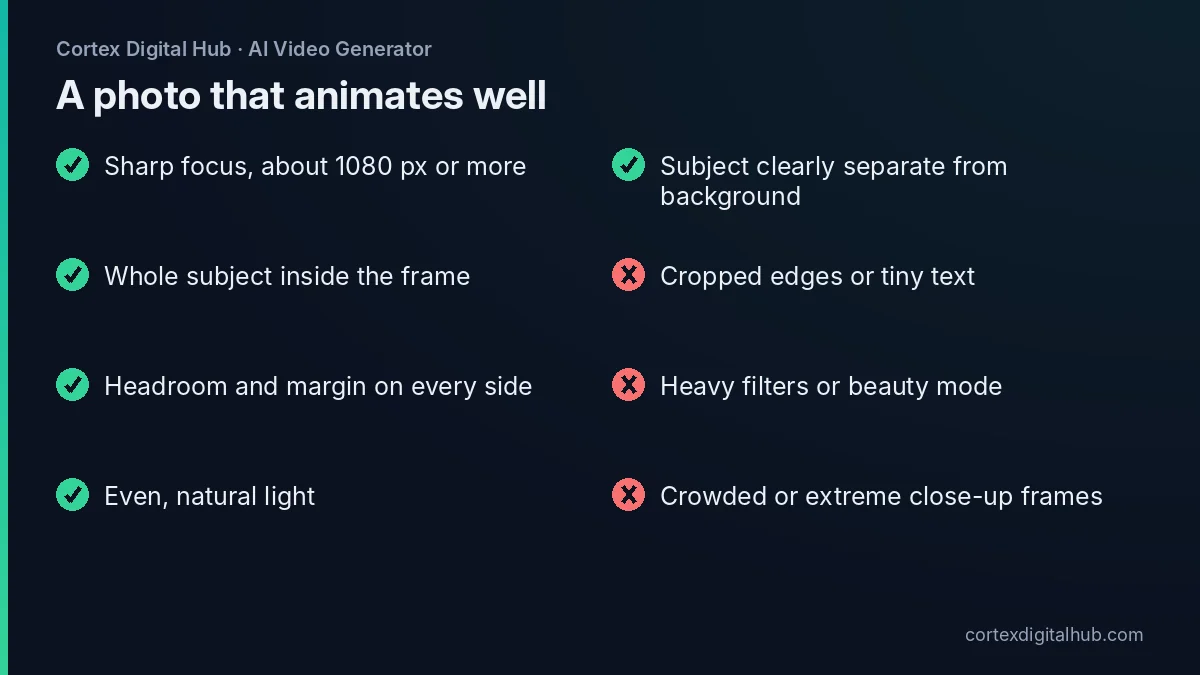 The checks a photo should pass before it becomes the first frame.
Resolution and sharpness
More pixels help only if they are sharp. A crisp 1080 x 1920 photo gives better results than a soft 4000-pixel one, because the model reads detail, not file size. If your photo is huge, shrink it with the free image resizer so uploads stay quick. Do not enlarge a small photo to reach the number; enlarging adds pixels, not detail.
Check the photo at full size on your screen. If the eyes, the label, the stone or the edge of the building look soft, find a sharper shot. Lift contrast gently in the photo editor, and avoid heavy sharpening, which can create harsh edges that move oddly.
Framing and headroom
Motion needs room. A push-in, tilt or small sway asks the model to invent what lies just outside your picture. If the subject touches the frame, the model has nothing to extend. Leave a margin of about a tenth of the frame on each side, and more above a person or tall object.
Match the shape of the photo to the format you will generate. A vertical photo suits 9:16 Reels and Status; a horizontal one suits 16:9. Crop first, rather than relying on a mismatch. Put the subject near the centre or on a third, and avoid extreme close-ups unless the clip is only a tiny movement.
Light and subject separation
Soft, even light is easy to animate. Harsh midday sun creates hard shadows that can flicker, and very dark photos hide the detail the model needs. Window light or open shade is ideal for products and portraits.
Separation means the subject stands out. A white kurta on a white wall or a brown dish on a brown table blurs into the background, and the motion can bleed across the boundary. If your background is messy or similar in colour, cut the subject out with the free remove background tool and place it on a plain colour.
Photos that fail
| Photo problem | What happens in the clip | Fix |
|---|---|---|
| Blurry or dark | Soft detail, drifting shapes | Reshoot in daylight |
| Subject cropped at the edge | Odd edges when the camera moves | Leave margin, re-crop |
| Crowded scene | Faces and objects merge | Simplify the frame |
| Small text or logos | Lettering warps | Keep text large, add captions later |
| Heavy filter or beauty mode | Plastic, unstable skin or colour | Use the unfiltered photo |
| Extreme close-up | Little room to move | Step back a little |
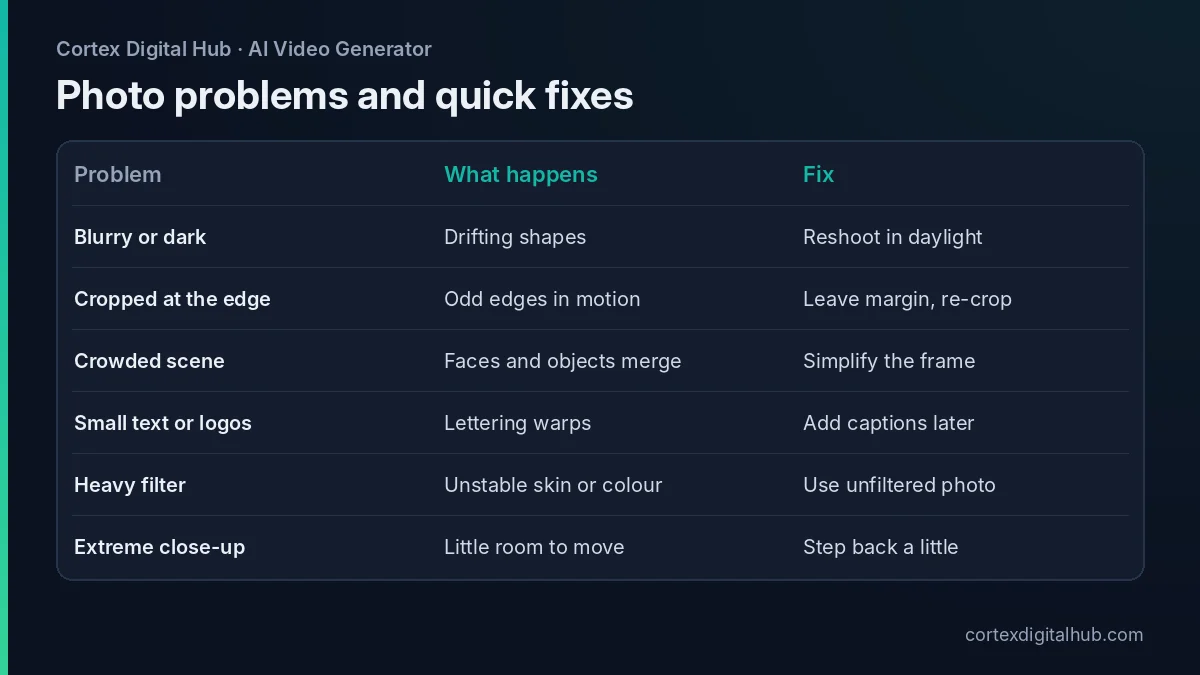 Common photo problems, what they cause and the quick fix.
Matching the photo to the job
Different subjects need slightly different photos. A product wants a plain background and a little space on every side. A building wants the whole structure in frame, taken from a distance so the roofline is not cut off. A portrait of an adult who has agreed wants the face large and sharp, with the head fully inside the frame and a neutral expression. A food photo wants a clean plate and light from one side.
Think about the movement before you shoot. If you plan a slow push-in, leave extra room around the subject. If you plan an orbit, make sure the subject looks believable from several angles, because the model will imagine the sides you cannot see. A flat poster or screenshot has no depth and gives the camera little to do, so prefer real objects and real places.
Phone camera tips
A modern phone is enough. A few habits make a clear difference.
- Clean the lens with a soft cloth; a smudge softens the whole frame.
- Shoot in daylight near a window, and turn the flash off.
- Tap to focus on the subject, and avoid digital zoom; step closer instead.
- Hold the phone level and steady, or rest it on something.
- Turn off beauty filters and heavy colour modes.
- If your iPhone saves HEIC and the upload does not accept it, follow the guide to HEIC to JPG on iPhone.
For product shoots, a plain wall, a table by a window and a sheet of white card for fill light are all you need. The product video from one photo guide shows how.
Choose a person photo carefully
Use a photo of a person only with their clear consent, and never use real children's faces. Do not impersonate celebrities or politicians. Your own portrait, a brand mascot or a product avoids the issue. See the image to video basics for prompt ideas once your photo is ready.
Test before you commit
Photos behave differently, so draft first. A 6-second clip on Nova Lite is 48 credits, ₹24. A 5-second clip on Lumen Motion 3 Standard is 115 credits, ₹57.50. Prices are as of October 2026. If the draft shows the problem, fix the photo before you pay for a final. The model guide, which AI video model to choose, helps with the final.
Key takeaways
- The best photo for image to video AI is sharp, evenly lit, well framed and clearly separated from its background.
- Aim for about 1080 pixels or more on the short side, but sharpness matters more than size.
- Leave a margin on every side and extra headroom, so the camera has room to move.
- Match the photo's shape to your format: 9:16 for Reels and Status, 16:9 for YouTube.
- Fix blur, clutter, filters and cropped edges in the photo, not in the prompt.
- Test on Nova Lite for ₹24 before the final, and use people's photos only with consent.
Frequently asked questions
What is the best photo for image to video AI?
A sharp, evenly lit photo with one clear subject, some empty space around it and a background that differs from the subject. It should be upright, uncropped at the edges and free of heavy filters, glare or text.
What resolution should my photo be?
Use at least about 1080 pixels on the short side, and larger is fine. A sharp 1080 x 1920 photo beats a blurry 4000-pixel one. If the file is huge, shrink it with the free image resizer first.
Should the photo be vertical or horizontal?
Match the video format. Use a vertical photo for 9:16 Reels and Status and a horizontal one for 16:9 YouTube. If they differ, crop the photo first instead of letting the shape be stretched.
Why does my subject's edge look strange in the clip?
When the camera moves, the model must invent what lies outside the photo. A subject cropped at the edge or pressed against the frame gives it too little to work with. Leave margin on every side.
How much space should I leave above the subject?
Leave visible headroom, about a tenth of the frame or more for people and tall objects. It gives room for a push-in, tilt or small movement. Do not cut off the top of a head, a tower or a lamp.
Can I use a photo with text or a logo?
You can, but small lettering often warps in motion. Keep text large and static, avoid prompts that move the camera a lot, and add captions or logos afterwards in an editing app.
Do phone photos work?
Yes, modern phone photos are usually enough. Shoot in daylight, tap to focus, clean the lens, avoid digital zoom and turn off beauty filters. Convert HEIC photos to JPG if the upload does not accept them.
Can I use photos of people?
Only with clear consent from the person shown, and never use children's faces. Do not impersonate celebrities or politicians. Your own photo, a mascot or a product avoids the question.
Which photos fail most often?
Blurry, dark or noisy photos, crowded scenes, extreme close-ups, subjects cropped at the edge, strong filters and photos with tiny text. Fix the source photo, because no prompt repairs a weak image.