
Clone your own voice free, with consent and no upload
Record 10 to 20 seconds of your own voice, tick the consent box and let it read your scripts in 20 languages. The clone is kept only in your browser, and nothing is uploaded.
· 5 min read · 893 views · by the Cortex Digital Hub team
Open My voices, record 10 to 20 seconds or use a clean recording, tick the consent box and save. Then pick your voice and type a script. Free · consent required · clones stay in your browser
Clone my voice → → Opens AI Voice Over & Clone · runs in your browser
You teach a weekly batch online and record a short intro for every lesson. By Thursday your voice is tired, and the fan in the next room is in every take. If you could clone your voice free, once, you could type each week's intro and let your own voice read it. The AI Voice Over & Clone tool does this from a 10 to 20 second recording. You tick a box confirming it is your voice, the clone is kept only in your browser, and nothing is uploaded.
Who you can clone, and who you can't
Start here, because it matters more than any setting.
- Your own voice: yes.
- Someone who has clearly agreed: yes, for example a colleague who records the brand voice and says so in writing.
- A public figure, a leader, a boss or a relative who has not agreed: no.
- Any clone used to trick people: never. Do not make a voice say something its owner did not say, and do not use it to pass yourself off as someone else.
The tool builds this in. The Save voice button stays off until you tick "This is my own voice, or I have the speaker's permission to copy it." If you are not sure you have permission, you don't.
How to clone your voice free, step by step
- Open AI Voice Over & Clone on a laptop or desktop with a recent Chrome or Edge.
- Switch to My voices in the voices panel and press Clone a voice.
- Type a name, such as "My voice" or "Ravi narration".
- Choose Record now and press Record. Read the short text on screen at your normal pace for 10 to 20 seconds, then press Stop. Or choose Use a recording and pick a WAV, MP3 or M4A file of you speaking.
- Listen back. If there is an echo, a fan or a stumble, press Record again.
- Tick the consent box and press Save voice.
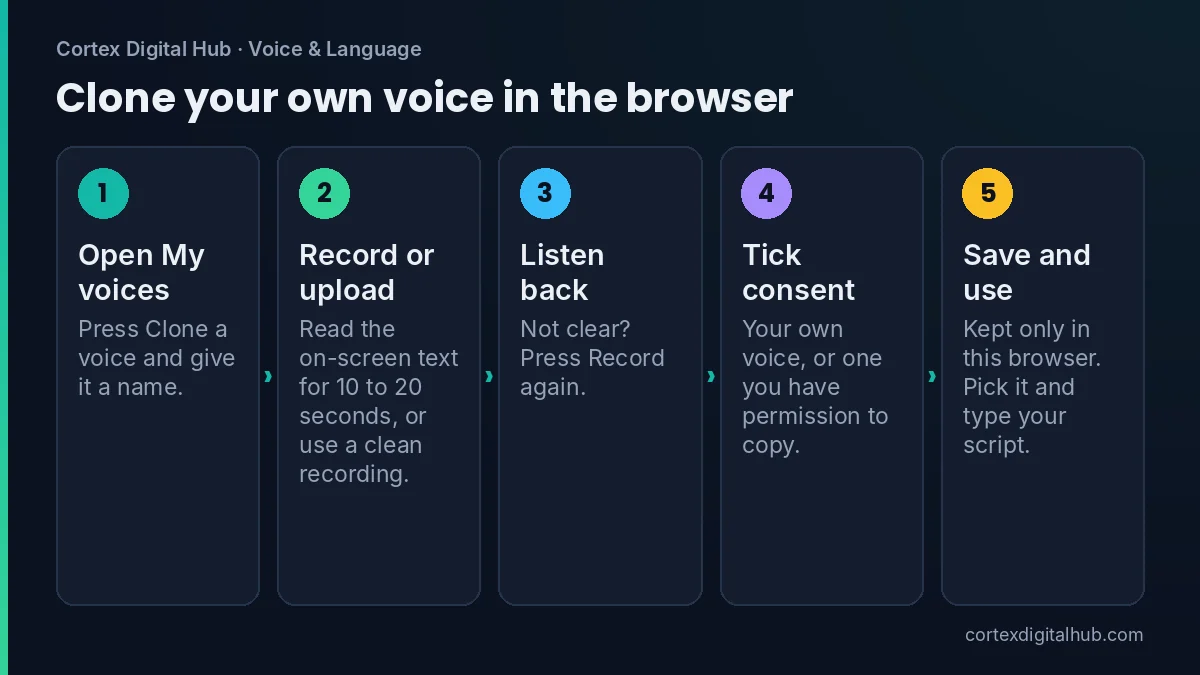 Record or upload, listen back, confirm consent, save. The voice then appears under My voices.
After you save, the new voice says a short hello in English, so you can hear the clone the same way you hear the library voices. Each saved voice has three small buttons: New sample makes a fresh hello, Recording plays your original sample, and Delete removes the voice.
The recorder helps with quality. It asks for the microphone with echo and noise reduction switched on, stops on its own after 25 seconds, and tells you if a recording was too short or too quiet ("We could hardly hear you").
Where your cloned voice is kept
The clone is stored in your browser on that device, not on a server. Your recording, your clone and every script you type stay with you.
This has a few practical results:
- On a different laptop or browser, the voice isn't there. Clone it again on that device.
- In a private or incognito window, the browser blocks saving. The tool says so, and you can use the voice until you close the tab.
- Clearing your browser's site data removes the clone, the same as pressing Delete.
If you want to know why this design matters, read why browser-based tools are safer than upload sites.
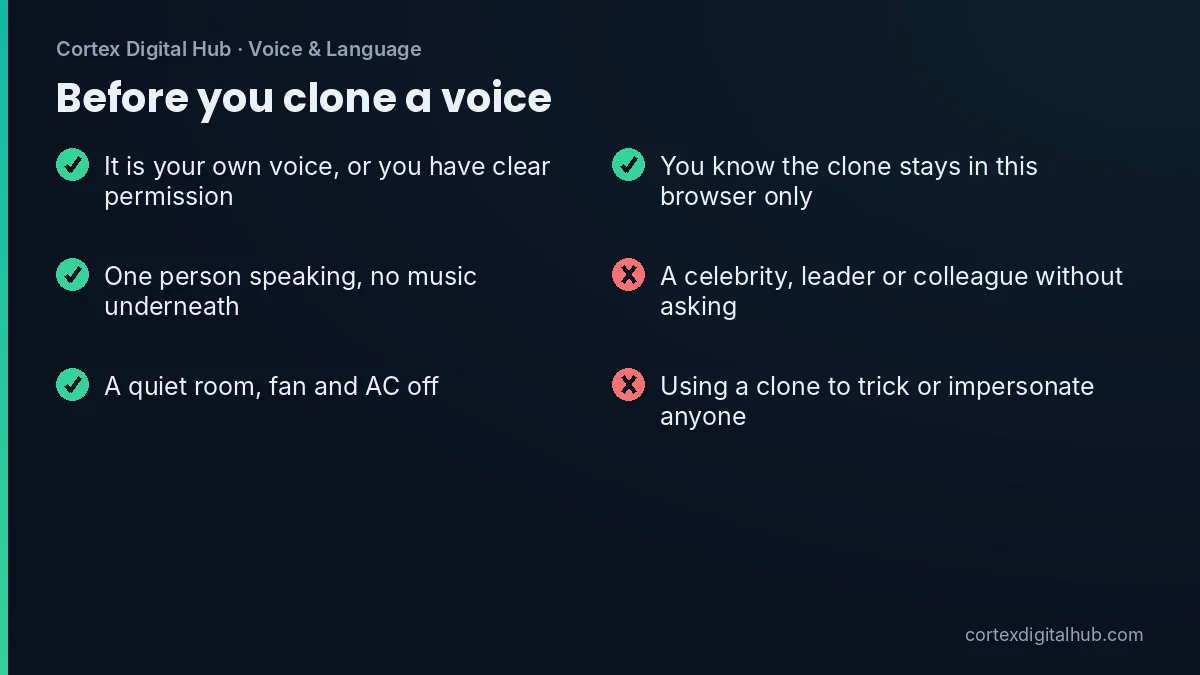 Your own voice or clear permission, one speaker, a quiet room. Never a famous voice, never to trick anyone.
Getting a clone that sounds like you
The clone can only be as good as the sample. A few habits help most:
- Pick a quiet, soft room. Curtains, a bed or a wardrobe soak up echo. Switch off the fan and AC for 20 seconds.
- Keep the phone or laptop still, about a hand-span from your mouth.
- Read in your normal voice. Don't put on a radio voice unless that is how you want every script to sound.
- Use one person only. No music, no second voice, no TV.
Already have a clean video of yourself talking, such as a webinar or a YouTube intro? Drop it into Video to MP3, drag the handles on the waveform to keep 15 to 20 seconds of clear speech, and download the MP3. Then choose Use a recording and upload it. A WhatsApp voice note you sent yourself works the same way, as long as it is quiet and clear.
Using your clone in a voice over
Your saved voice is now selected. Choose a language, type or paste the script and press Generate voice over. Add [pause] where you want a breath. Each take appears in the list with its length; play it and download the one you like as WAV.
You can pick any of the 20 languages for your clone, including English and Hindi, and it keeps your accent. Results vary between voices and languages, so make a short test line first. Telugu, Tamil, Kannada, Marathi and Bengali are not supported yet.
For the full writing and pausing routine, see free AI voice over from a script. Coaching teams can pair the clone with short visual clips, as in AI video for coaching institutes: make a clip with the AI video generator, cut it to the length of your voice with Trim video, and put the two together in your editor.
What a clone can and can't do
Be clear-eyed about it:
- A clone picks up the tone and accent of your sample. It may not catch every habit of how you speak, such as the way you stretch certain words.
- A noisy or echoey sample gives a noisy or echoey clone. Re-record rather than fight it later.
- It is beta. On older laptops without graphics acceleration, each sentence can take a minute or two. A recent Chrome or Edge on a laptop with graphics acceleration is much faster.
- The first run downloads the voice engine once: about 520 MB for English and about 1.6 GB for other languages.
Need the reverse, a recording turned into text? Voice to Text transcribes voice notes in your browser, including Hindi and Telugu.
Key takeaways
- Clone only your own voice or one you have clear permission to use; the Save button needs a consent tick.
- Record 10 to 20 seconds in a quiet, soft room, or upload a clean recording; the first 20 seconds are used.
- Your clone stays in that browser on that device; private windows can't keep it.
- Pick it like any library voice, choose one of 20 languages and generate.
- Cut a clean sample from an old video with Video to MP3 if you don't want to record fresh.
Frequently asked questions
Can I clone my voice for free?
Yes. Cloning and every voice over you make with the clone are free, with no sign-up. The voice engine runs in your browser, so there is no account to create.
How long a recording do I need?
10 to 20 seconds. Read the short text shown on screen at your normal pace. If you upload a recording instead, the tool uses the first 20 seconds, and it must be at least 6 seconds long.
Where is my cloned voice stored?
Only in the browser on the device you made it on. It is not sent to us or anyone else. On another device or browser you would need to clone it again.
Why do I have to tick a consent box?
Because a voice belongs to the person it comes from. The Save button stays off until you confirm it is your own voice or you have the speaker's permission to copy it.
Can I clone a celebrity or a family member's voice?
Do not clone anyone who has not clearly agreed. Never clone a public figure, and never use any clone to make someone believe a person said something they did not.
Can my cloned voice speak Hindi or Spanish?
You can choose any of the 20 languages for your clone, and it keeps your accent. Telugu, Tamil, Kannada, Marathi and Bengali are not supported yet. Listen to the first take before you use it.
How do I delete a cloned voice?
Open My voices, press Delete on the voice and then press Sure? to confirm. Clearing the site's data in your browser also removes it.
Why did my clone vanish after I closed the tab?
Private or incognito windows block saving. The tool tells you when this happens, and you can use the voice until you close the tab. Use a normal window to keep it.