
JEE Main live photo: how the webcam and QR capture works
The JEE Main 2027 form asks for a live photograph taken through your camera while you fill it in, on top of the photo you upload. Here is how the webcam and QR code capture works according to the NTA bulletin, how to set up a room for it in five minutes, and what to do when the camera will not start.
· 5 min read · 1.2K views · by the Cortex Digital Hub team
The live photo is taken by the form, but the uploaded photo is yours to prepare. Type a target such as 100 KB and get a colour JPG inside the JEE Main 10–200 KB band, without the file leaving your device. Free · exact KB target · no upload
Prepare the uploaded photo → → Opens Image Compressor · runs in your browser
JEE Main live photo capture is the step that confuses most first-time applicants this year. You upload a passport-size photo as usual, and then the form asks you to switch on your camera and take a live picture as well. It takes under a minute when the room is ready and twenty frustrating minutes when it is not. Here is what the 2027 bulletin says, how the webcam and QR code routes work, and the setup that gets a clean photo on the first try.
What the bulletin says about the live photo
The JEE (Main) 2027 information bulletin dated 24 October 2026, on jeemain.nta.nic.in, lists the live photograph as part of the application step. The rules below are for this cycle; confirm them in the 2028 bulletin when it comes.
| Item | Format | Size in KB | Dimensions | Notes |
|---|---|---|---|---|
| Live photo | taken in the form | — | — | Switch on camera or connect a webcam; white background, proper lighting, 80% face visible |
| No webcam | QR code | — | — | Scan the QR code with a mobile phone or tablet |
| Uploaded photo | JPG / JPEG | 10–200 | not prescribed | Recent, colour, about 80% face with ears, no mask, white background |
NTA also says it reserves the right to verify candidates' photographs and advises updating your Aadhaar photo for verification at the exam centre. So treat the live photo as the face the invigilator will compare with you in January.
How JEE Main live photo capture works
There are two routes, depending on the device you are filling the form on.
Webcam or front camera. On a laptop with a webcam, or when you fill the form on a phone, the browser asks for camera permission. Allow it. A preview appears; position your face, capture, and check the result before you move on. The exact buttons on the NTA page may look slightly different from any screenshot you have seen, so read each prompt.
QR code on a phone. If your computer has no webcam, the bulletin says you can scan the QR code shown in the form with a mobile phone or tablet. Use the phone's camera or a QR scanner, open the link it shows, and take the photo on the phone. Keep both screens open until the form confirms the photo has arrived.
Filling the whole form on a phone. Many students do. The front camera works as the webcam, so there is no QR step, but holding the phone yourself usually means a low angle looking up your nose. Prop the phone against a stack of books at eye level, or ask someone to hold it straight in front of you at arm's length while you look into the lens. Let the helper tap capture while you hold still and look into the lens. Portrait orientation suits a head-and-shoulders frame better than landscape.
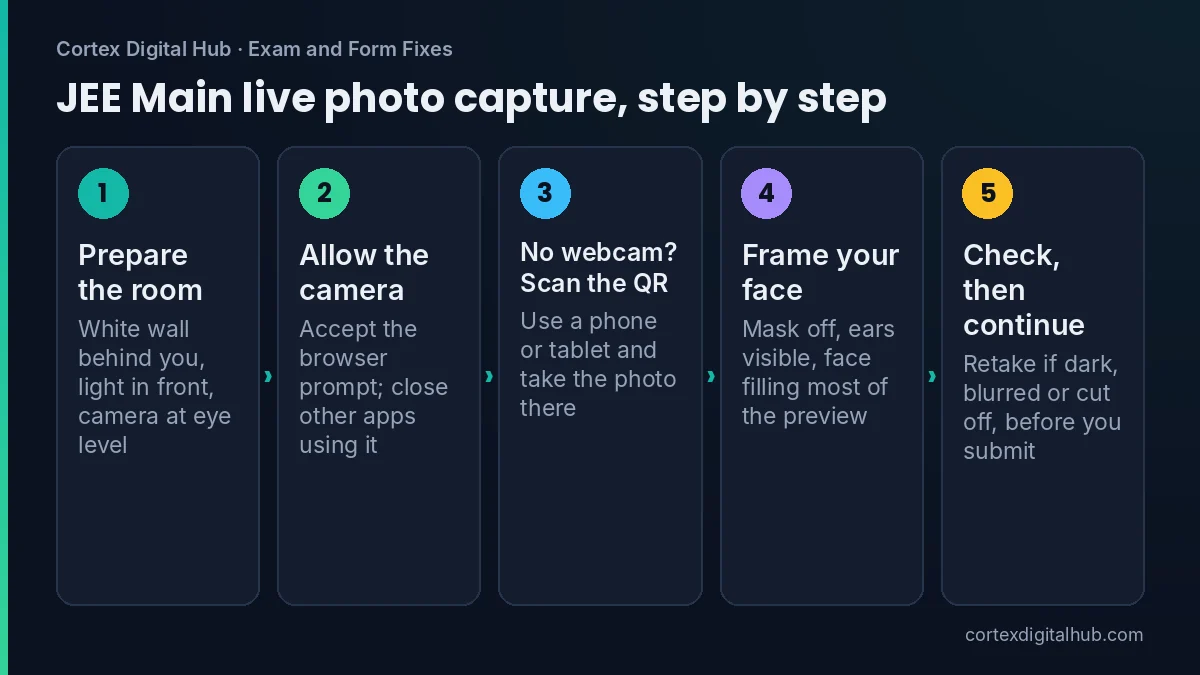 If the laptop has no webcam, the phone takes over at the QR code step.
Set up the room in five minutes
The bulletin's three conditions are white background, proper lighting and 80% face visibility. Here is how to meet them at home.
- Background. Stand or sit with a plain white or very light wall about half a metre behind you. Move posters, cupboards, door frames and people out of the frame.
- Light. Face a window in daytime, or put a bright lamp in front of you at head height. Never sit with the window behind you; the camera will darken your face.
- Distance. Hold the phone or set the laptop about an arm's length away, camera at eye level. Your head and the top of your shoulders should fill most of the preview.
- Face. Mask off, cap off, hair behind both ears, eyes open, neutral expression, looking straight at the lens rather than at the screen.
- Camera settings. Turn off beauty mode, portrait blur and filters. Wipe the lens.
If you wear spectacles every day, keep them on and tilt them very slightly down to kill reflections from the lamp. Avoid tinted lenses.
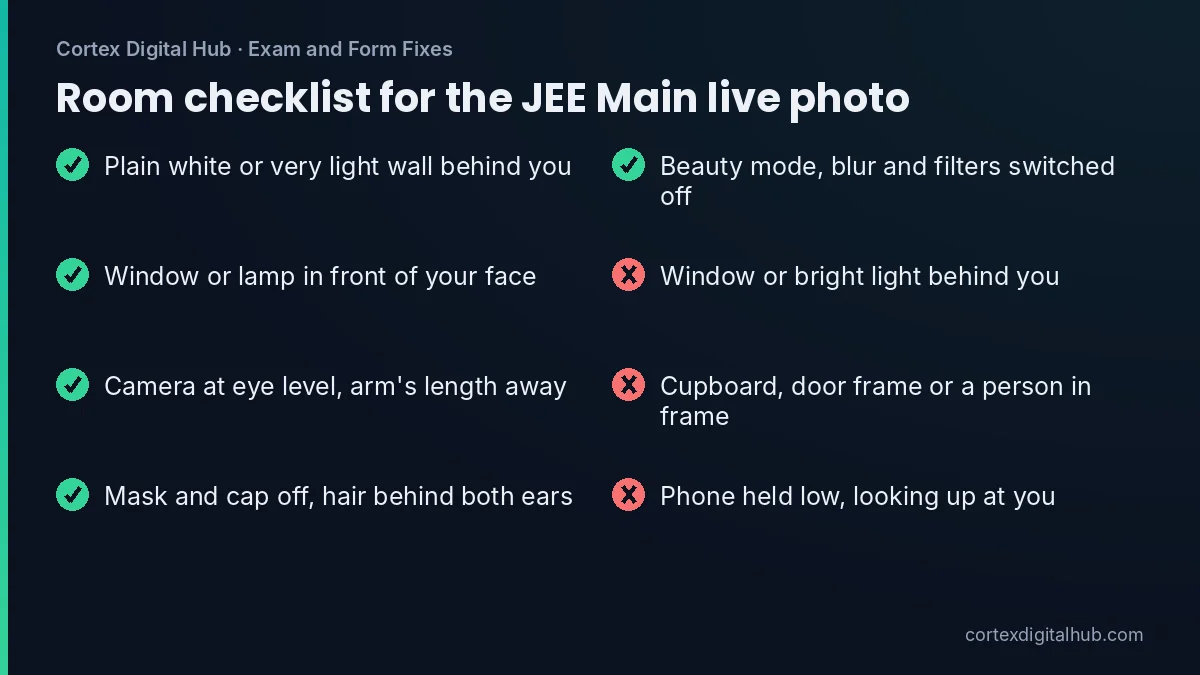 White wall behind, light in front, camera at eye level.
When the camera will not start
Permission blocked. Tap the icon to the left of the address bar, open site settings, set Camera to Allow and reload the page.
Camera busy. Close video calls, camera apps and other browser tabs that might be using it, then reload.
Black or frozen preview. Switch to a different browser such as an updated Chrome, or move to the QR route on a phone.
Very slow upload from the phone. Move closer to the Wi-Fi router or switch to mobile data. Keep the phone screen on until the form shows the photo.
None of these fixes needs a cyber café. A cyber café does have one advantage, a webcam and a plain wall, but you can recreate both at home.
Prepare the uploaded photo at the same time
The live photo cannot be edited, but the uploaded passport-size photo can and should be. It must be a recent colour JPG of 10 to 200 KB with your face filling about 80% of the frame against a white background. Crop it with the passport size resizer, replace a coloured wall with Remove Background using a white fill, then bring it to about 100 KB with the Image Compressor. If your phone saved it as HEIC, convert it with HEIC to JPG first. All of these run in your browser, which is safer than upload sites for a photo of your face.
The passport photo size guide explains the 413 × 531 px crop if you want to understand the numbers. And if the portal still refuses the uploaded file, our post on why a JEE Main photo gets rejected lists the seven usual causes.
A last check before you submit
Look at both photos side by side on the preview page: same person, similar look, face clear, no shadow across the eyes. Session 1 registration closes at 11:50 pm on 22 November 2026, with a late fee window from 23 to 26 November. Do the live photo in daylight a few days early rather than under a tube light at midnight on the last day.
Frequently asked questions
What is the JEE Main live photo?
A photograph captured through your device's camera or webcam while you fill the JEE Main 2027 application form. It is separate from the passport-size photo file you upload.
I am filling the form on a laptop without a webcam. What now?
The 2027 bulletin says that if your device does not support a webcam, you can scan the QR code shown in the form with a mobile phone or tablet and continue the capture there.
What background do I need for the live photo?
The bulletin asks for a white background with proper lighting and 80% face visibility. A plain white or very light wall behind you, with nothing else in the frame, is the safest choice.
Can I use a filter or beauty mode?
Avoid it. The photo should look like you on exam day. Turn off beauty, portrait blur and filters in the phone camera settings before you start.
Should I wear spectacles in the live photo?
The JEE Main 2027 bulletin does not mention spectacles. If you wear them every day, wear the same pair in both photos and tilt them slightly so there is no glare on the lenses.
The browser says camera blocked. How do I fix it?
Open the site settings for the page (the icon next to the address bar), set Camera to Allow, and reload. Close any other app that is using the camera, such as a video call.
Can I retake the live photo?
Check the preview before you save and continue. If it is dark, blurred or cut off, retake it while you are still on that step, before you submit the form.
Prepare the uploaded photo → →