
Paati's photo for the eightieth: enlarging one small old print to frame for the family
The only photo of a grandmother as a young bride was a small print in an album and a phone scan in the family group. How to enlarge a photo without losing quality for a framed print, which size to pick, and what an upscaler will not repair.
· 5 min read · 1.3K views · by the Cortex Digital Hub team
Drop the scan in, pick 4K for a frame up to about 12 × 18 inches, and keep AI detail on. It cleans the blocky marks a phone and WhatsApp leave behind while it enlarges, and the family photo never leaves your laptop. Free · no sign-up · nothing uploaded
Enlarge the photo → → Opens Image Upscaler · runs in your browser
Anjali typed "enlarge photo without losing quality" into her phone on a Sunday night, a week after being handed one job. Her grandmother turns eighty in December, and the family is holding a Sathabishekam in Madurai with everyone home from three cities. Anjali's job was a framed photo for the hall. Not a recent one: the photo everyone loves of Paati at nineteen, in a silk sari with jasmine in her hair, taken at a studio in town the year she married. It exists as one small print in an album, about the size of a postcard, and as the scan her cousin took on his phone and posted in the family group. Getting a sharp frame out of a source like that takes a little care, and the first step is not the upscaler at all.
Why the family group copy falls apart
The cousin's scan looked fine as a thumbnail in the chat. At full size on a laptop it had problems: the corners of the print curved away from the lens, a lamp made a bright patch on one cheek, and the whole picture had the faint blocky texture of a photo that WhatsApp had saved again at a lower quality. Printed at 12 × 18 inches, every one of those flaws would be eighteen inches wide, and a framed print hangs at eye level, where guests stand close and look for a long time.
A plain enlargement does not help. It makes new pixels by blending old ones, so the blocks turn into soft squares and the edges of the face, the sari border and the hair go mushy.
Rescan the print before anything else
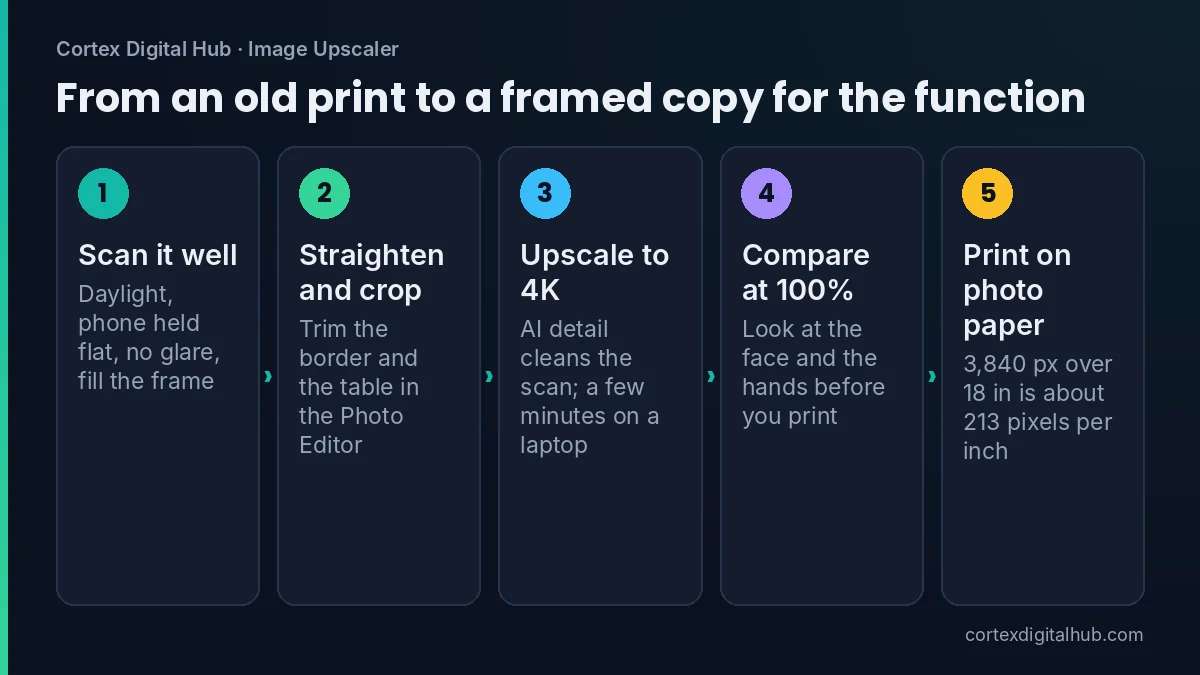
The best upscaler in the world works from what you give it, so give it a better scan. Anjali borrowed the album for an afternoon and did this:
- Took the print out of its sleeve and laid it flat on a dark table near a window, in daylight, with no lamp on.
- Held the phone directly above it, parallel to the table, close enough that the print filled most of the frame, and checked for glare before taking several shots.
- Picked the sharpest shot and sent it to herself as a document, not a photo, so it was not shrunk on the way. An iPhone HEIC opens directly in the upscaler; if another app refuses it, the HEIC explainer covers why.
- Cropped away the table and straightened the print in the Photo Editor, and lifted the brightness slightly where the print had faded.
Can you enlarge a photo without losing quality?
Then she opened the Image Upscaler on her laptop and dropped the scan in. It has a mode called AI detail. A small AI model downloads into the browser once, about 20 to 30 MB, and runs on her own laptop, so a family photo never goes to anyone's server; browser-based tools are built that way for exactly this reason. The model removes the blocky look of compressed pictures and keeps edges sharp while it enlarges four times, then a high-quality resize takes the picture to the size you chose.
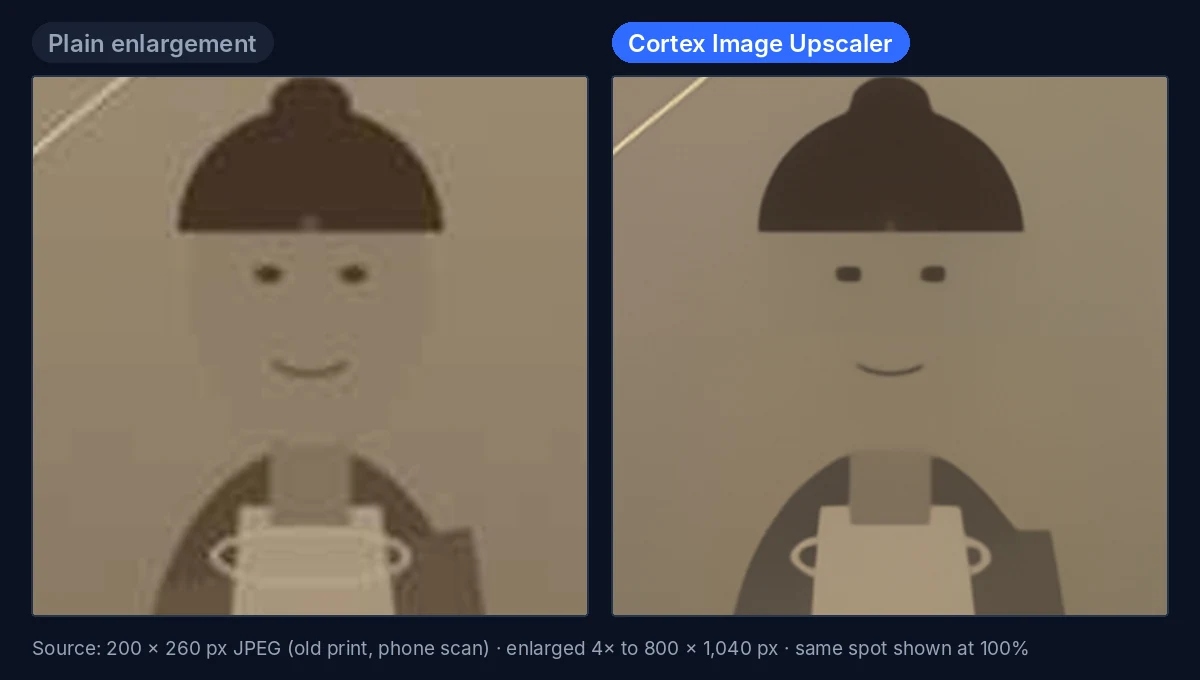
The test above is one we made: a small, sepia, compressed scan of a portrait, enlarged four times both ways. Look at the edges of the face and hair. Then look at the top-left corner, where a pale crease line runs across the print. It is still there on the right. That is the honest answer to this section's question: you can enlarge without the blocky, soft look, but the upscaler cleans and sharpens; it cannot invent detail the camera never captured, and it does not repair the print.
Which size for which frame
Frames are printed on photo paper and looked at from close up, so this is one job where pixels per inch matter. Divide the long side by the frame's long edge:
| Frame | Size to pick | Pixels per inch on the long side |
|---|---|---|
| 5 × 7 in | 2K | 2,560 ÷ 7 = about 366 |
| 8 × 10 in | 4K | 3,840 ÷ 10 = 384 |
| 12 × 18 in | 4K | 3,840 ÷ 18 = about 213 |
| 20 × 30 in | 8K | 7,680 ÷ 30 = 256 |
Anjali picked 4K with AI detail on and JPG as the format. It took a few minutes, with a progress bar showing the time left. 8K would also work for a large frame, but it needs a computer with Chrome or Edge, since phones cannot hold pictures that big, and for a 12 × 18 print it adds time without a visible gain.
What it will not fix
Be clear with the family about this before the print goes to the studio. The upscaler does not remove creases, scratches or the white spots of a damaged print. It does not bring back colour that has faded, and it does not turn a blurred face sharp if the original studio photo was soft. It may also smooth some film grain and paper texture as it cleans up. Look at Paati's face in the "Same spot at 100%" view: it should look like the same face, a little cleaner. If it looks too smooth to you, use the plain enlargement for that photo instead. A fold across the face needs a human retoucher, not a tool.
The print on the wall
Anjali's 4K file went to a photo studio near her office for a 12 × 18 print on matte paper, then into a simple teak frame. The jasmine in Paati's hair reads as flowers, not a blur, and the zari border on the sari has clean edges. The crease in one corner is still faintly there, and nobody minds: it is part of the photo's story.
If the family wants more than a frame, the same scan can become a short moving portrait for the function screen; the old photo to video guide covers how, gently, and with the right expectations. To share the framed version back in the family group without it taking forever to download, shrink a copy with the Image Compressor and keep the 4K file for prints.
Watch the video
The welcome board that came on WhatsApp: a free AI upscaler to 8K · 4:20 · Watch on YouTube
Frequently asked questions
Can I enlarge an old photo without losing quality?
You can enlarge it without adding the blocky, soft look a plain enlargement gives. The upscaler cleans compression marks and sharpens edges while it enlarges. It cannot add detail the original print never held, so a better scan always gives a better result.
What size should I pick for a 12 × 18 inch frame?
4K. Its 3,840 pixels across 18 inches is about 213 pixels per inch, which looks sharp on photo paper. For an 8 × 10 frame, 4K gives about 384 per inch on the long side.
Will the upscaler repair tears, creases or faded colours?
No. It is not a restoration tool. A crease or a scratch stays in the picture. You can lift the brightness and contrast in a photo editor, but a fold across a face needs a retoucher.
Should I upscale the WhatsApp copy or rescan the print?
Rescan the print if you can. A flat, glare-free photo of the print in daylight, taken close and sent as a document, holds far more than a forwarded copy. Upscale that.
Is it safe to put a family photo into an online tool?
This one runs in your browser, so the photo is never uploaded. The AI part downloads once, about 20 to 30 MB, and works on your own device.
Will the face look different after upscaling?
It should look like the same face, a little cleaner. The cleanup can smooth fine grain and paper texture, so compare the face at 100% before printing, and pick the plain resize if you prefer the grain.