
Recorded on a Lagos street, due by midnight: remove background noise from a voice note, free
Tunde recorded his pitch for a client in London on a busy Lagos street, horns and all, with the deadline that night. How to remove background noise from audio and video in the browser, the one setting that keeps a voice natural, and the noise no tool can take out.
· 5 min read · 1K views · by the Cortex Digital Hub team
Drop a voice note, a recording or a video. Fan hum, AC, traffic and crowd noise are lowered behind the voice; switch before and after while it plays, then save MP3, WAV or the video with clean sound. Free · up to 60 minutes · nothing uploaded
Clean your recording → → Opens Noise Remover · runs in your browser
Tunde is a freelance brand designer in Lagos. A client in London had asked each of the three shortlisted designers to send a two-minute voice note walking through their logo ideas, by midnight UK time. Tunde recorded his on the way home, phone held close, standing on a pavement in Ikeja while the traffic crawled past. When he played it back, the horns and a generator were louder than his best idea. There was no time to record again in a quiet room. He needed to remove background noise from audio he already had, and he needed it free and fast. A friend sent him a link, and the voice note was clean before he reached his door.
Why noisy voice notes are so common
Phones are built to pick up everything. The microphone does not know that you care about your voice and not the bus beside you, the ceiling fan, the kettle or the air conditioner. In a quiet room, your voice wins. On a busy street, in a market or in an open-plan office, the background fills every pause and sits under every word.
Recording again is the best fix when you can. When you cannot, because the moment has passed, the deadline is close or the person who recorded it is not with you, cleaning the recording is the next best thing.
How the noise remover works
The Noise Remover uses a small neural network trained on speech. It has learned what a voice sounds like, so it keeps that and lowers everything behind it. It runs inside your own browser: the recording is cleaned on your phone or computer and never uploaded, which matters when the voice note is a client pitch or a family message. The tool's own page says what it is for: voices, not songs. It will not clean the hiss off an old record, because it would treat the singing as the thing to keep and the music as noise.
Remove background noise from audio, step by step
This is what Tunde did, on his phone, on the walk home:
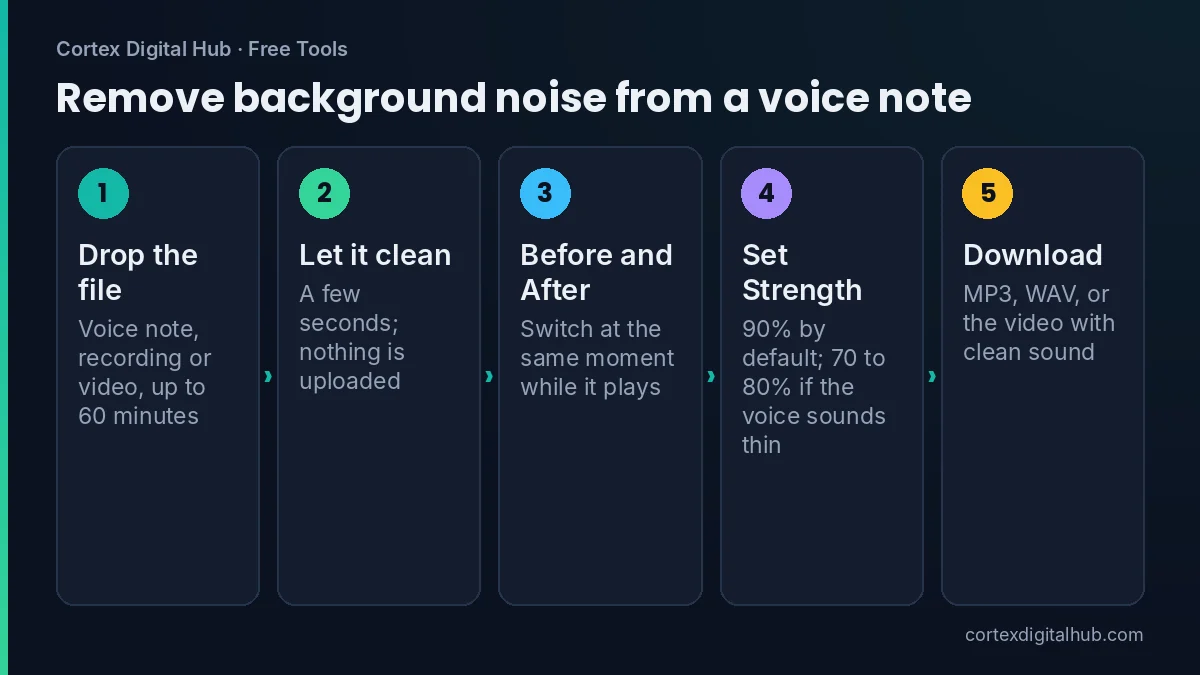
- Opened the Noise Remover and dropped in his recording. It takes MP3, WAV, M4A, WhatsApp voice notes (OGG and OPUS), and videos such as MP4, MOV and WebM. One file at a time, up to 60 minutes long.
- Waited a few seconds while it cleaned. The status line showed how long it took.
- Pressed Play and tapped After, then Before, then After again at the same moment in the recording. On a computer, the B key switches while it plays.
- Heard that his voice sounded slightly thin on two words, so he moved Strength from 90% down to 80%. The result updates as the slider moves.
- Left Make it louder if it is quiet ticked, as it is by default, since he had spoken softly.
- Downloaded MP3 and sent it to the client.
The settings that matter
There are only a few, and each has a clear job:
- Strength. 90% by default. Higher removes more noise; too high can make a voice sound thin or robotic. If that happens, 70 to 80% mixes a little of the original back in and keeps the voice natural.
- Quieter pauses. On by default. Lowers the gaps between sentences further, so the street does not swell up every time you stop to breathe.
- Make it louder if it is quiet. Also on by default. Useful for a voice recorded at arm's length or a soft speaker.
- Keep stereo. Shown only for stereo files and off by default, because a voice is usually best as mono. Turn it on only if the recording has real left and right sound you want to keep.
- Download. MP3 to share, WAV for the best quality if someone will edit it, or Video with clean sound to keep the picture exactly as it was.
What it cannot take out
Be realistic about three things.
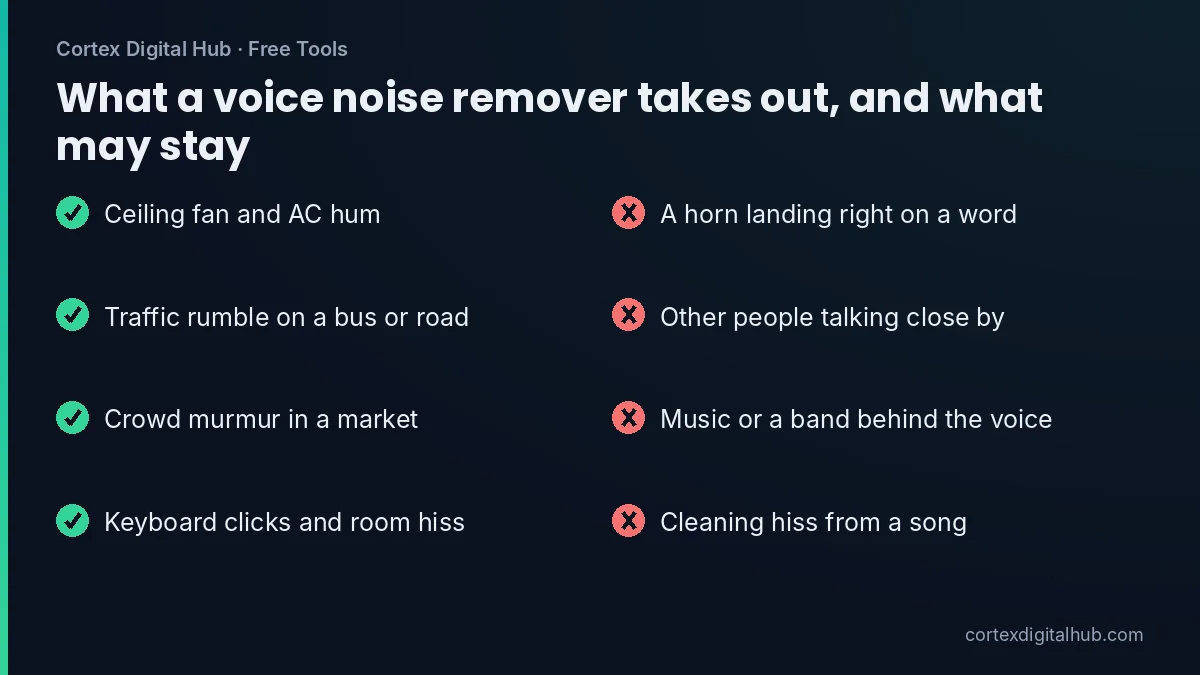
A horn blast that lands exactly on a word is the hardest case. Taking the horn out would take part of the word with it, so a trace stays. Other people talking close to the phone sound like speech, which is exactly what the tool is trained to keep. And music behind the voice, such as a band at a party or a shop speaker, is mixed into the same sound and partly stays.
For those, a better recording is the real fix: hold the phone closer to your mouth, turn your back to the road, step into a doorway. Tunde's recording worked because the street noise was mostly a steady rumble, with horns in the pauses.
One more habit helps every time: record a few seconds of silence before you start speaking. It gives you a clean place to trim later, and your first word is not clipped while you are still lifting the phone.
Where else this saves the day
- Videos shot in a busy market. A food vendor in Bangkok or a market stall in Mexico City: drop the video, then choose Video with clean sound. The picture is untouched and only the sound changes.
- Online classes recorded under a fan or an air conditioner. The hum disappears and students hear the teacher, not the room. To record a lesson from your computer screen in the first place, the Screen Recorder captures the screen with your microphone.
- Client updates and walk-throughs. A builder's update recorded on a windy roof, or a shop owner's product video recorded next to the road, both clean up well. For a short business explainer built around a voice, see video for small business explainers.
What to do next with the clean recording
- Get the words in writing. Voice to Text turns the cleaned voice note into text, in its own language and in English. Cleaner sound helps it hear every word.
- Trim the start and end. Trim Video cuts a video without re-encoding; for audio, the MP3 Cutter cuts on the waveform.
- Send a large video. The Video Compressor shrinks it; the guide to compress a video for WhatsApp has the sizes.
- Every audio and video tool is on the Video Tools page.
How the pitch went
Tunde's two minutes landed at 11:40 p.m. London time. The client replied the next morning with questions about his second idea, and not one word about where it was recorded. He got the job. The horns stayed in Ikeja.
Frequently asked questions
How do I remove background noise from audio for free?
Open the Noise Remover, drop the file, wait a few seconds, then press play and switch between Before and After. When it sounds right, download MP3 or WAV, or the video with clean sound. There is no sign-up and nothing is uploaded.
Can it clean a WhatsApp voice note?
Yes. WhatsApp voice notes are OGG or OPUS files, and both open directly, as do MP3, M4A and WAV recordings from other apps. Save the cleaned version as MP3, which plays on every phone.
What noise does it remove?
Background sound behind a voice: fans, AC, traffic, crowd murmur, keyboard clicks and room hiss. It is made for speech, so it is for talks, calls, voice notes and videos, not for cleaning songs.
The voice sounds thin or robotic after cleaning. What do I do?
Lower Strength to 70 or 80 percent. That mixes a little of the original back in, which keeps the voice natural while most of the noise stays gone.
Can I keep the video and only clean the sound?
Yes. Press Video with clean sound and you get the same video with the cleaned sound. The picture is copied as it is, so there is no quality loss.
How long can the recording be?
One file up to 60 minutes. For a longer lecture, cut it into parts first with Trim Video or the MP3 Cutter.
Why can I still hear a horn in one spot?
A very loud sound right on top of a word is the hardest case: taking it out would take the word with it. Other people talking close by and music behind the voice can also stay, because they sound like speech or are mixed into it.
Can I turn the cleaned recording into text?
Yes. Drop the cleaned file into Voice to Text, which writes out the words in their own language plus an English version, also in your browser.