
Diwali photo editing on your phone: fix dark, grainy and orange diya-lit photos
Diwali photo editing starts before you open an editor. How to shoot by lamp light on a phone, then fix a dark, grainy or orange photo in a free browser editor, cut out a clean portrait, size it for WhatsApp and turn the best frame into a Diwali video.
· 6 min read · 902 views · by the Cortex Digital Hub team
Open the photo, press Auto, lift Shadows and pull Warmth down a little. Crop to 9:16 if it is going on Status or into a video. Free · nothing uploaded · works in a phone browser
Fix a Diwali photo → → Opens Photo Editor · runs in your browser
The diyas are lit, everyone is dressed, someone says "just one photo", and what lands in the gallery is a dark room, orange faces and a fizz of grain over Dadi's new saree. Diwali photo editing can rescue most of those pictures, but the bigger win is in the ten seconds before you press the shutter. This guide covers both: how to shoot by lamp light on a phone, then how to fix the photo in the free Photo Editor in your browser, cut out a clean portrait, size it for WhatsApp and, if one photo turns out special, make it the start of a short Diwali video.
Why diya-lit photos come out dark, grainy or orange
A row of diyas looks bright to your eyes, but it is very little light for a phone camera. To make up for it, the phone does three things, and each one leaves a mark.
- It raises sensitivity. That brightens the picture and adds grain, the coloured speckle you see in the dark corners.
- It keeps the shutter open longer. Any movement, yours or the family's, turns into blur.
- It guesses the colour. Flames are far warmer than daylight, and the phone corrects only part of the way, so skin turns orange.
On top of that, the flame itself is the brightest thing in the frame. The phone often exposes for the room, so the flames blow out into white blobs, or it exposes for the flames, so the faces sink into shadow.
Shoot it right: phone tips for Diwali night photos
Five minutes of care at the door saves half an hour of fixing later.
- Shoot early. The half hour after sunset still has some light in the sky, which fills the shadows the diyas cannot reach.
- Flash off. It lights faces flat and white and wipes out the lamp glow you were trying to keep.
- Use Night mode if your phone has it, and hold still for the whole count. Ask everyone to hold still too.
- Brace the phone against a door frame, a wall or the back of a chair.
- Tap on a face, then slide exposure down a little, so the flames keep their teardrop shape.
- Don't zoom. Digital zoom on a dark scene multiplies the grain. Walk closer instead.
- Add light, not more diyas. A table lamp or a phone torch bounced off a white wall lights faces softly and still looks like evening.
- Wipe the lens. A thumbprint turns every flame into a smeared star.
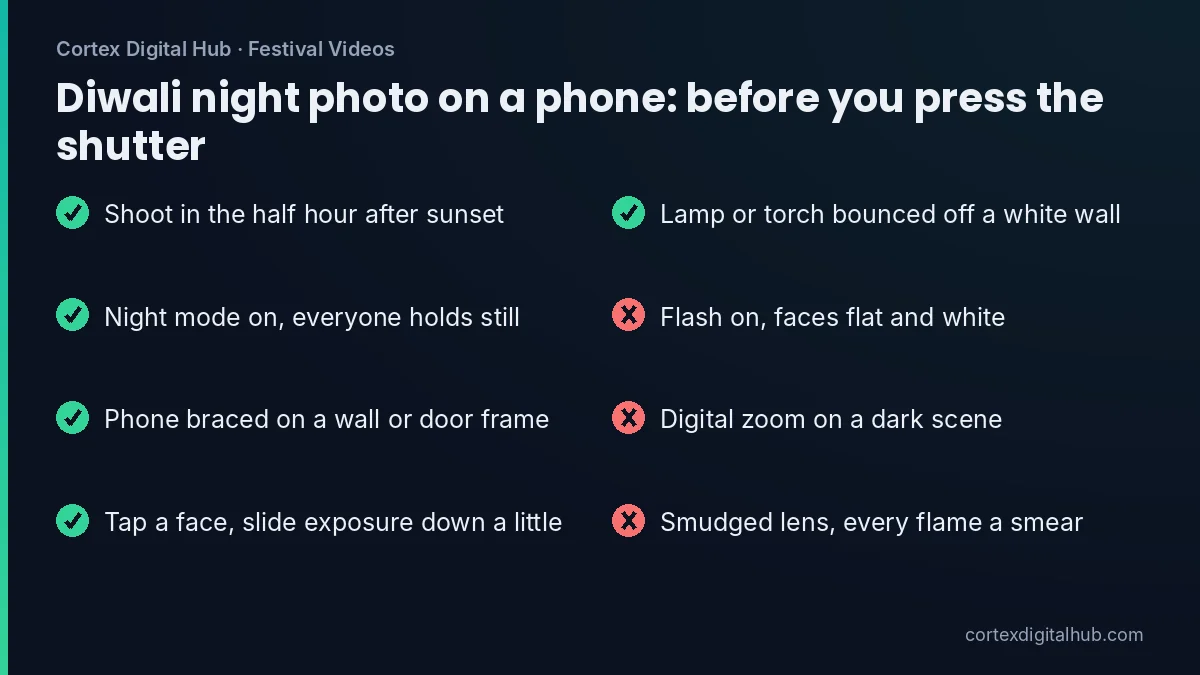 A good lamp-lit photo is mostly decided before you edit it.
Diwali photo editing in the free Photo Editor, step by step
Open the Photo Editor in your phone's browser and choose the photo. It opens JPG, PNG, WebP and the HEIC files iPhones save, and nothing is uploaded. Then work in this order:
- Crop first. The Crop tab has presets: 9:16 for WhatsApp Status, 4:5 and 1:1 for Instagram, 3:2, 4:3, 16:9 and A4. The Straighten slider rotates up to 15 degrees either way, enough to fix a leaning door frame.
- Press Auto in the Adjust tab. It stretches contrast and nudges brightness and saturation, a sensible starting point you can tune.
- Lift Shadows, not Exposure. Exposure brightens everything, including the grain and the flames. Shadows brings up only the dark parts: faces, the sofa, the corners.
- Pull Highlights down a little to bring back the shape of the flames and the shine on brass.
- Fix the orange. Move Warmth slightly to the left until skin looks like skin. If faces turn greenish or pink, correct with Tint. Leave some warmth; it should still feel like Diwali.
- Go easy on Saturation. Marigold and silk are already strong; a small lift is plenty.
- Leave Sharpen and Grain at zero on a noisy photo. Sharpen makes grain crisper. If speckle still bothers you, a touch of Blur, or the Soft filter, hides some of it.
- Try a filter. Twelve filters (Warm, Film, Vivid, Cinematic and more) stack on top of your sliders. Vivid suits a rangoli photo; Film suits the family on the sofa.
- Export. JPG at quality 85 to 90 is right for sharing. Choosing Half size also makes leftover grain less visible.
The editor also adds text in six fonts, a logo and simple shapes, which is handy for a shop's Diwali hours. For a family photo, keep the greeting in the caption.
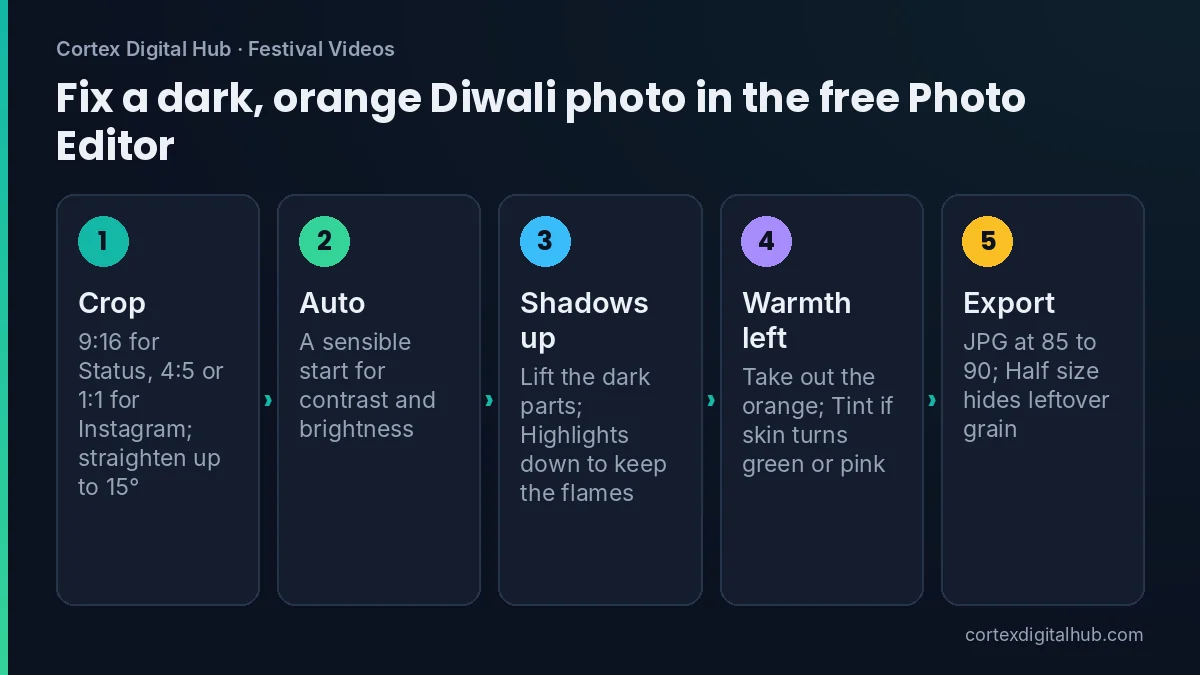 Crop, Auto, Shadows, Warmth, export: most lamp-lit photos need nothing more.
A clean portrait on a festive background
Sometimes the people look lovely but the room does not: a drying rack, a pile of sweet boxes, a tube light. Open the photo in Remove Background and it cuts out the person in one tap. Then pick what goes behind:
- Blurred keeps the real room but softens it, so the fairy lights become a warm glow and the clutter disappears.
- Photo places any picture behind them. Use your own shot of the lit balcony or the rangoli from the same evening, so the light matches.
- Colour gives a flat backdrop, useful for a shop's staff greeting.
Tick the soft shadow so the person sits naturally, and use the Keep and Erase brushes for hair, a dupatta edge or the curve of a diya. The model downloads to your browser once, about 18 MB, and runs on your device.
Resize and compress before you share
Thirty photos from one evening is a lot for a family group on a patchy network. The Image Compressor takes up to 50 at a time and brings each to a quality or an exact size you type, such as 500 KB. The Image Resizer sets exact pixels or a social preset, with crop or padding. If a relative on a Windows laptop cannot open your iPhone photos, convert them with HEIC to JPG first.
From one good photo to a Diwali video
Once you have one photo you love, it can do more than sit in the album. On the Diwali video page each idea opens the studio with a prompt written; you add the photo, which becomes the first frame, and in two to four minutes the diyas light up around the people in it. An evening photo with warm light blends best, which is exactly what you just made. If it is for Status, keep the 9:16 crop: the video takes the shape of the photo.
A 5-second clip on the studio's default model is 170 credits (₹85); a 6-second draft is 48 credits (₹24). You need a free account, and the Generate button shows the total before anything starts. Two good places to begin are lamp-lit portrait for Maa and diyas around the family. The first post in this series, a Diwali video with your photo, walks through the rest, and the best photo for image to video explains what the studio likes to start from.
Prompts to copy
Paste one into the studio after adding your edited photo, and change any detail you like.
Keep the face exactly as in the photo. Warm lamp light rises slowly on the face, a row of diyas flickers in the soft-focus foreground, a few marigold petals float past, the person smiles gently, very slow push in, calm sitar music.Keep the faces exactly as in the photo. Small clay diyas around the family light up one by one, marigold petals drift down slowly, everyone smiles softly, gentle push in, golden evening glow.Keep the face and clothes exactly as in the photo. A rangoli in marigold orange, pink and white blooms across the floor in front of the person, a ring of diyas glows at its edge, slow tilt down and back up, gentle bells.
Edit the photo first, then let the lamps move. A clean, warm frame gives the studio the best start.
Watch the video
Fix a dull, tilted listing photo in your browser · 2:16 · Watch on YouTube
Frequently asked questions
Why do my Diwali photos look so orange?
Diya flames and warm bulbs give a very warm light, and the phone only partly corrects for it. In the Photo Editor, move Warmth a little to the left and check the faces. Stop while the photo still feels warm; it is Diwali, not an office.
How do I brighten a dark Diwali photo without adding grain?
Lift Shadows instead of Exposure. Exposure brightens everything, including the noise and the flames; Shadows lifts only the dark parts. Keep Sharpen and Grain at zero on a noisy photo, and export at Half size if the grain still shows.
Should I use the flash for photos by diya light?
Usually not. Flash lights the faces flat and white and wipes out the glow of the lamps you were trying to capture. Use Night mode if your phone has it, hold still, and add light from a lamp or a torch bounced off a wall.
Is my photo uploaded when I edit it?
No. The Photo Editor and Remove Background both run inside your browser. The background remover downloads its model once, about 18 MB, and after that every photo is processed on your phone or computer.
Which crop should I use for WhatsApp Status?
9:16, which is one of the crop presets in the Photo Editor. Use 4:5 or 1:1 for an Instagram post. If the photo will become a Diwali video for Status, crop it to 9:16 first, because the video takes the shape of the photo.
Does editing reduce the quality of the photo?
No. You work on a fast preview, and the export runs every edit again on the original pixels at full resolution, or at half, quarter or double size if you pick one.
Can I turn the edited photo into a Diwali video?
Yes. Open the Diwali video page, pick an idea and add the photo; it becomes the first frame. A 5-second clip on the studio's default model is 170 credits (₹85), and a 6-second draft is 48 credits (₹24).