
Hinglish voice to text: a mixed Hindi-English note, written down right
Turn a Hinglish voice note to text in your browser: the language is detected for each part of the note, Hindi parts come out in Devanagari and English parts in English, and an English version sits beside them.
· 5 min read · 1.2K views · by the Cortex Digital Hub team
Leave the language on Detect automatically, drop the voice note, and read each part in the language it was spoken, with English beside it. Free · no sign-up · runs in your browser, nothing uploaded
Turn a Hinglish note into text → → Opens Voice to Text · runs in your browser
Your manager sends a two-minute note: "Arre, woh client ka call aaya tha, he wants the revised quote by Friday, aur haan, discount ki baat mat karna abhi." Half Hindi, half English, all in one breath. That is how most of us talk, and it is exactly what a Hinglish voice to text tool has to handle. Voice to Text detects the language for each part of the recording, writes each part in the script it was spoken in, and gives you an English version beside it. It runs in your browser, so the note is not uploaded.
How Hinglish voice to text works here
Most speech tools ask you to choose one language. Pick Hindi and the English words come out mangled; pick English and the Hindi turns into nonsense. Voice to Text splits the recording into parts at quiet moments and detects the language of each part on its own.
You get two boxes:
- As spoken. Hindi parts are written in Devanagari, English parts in English. This is the closest record of what was actually said.
- English. The whole note in English, ready to forward to someone who does not read Hindi. It comes from the browser's own on-device translator where it has one, as in Chrome, or from the speech engine otherwise.
Both boxes are editable, and Polish the English appears where the browser supports it to tidy the grammar.
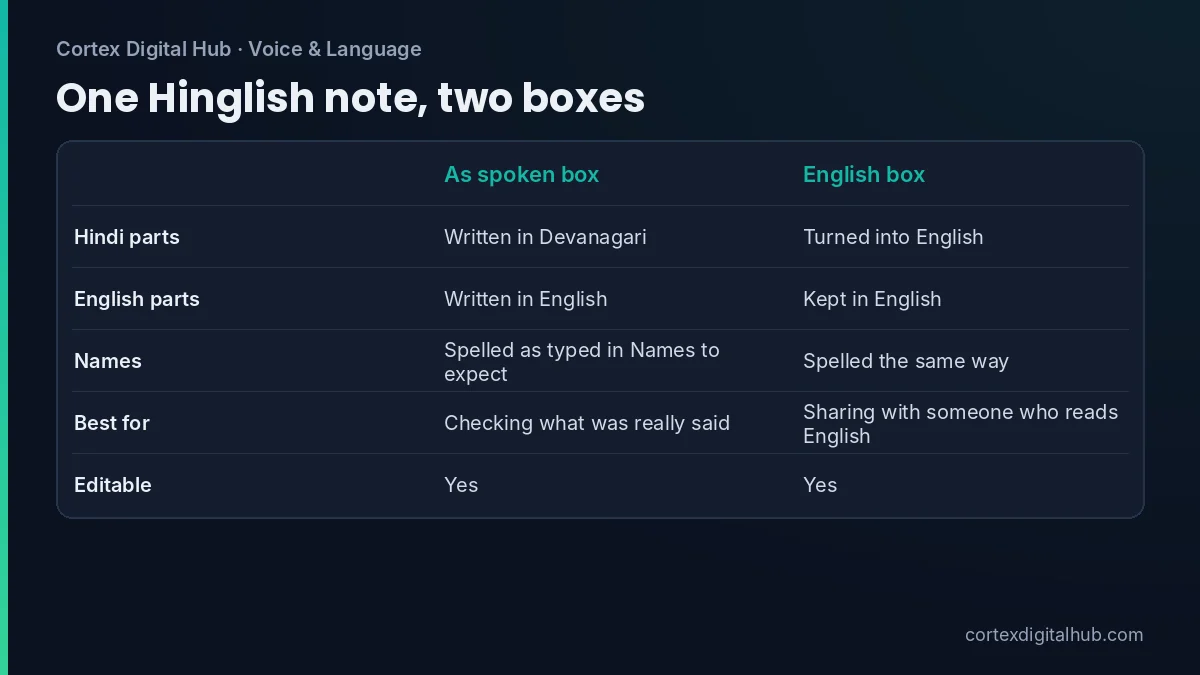 The As spoken box keeps each language in its own script; the English box gives the whole note in English.
One thing to know up front: the As spoken box does not write Hindi in Roman letters. If your team chats in Roman Hindi ("kal milte hain"), copy from the English box instead, or type the Roman version yourself from the Devanagari.
Step by step: a Hinglish note to text
- Save the voice note. On WhatsApp Web or Desktop, open the note's menu and download it, or forward it to yourself and save it. You get an .opus or .ogg file.
- Open Voice to Text in Chrome or Edge on a laptop.
- Choose Accurate. It is best for Indian languages: about 565 MB on computers with graphics acceleration in the browser, about 760 MB otherwise. It downloads once and starts in seconds after that. Light (about 250 MB) is quicker and best for English.
- Leave Spoken language on Detect automatically for a note that really mixes both.
- Type names in Names to expect: the client, the project, your colleague. They will be spelled the way you typed them.
- Drop the note, read both boxes, run through Before you copy, then copy or download.
When to pick Hindi instead
Detect automatically suits a note with plenty of both languages. Picking the language helps in two cases:
| Your note | Setting | Why |
|---|---|---|
| Long, real mix of Hindi and English | Detect automatically | Each part gets its own language |
| Short (a few seconds) and mostly Hindi | Hindi | Short notes give little to detect from |
| Noisy (traffic, wind) and mostly Hindi | Hindi | Noise makes detection less sure |
| Almost all English with a few Hindi words | Detect automatically or English | English dominates each part |
Lines that switch language mid-sentence
Detection works part by part, and a part can be a fair stretch of speech. When someone switches language in the middle of a sentence, that part is still written in one language. So you may see an English word like "quote" written in Devanagari, or a short Hindi phrase written in English letters.
This rarely changes the meaning in the English box, but it is worth a look in the As spoken box. Open Lines with times under the result and click any time to hear that part again. Then fix the line by hand.
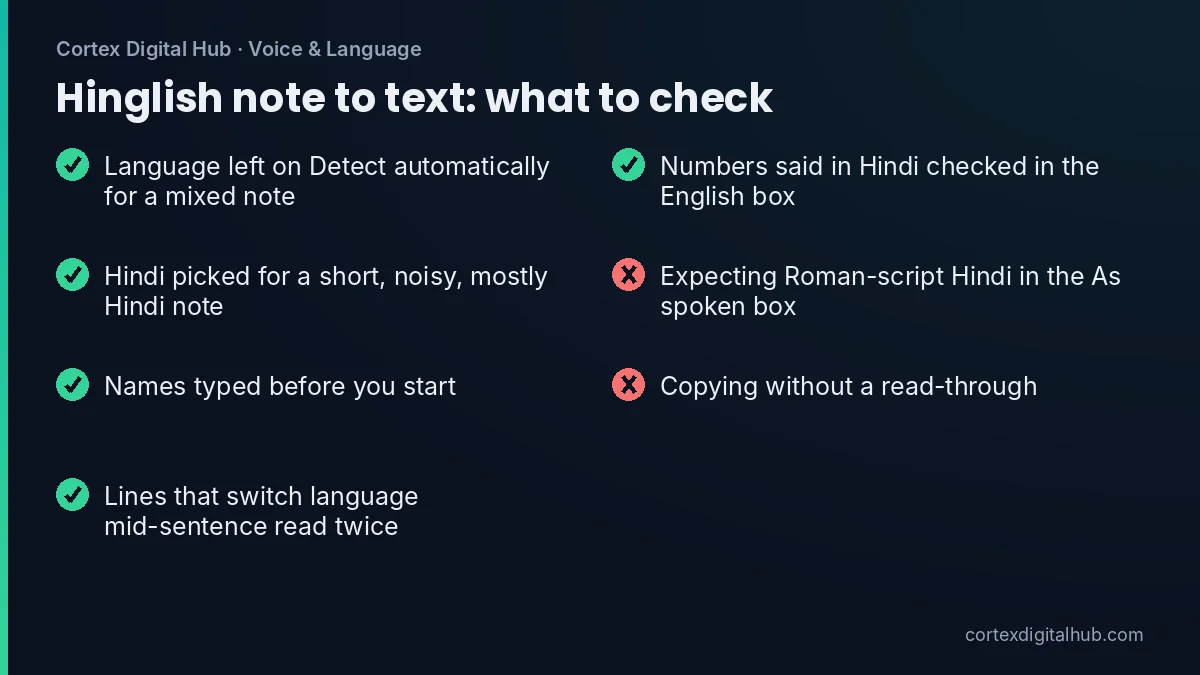 Detect automatically for a real mix, names typed first, and a second look at lines that switch mid-sentence.
Numbers, names and amounts
Hinglish speakers often say numbers in Hindi and units in English: "saadhe teen lakh", "pachchees tareekh". These are where mistakes hide.
- Check every amount in the English box against the original line.
- Write dates in full ("25 November") when you forward the text.
- Replay any line with a phone number and confirm it with the sender.
Accuracy always depends on the audio: a note recorded close to the phone in a quiet room comes out cleaner than one shouted across a busy shop.
Tenglish, Tamil-English and other mixes
Hinglish is the best-known mix, but the same per-part detection works for Telugu with English, Tamil with English, Marathi with English, and more. For the details of each language, see Hindi audio to English text, Telugu voice note to text and Tamil voice to text. Kannada results are weaker today than Hindi, Telugu or English, so pick Kannada and review carefully.
Who uses Hinglish notes to text
- Sales and service teams. A field agent's mixed note becomes an English update for the CRM or the client email.
- Small business owners. Supplier notes about rates and delivery dates turn into text you can search later.
- Families. A parent's long note with instructions for the house goes to a sibling abroad in English.
- Students. A friend's Hinglish explanation of a topic becomes notes you can read on the bus.
- Creators. A Hinglish voice-over draft becomes a script you can edit before recording it again.
In each case, read the As spoken box when the exact words matter, and the English box when the meaning is enough. If you plan to forward the text, a quick read-through takes a minute and saves an awkward correction later.
Private by default
A voice note from your boss or your family is nobody else's business. The speech engine runs inside your browser, the note is read on your device, and nothing is uploaded or stored on a server. Read why that matters in why browser-based tools are safer than upload sites.
Need the note as audio for someone without WhatsApp? Video to MP3 turns an .opus voice note into an MP3 that plays everywhere. For plain WhatsApp notes in a single language, the WhatsApp voice note to text guide walks through every step.
Watch the video
The voice note you can't play in a meeting · 1:19 · Watch on YouTube
Frequently asked questions
Can it handle a voice note that mixes Hindi and English?
Yes. The spoken language is detected for each part of the recording, so Hindi parts are written in Hindi and English parts in English. The English box gives the whole note in English.
Will Hindi come out in Roman letters?
No. The As spoken box writes Hindi in Devanagari, its own script. If you want everything in Roman letters, use the English box, which gives the meaning in English.
Should I pick Hindi or leave it on Detect automatically?
For a note that really mixes both, leave Detect automatically. For a short or noisy note that is mostly Hindi, picking Hindi helps.
What happens when someone switches language mid-sentence?
Each part of the note is written in one language, so a sentence that switches halfway may show some English words in Devanagari or the other way round. Read those lines against the audio.
How do I get the WhatsApp voice note onto my laptop?
On WhatsApp Web or Desktop, open the note's menu and download it, or forward it to yourself and save it. Then drop the .opus or .ogg file into Voice to Text.
Is the voice note uploaded?
No. It is read and turned into text inside your browser, on your device. Nothing is stored on a server and there is no account.
Does it work for Tenglish or Tamil-English notes too?
Yes, the same per-part detection works for Telugu, Tamil, Marathi and other languages mixed with English. Pick the Accurate engine on a laptop for Indian languages.
Turn a Hinglish note into text → →